If a Member is on KnowledgeShare but not assigned to a library service they will have an Assign to LKS button on their record. You will see limited profile information for unassigned Members (Job Title, Department, and Organisation).
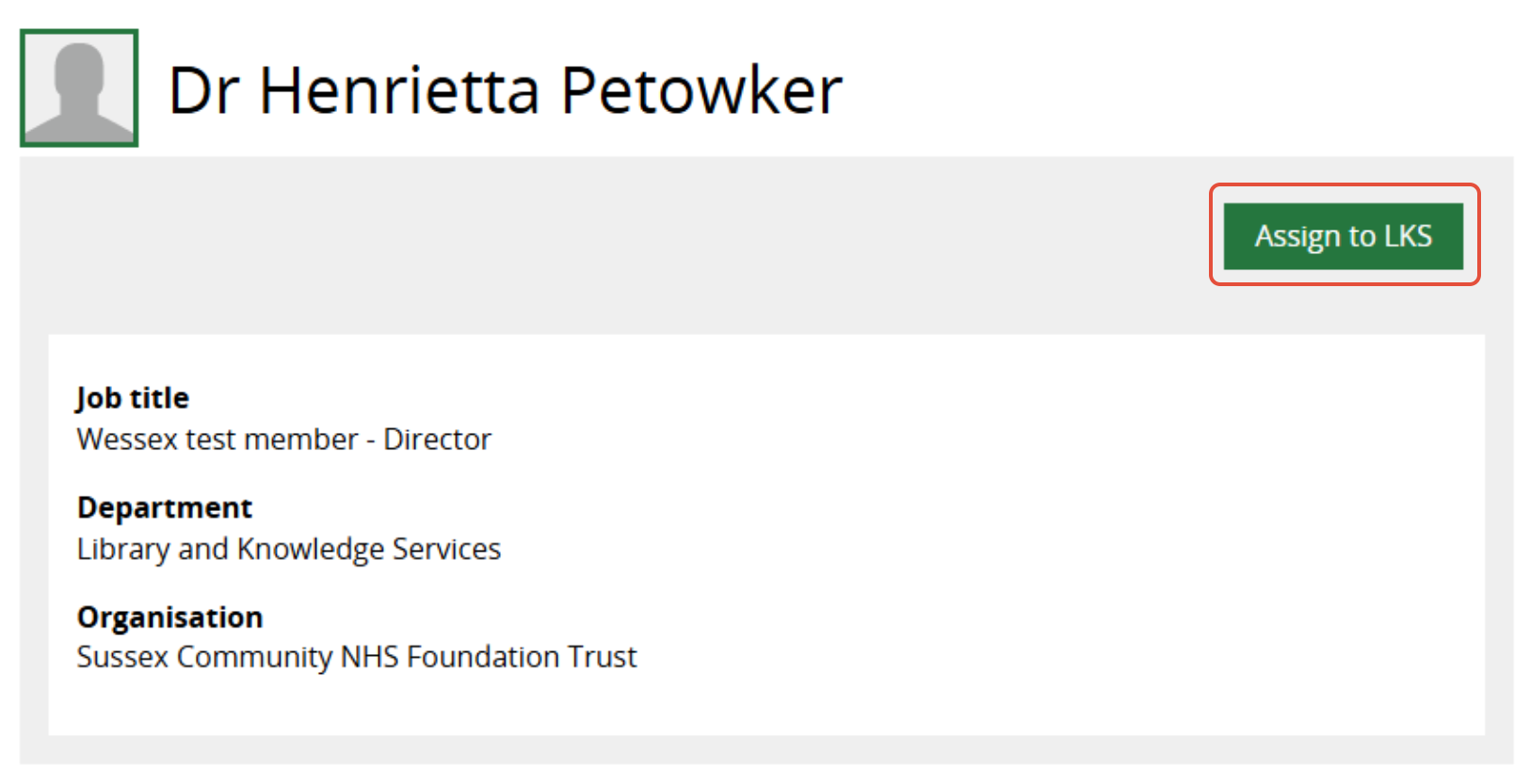
To assign or re-assign an unassigned member to your library service:
1. Click Assign to LKS.
2. Click OK on the popup message Are you sure you want to assign this user to your Library and Knowledge Service? User will be informed via email about this.
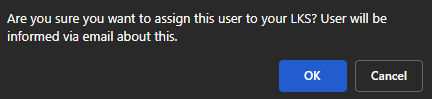
- An email will go to the Member telling them they have been assigned to your Library and Knowledge Service.
3. Update the Member's record. Check all required fields are populated and have the correct information.
4. Update the Member's Professional Interest page. If the Member already has professional interest categories and an email frequency other than Never, ensure that the Assigned Librarian field is populated so they can continue to receive their updates (select from the dropdown list).
See also: How to transfer a Member from another Library and Knowledge Service
Was this article helpful?
That’s Great!
Thank you for your feedback
Sorry! We couldn't be helpful
Thank you for your feedback
Feedback sent
We appreciate your effort and will try to fix the article