Confirming attendance on a Skills Session is essential in order to:
- gather statistics on attendance
- generate attendance certificates
- receive feedback from attendees
The option to register Members' attendance is available 15 minutes before a session begins, and indefinitely after that.
TABLE OF CONTENTS
- Register a Members’ attendance after a Skills session
- Register non-attendance when no booked Members attended
- Register Group attendance
Register a Members’ attendance after a Skills session
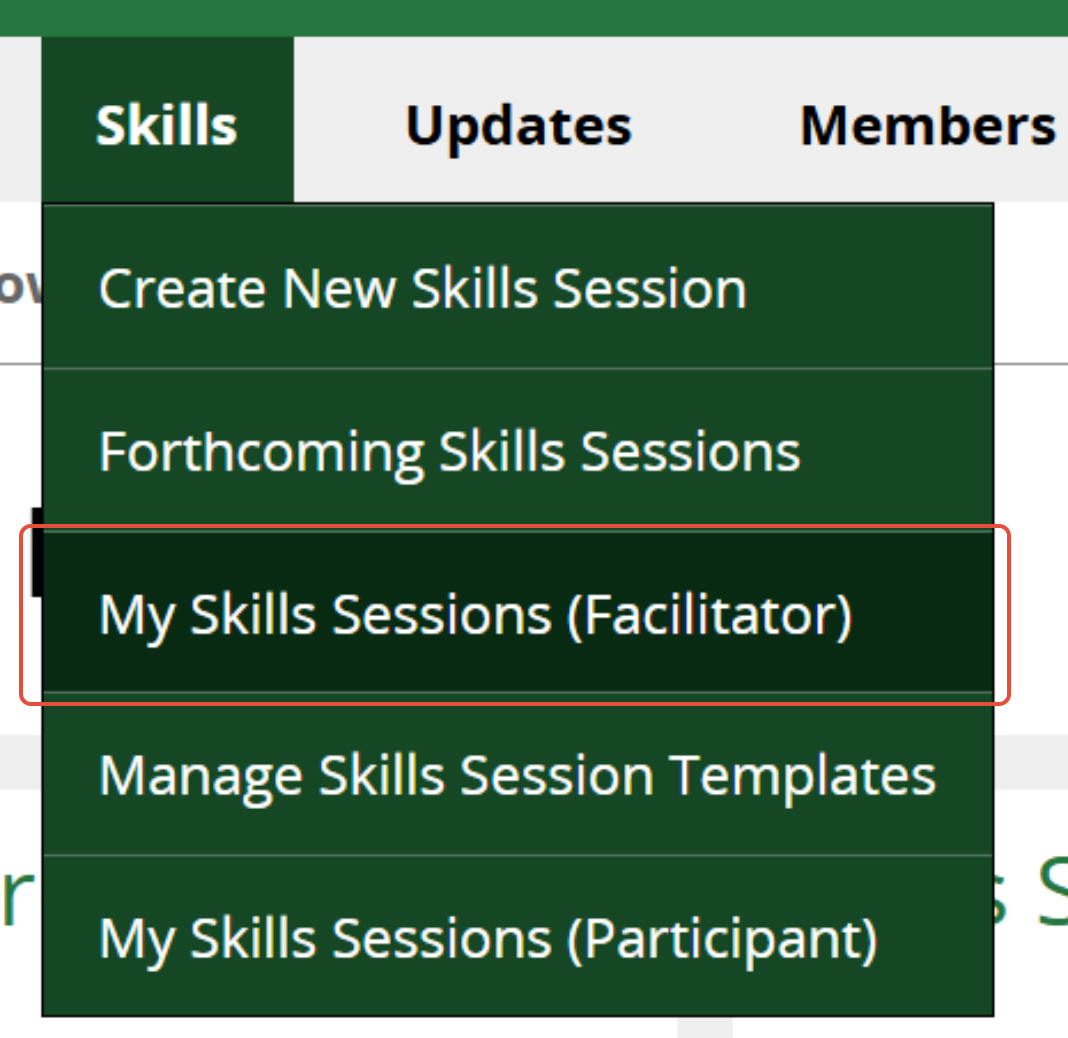
1. If you were the session leader/facilitator, click on My Skills Sessions (Facilitator) under the Skills menu.
2. Select the Archive tab and find the relevant session.
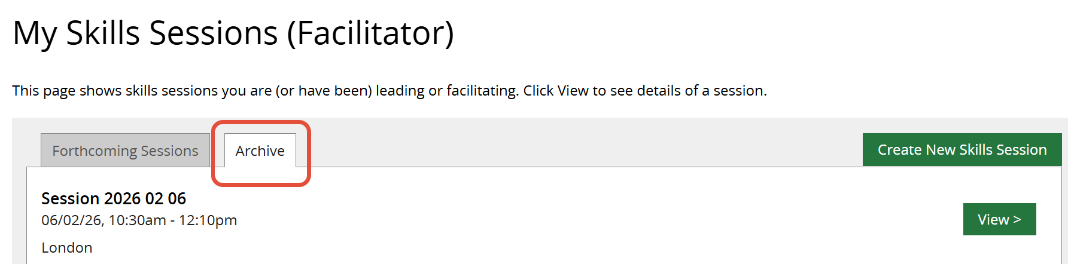
(If you were NOT a facilitator on the session, you will need to find it via Advanced Search.)
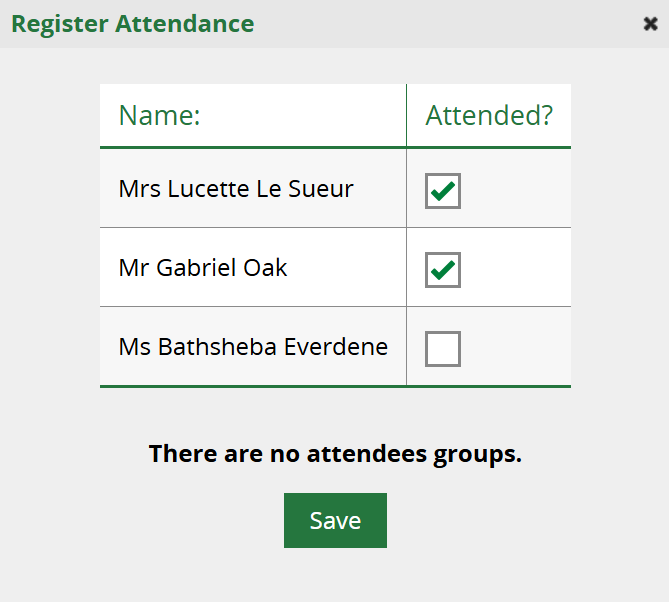
3. Click on the Attendee Register tab and click Register Attendance.

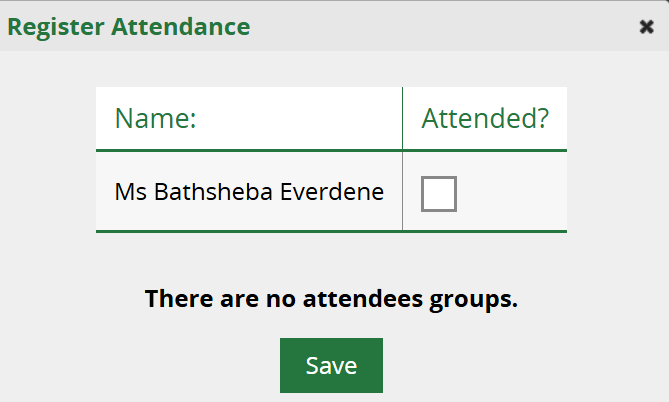
4. Check the boxes next to those Members who have attended and then click Save.
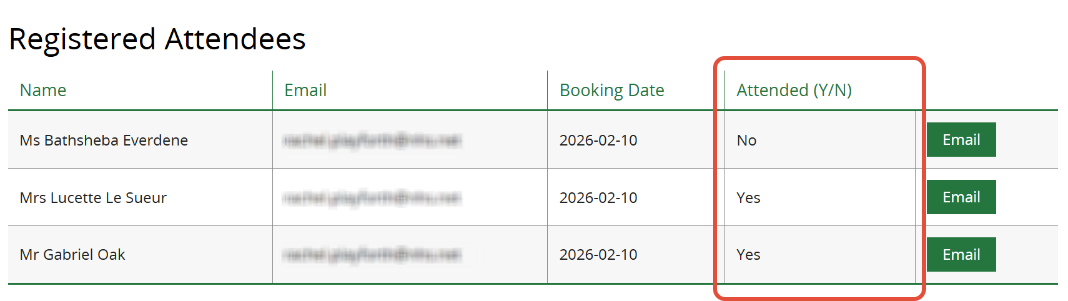
The Members’ attendance will now be displayed in the Registered Attendees table in the Attended Y/N column.
The session leader will receive a reminder email 1 week after the session if attendances are not yet registered. (Subject line: Please confirm attendance on your KnowledgeShare skills session). The email continues to be sent weekly until attendance is confirmed.
Register non-attendance when no booked Members attended
Even if only one Member is booked on a session and they do not attend (or several were booked and none attended), you must actively record this.
Following this step will update the session and Member records to show that they haven’t attended the session (rather than their attendance status being unknown).
1. Follow the steps above to locate the session and click Register Attendance.
2. Leave all the boxes unchecked and click Save.
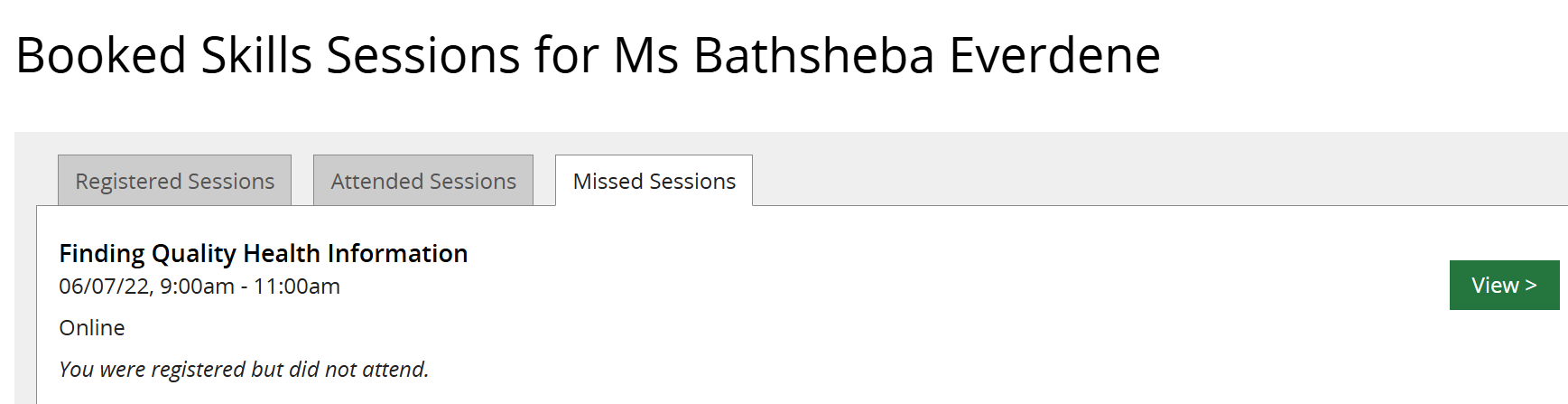
The session will now show under the Missed Sessions tab on the Member's record.
Register Group attendance
1. Find the relevant Skills session as above
2. Click on the Attendee Register tab and click Register Attendance.

3. Enter the number of Members who attended and click Save. This may be different from the predicted count (the number entered when registering the group.)
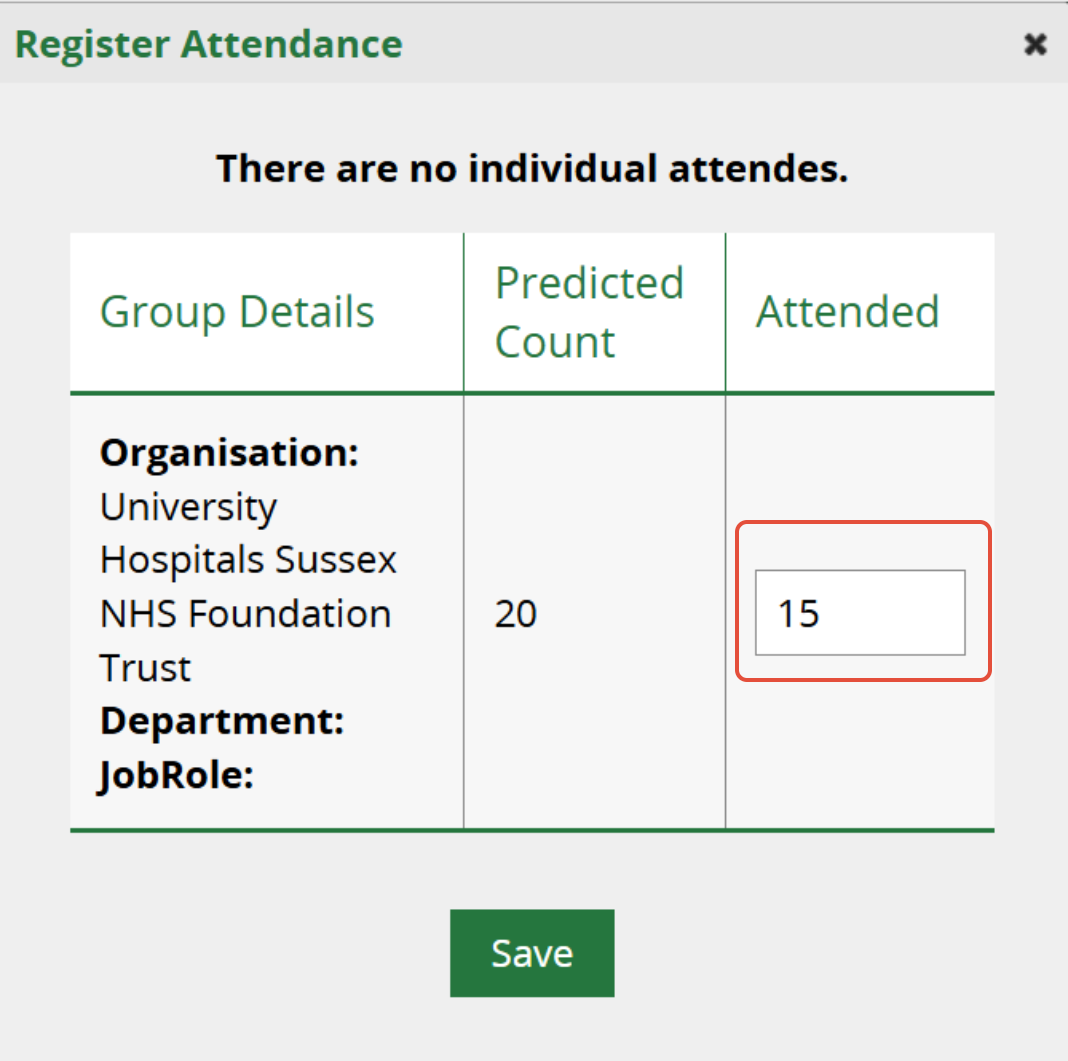
The Members’ attendance will now be displayed in the Anonymous Attendees section at the bottom of the page in the Attended column.

Was this article helpful?
That’s Great!
Thank you for your feedback
Sorry! We couldn't be helpful
Thank you for your feedback
Feedback sent
We appreciate your effort and will try to fix the article