For inductions and other sessions where individual attendee names are not captured, staff can book a group of members on the session without creating individual member records on KnowledgeShare.
Nb for group bookings KnowledgeShare does not automatically send feedback forms to attendees, or allow you to create Certificates of attendance.
To book a Group onto a Skills session:
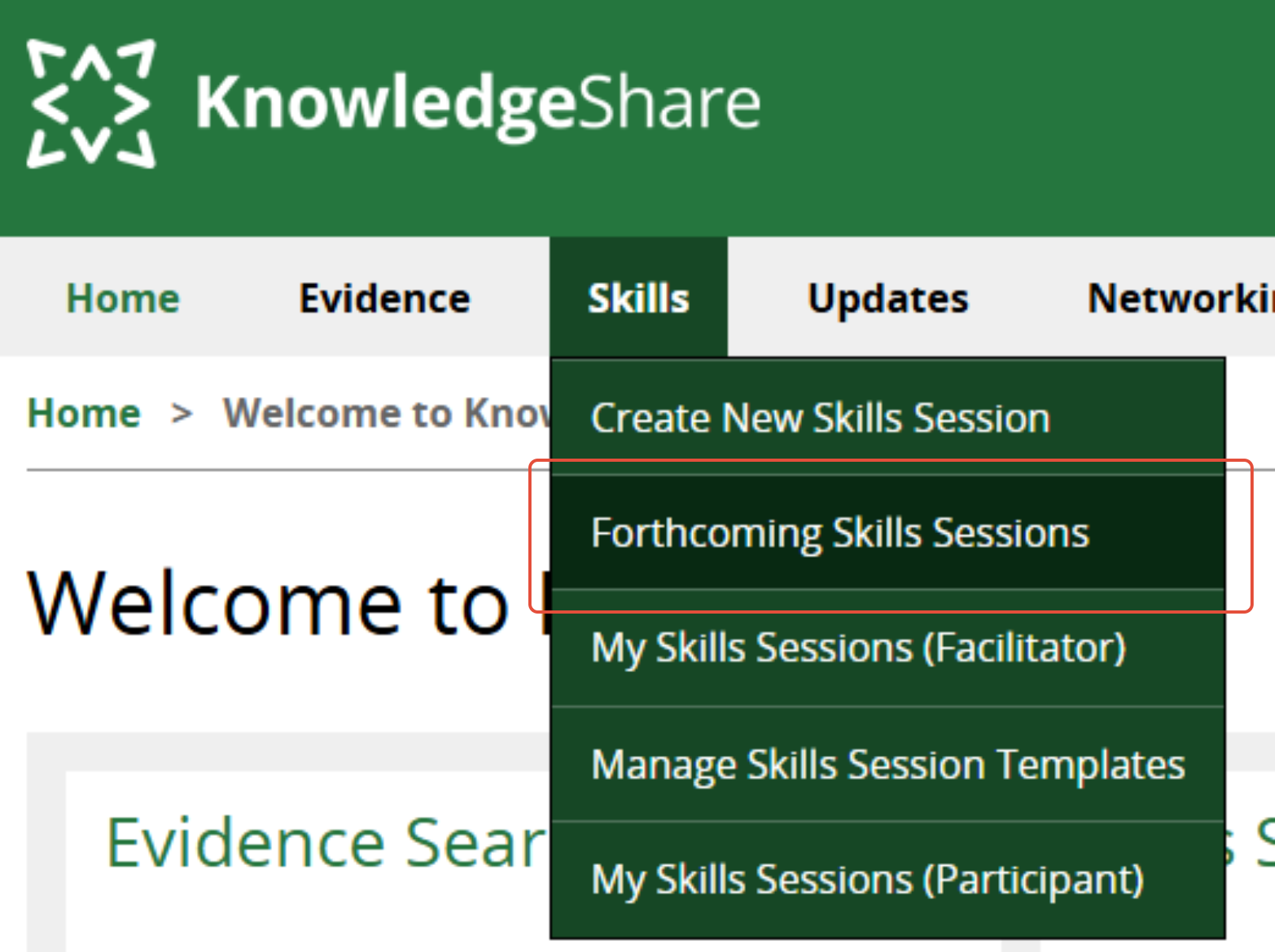
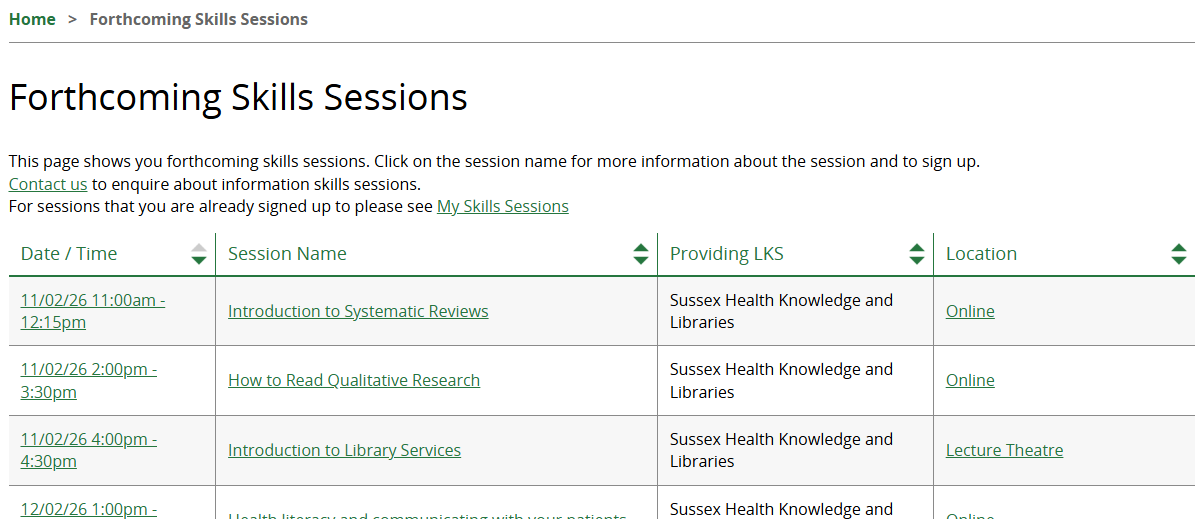
- Find the session via the Forthcoming Skills Sessions page (or via Advanced Search if the session is in the past).
- Click on the session name.
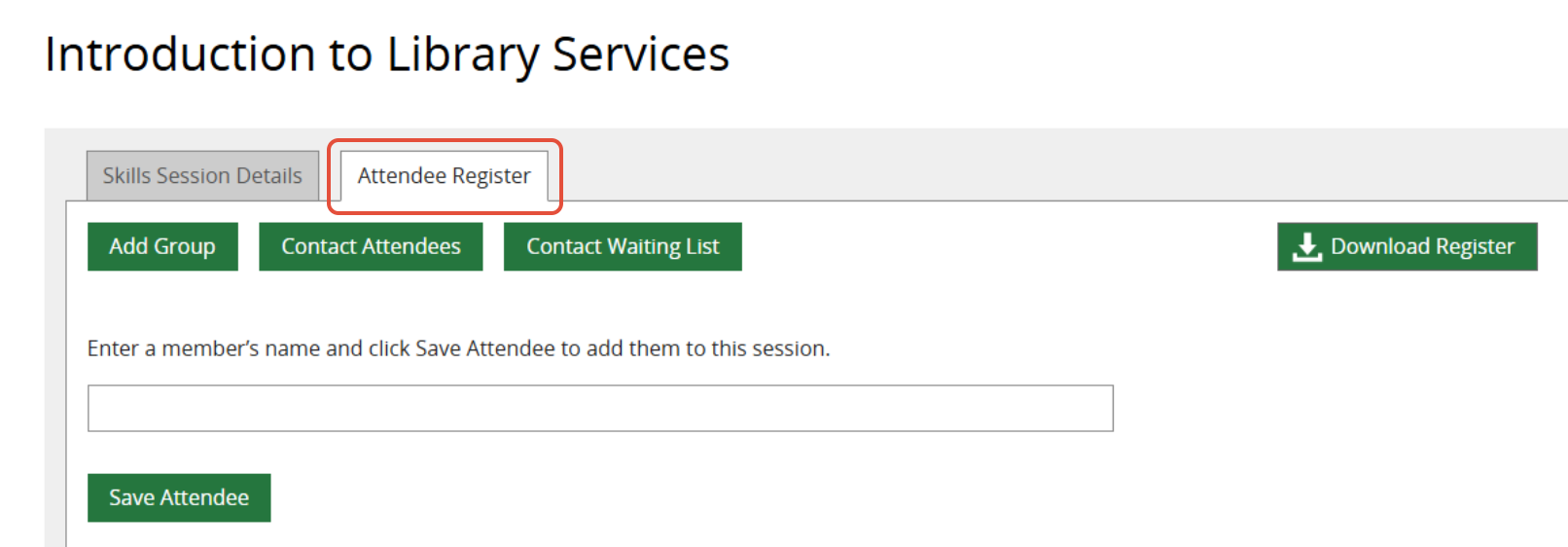
- Select the Attendee Register tab.
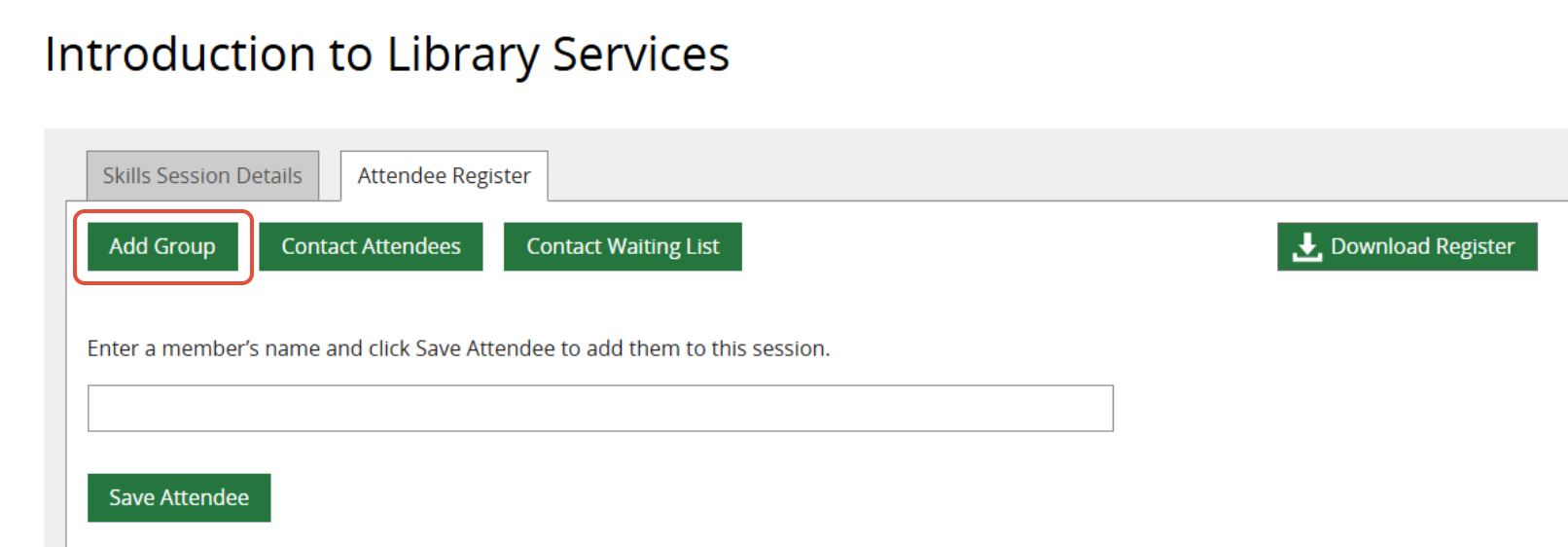
- Click on Add Group.
- Enter the details in the group section
- Number of Attendees (type in)
- Organisation (select from dropdown)
- Department (select from dropdown)
- Job Roles (select from dropdown)
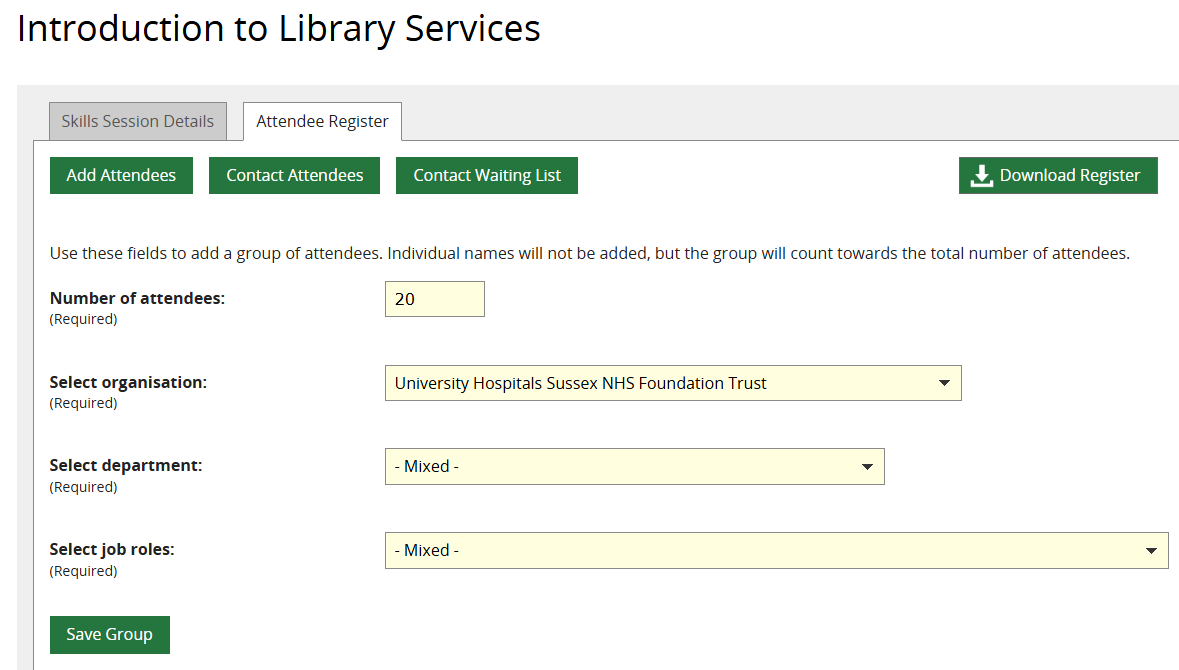
Although all fields are mandatory they can be left with default setting of -Mixed- if necessary. Where present, organisation, department and job role details are included in your statistical reports.
• Click Save Group.
When a group has been booked on a session they will be displayed at the bottom of the screen under the heading Anonymous Attendees.
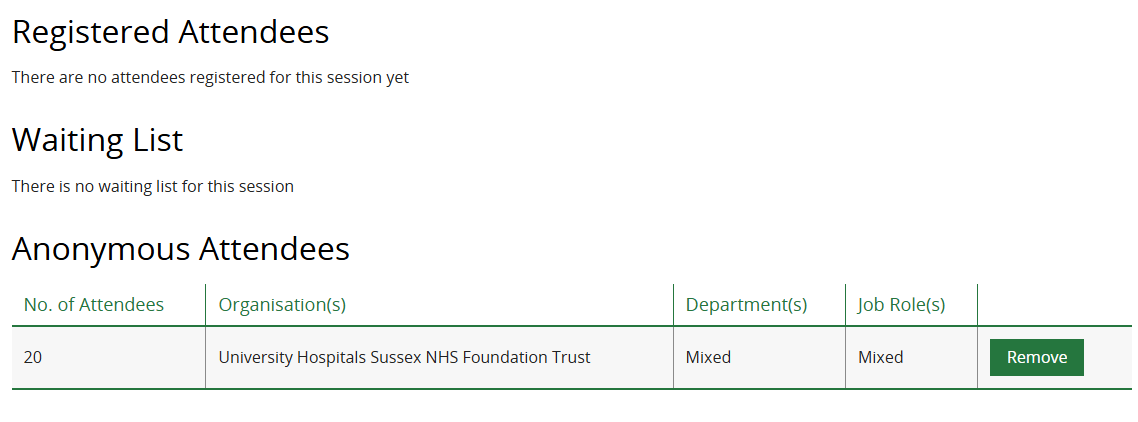
To confirm the number that actually attended after the session, see How to record Skills session attendance.
If you later want to convert a group into individual bookings (eg because you collected names on the day) you will need to Remove the group from the Anonymous Attendees table. Then add each person via the lookup field and Save Attendee. See How to book Members onto a Skills session.
Was this article helpful?
That’s Great!
Thank you for your feedback
Sorry! We couldn't be helpful
Thank you for your feedback
Feedback sent
We appreciate your effort and will try to fix the article