You can add supporting materials (pre-reading, handouts, slides etc) to a session either before or after it takes place. There are several options for attendees to access the material.
- Locate the relevant session and view the Skills Session Details tab.
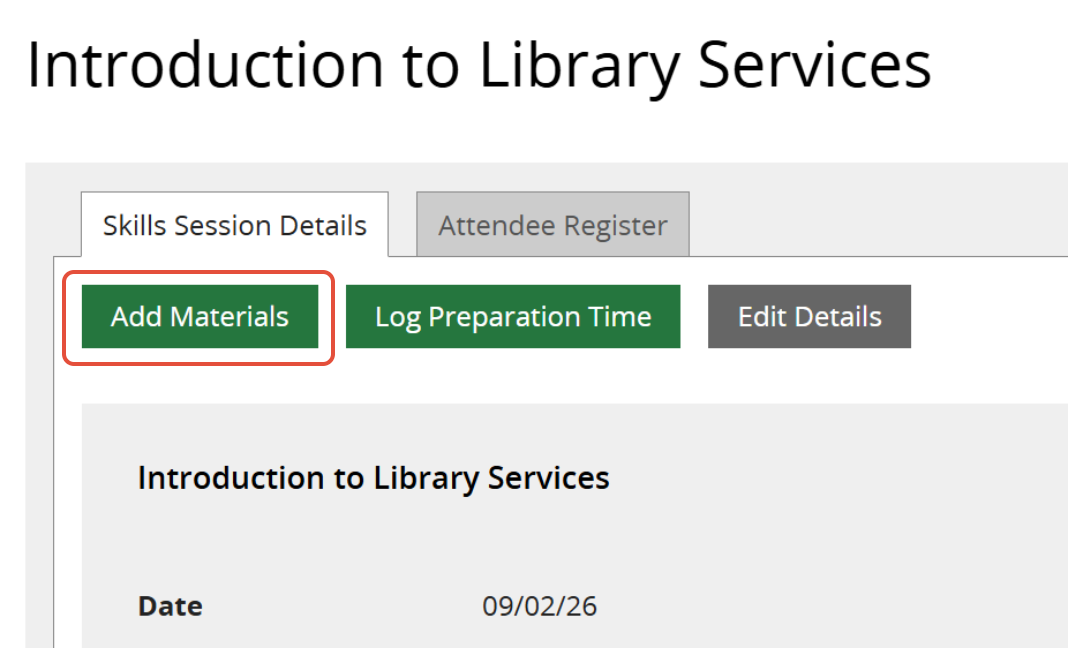
- Click on Add Materials.
- Click on Choose File and browse for the file you would like to add, then click Upload.
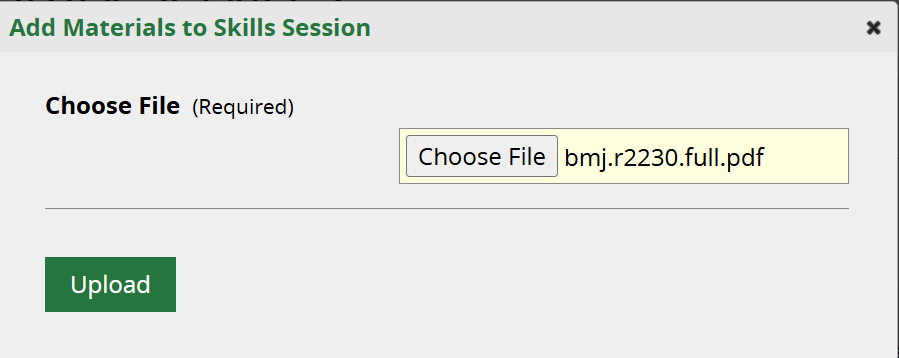
- Repeat this process for any additional documents.
Nb uploaded files must each be under 5MB. The combined size of all uploaded files must be under 15MB.
The support material for the session is listed at the bottom of the Skills Session Details page.

Member access to course materials
Logged in Members can Download the materials from sessions they are booked on/attended.
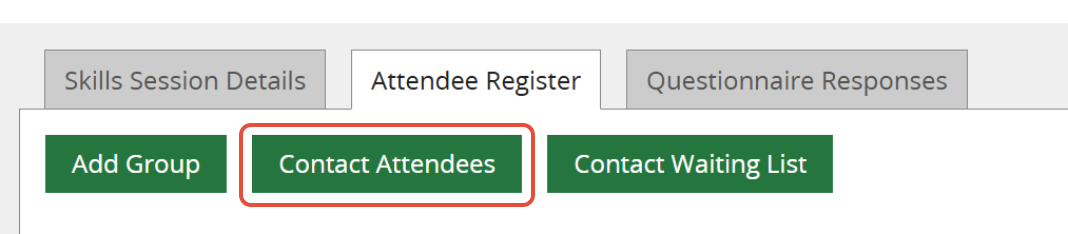
You can send out materials either before or after the session using the Contact Attendees button on the Attendee Register tab.
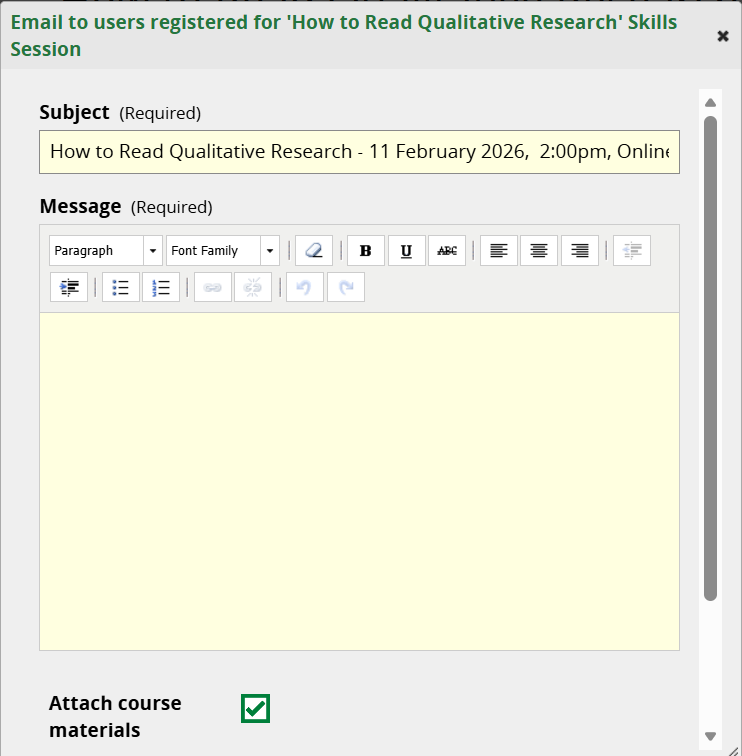
Compose your email and tick the Attach course materials checkbox. Materials will be sent as an email attachment (nb upload your materials first.)
You also have the option to send the course materials at the same time as the Certificates of attendance. See How to create attendance Certificates.
Was this article helpful?
That’s Great!
Thank you for your feedback
Sorry! We couldn't be helpful
Thank you for your feedback
Feedback sent
We appreciate your effort and will try to fix the article