If a member has left your organisation then they should be unassigned and not deleted (See: Unassigning versus deletion)
Unassigning a member from your service
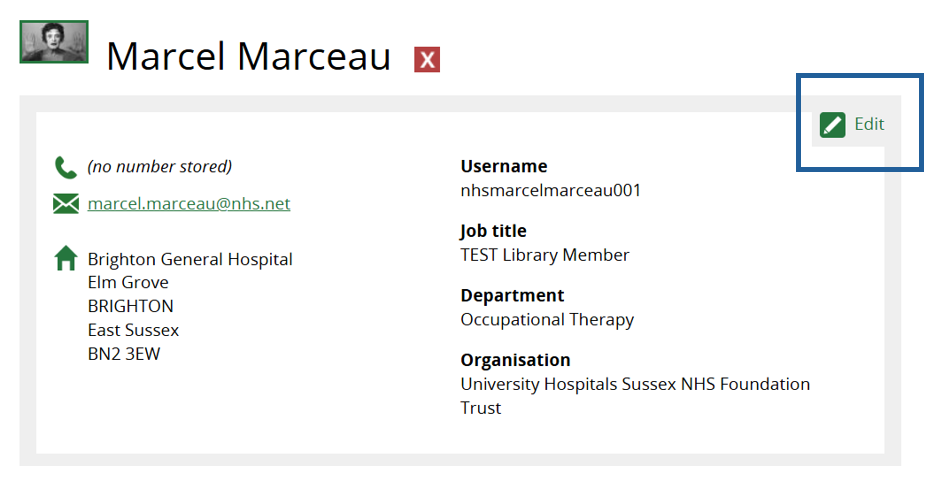
1. On the Members profile page click on Edit on the Personal Information section
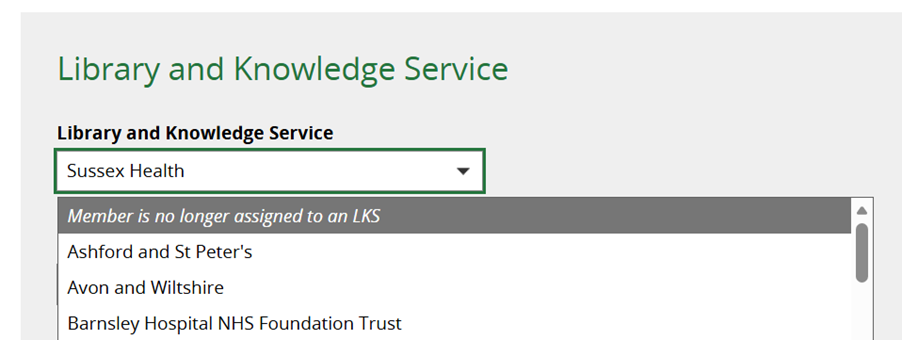
2. From the Library and Knowledge Service drop down list select Member is no longer assigned to an LKS
3. Click OK on the pop-up message: “Removing [MEMBER NAME] link to this Library and Knowledge Service will mean that they can no longer log in to KnowledgeShare. An email confirmation will be sent to [MEMBER NAME]. Do you want to continue?”
4. Emails will go to the member and local administrator to inform them of the action.
Note: Once unassigned, it is not possible to make changes to the record of a member
FAQ’s
What happens to un-assigned Member records if they are not re-assigned?
Once unassigned KnowledgeShare will keep Member information for a further two years (in case the member returns to using the services after a break) Auto-deletion will occur thereafter.
The system will only store as much information about Members as is required and will securely destroy any personal information about Members when it is no longer of use.
Signs that a Member has left your organisation
There is no leaving date field on a Member’s record. Members will be automatically unassigned if they have had no account activity in a three year time period. Once unassigned, KnowledgeShare will retain Member information for a further two years before it is auto-deleted.
See the KnowledgeShare information governance and privacy policy: Information Governance and Privacy Policy
Out-of-office messages: Assigned librarians will receive out-of-office messages from their members when sending Evidence Updates. Be sure to check these quickly for any that indicate that the Member has left the organisation and unassign them.
Disable All Emails
If a Member is on sabbatical, maternity leave or other long-term leave that means they are away from work for a number of months but are planning to return, please use the ‘Pause all KnowledgeShare e-mails” function: See: Disable all emails
See also:
Member accounts: Unassigning versus deletion
Was this article helpful?
That’s Great!
Thank you for your feedback
Sorry! We couldn't be helpful
Thank you for your feedback
Feedback sent
We appreciate your effort and will try to fix the article