The 'Merge with another user' function allows you to merge all the professional interests, skills sessions and evidence searches on two member records into one.
Both records need to be assigned to the same library service for the function to work.
CONTENTS
Merging two Member records
1. Search for the member and open both records in separate tabs/windows to compare them.
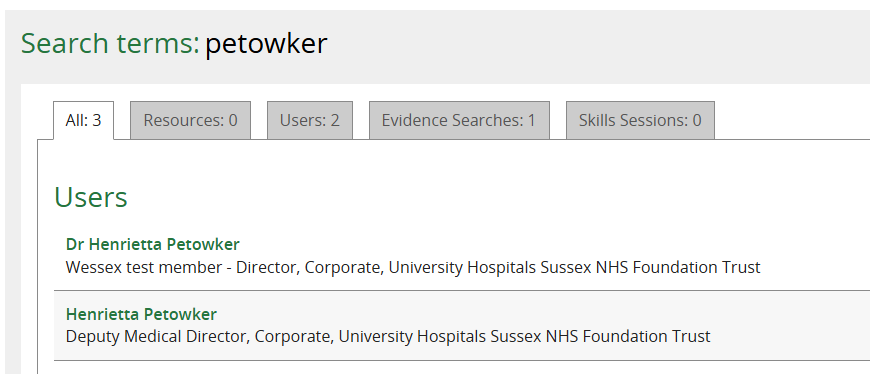
2. Edit the records by clicking on the pencil icon in the profile box.
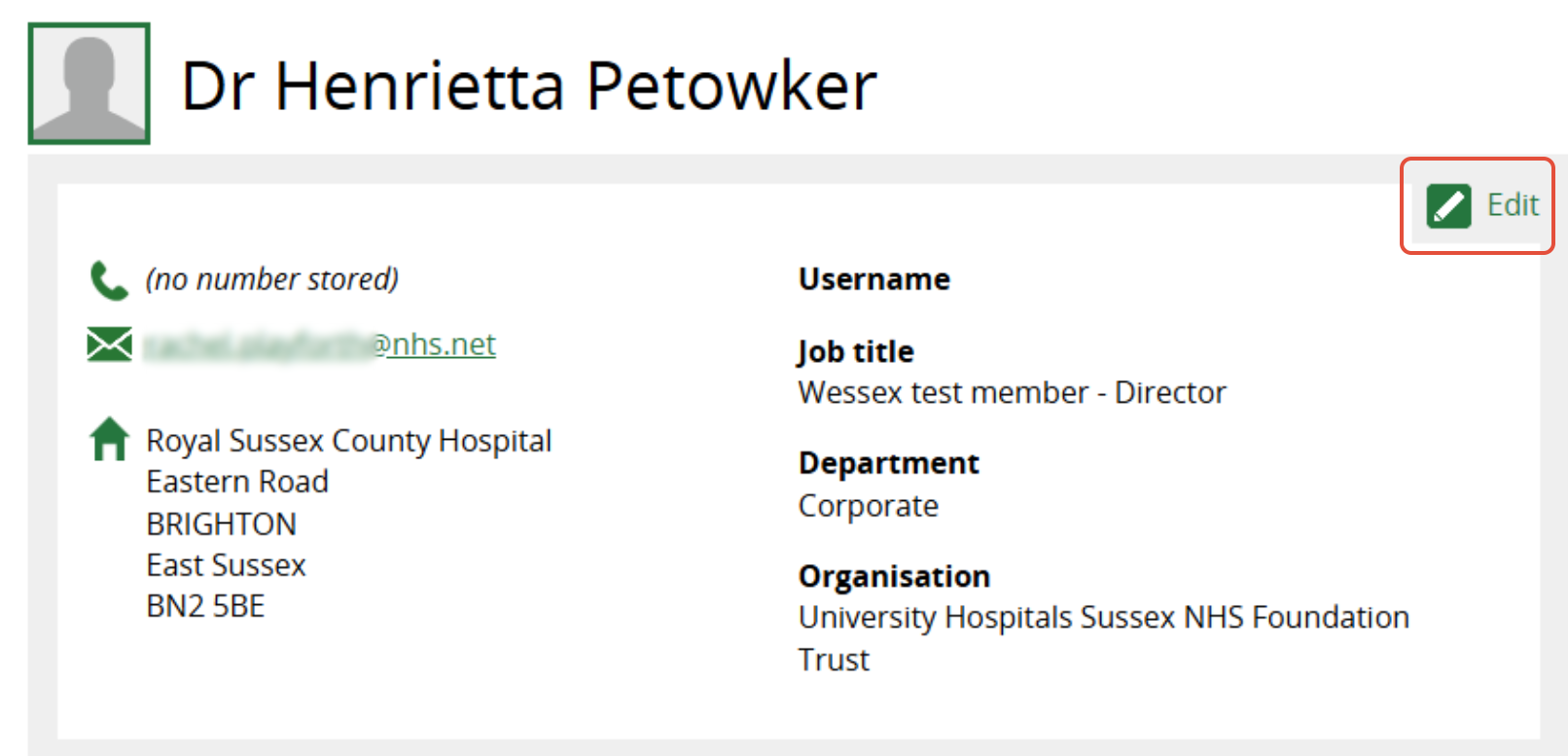
3. In most cases, select the Member record with the most recent data, indicated by the Joining Date, as the record to be saved. (An exception would be where the newer record has been created in error and has no new or updated information that needs to be retained.)
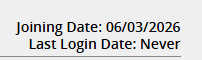
Note: All past evidence searches and skills sessions are retained, whichever record is saved.
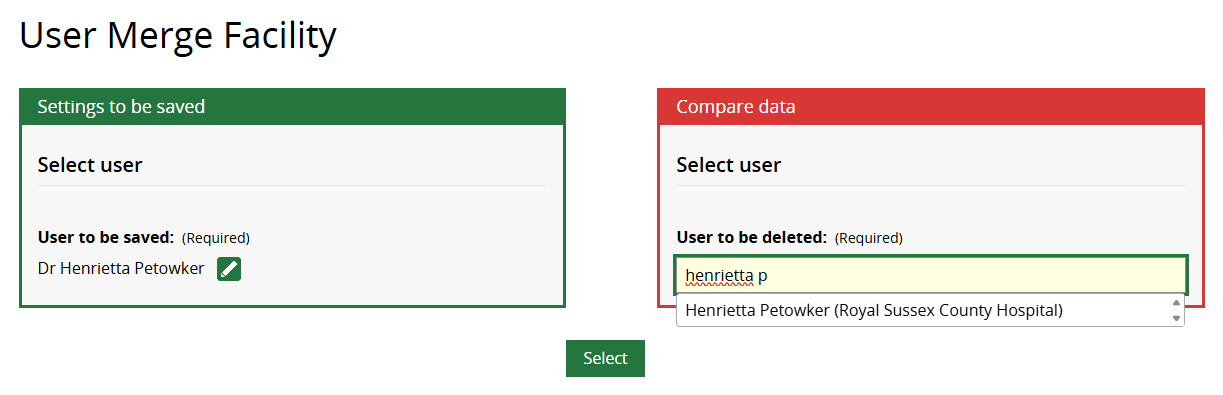
4. On the record to be saved, click on Merge with another user at the bottom of the user edit page.

The Member you selected is in the green Settings to be saved column on the left.
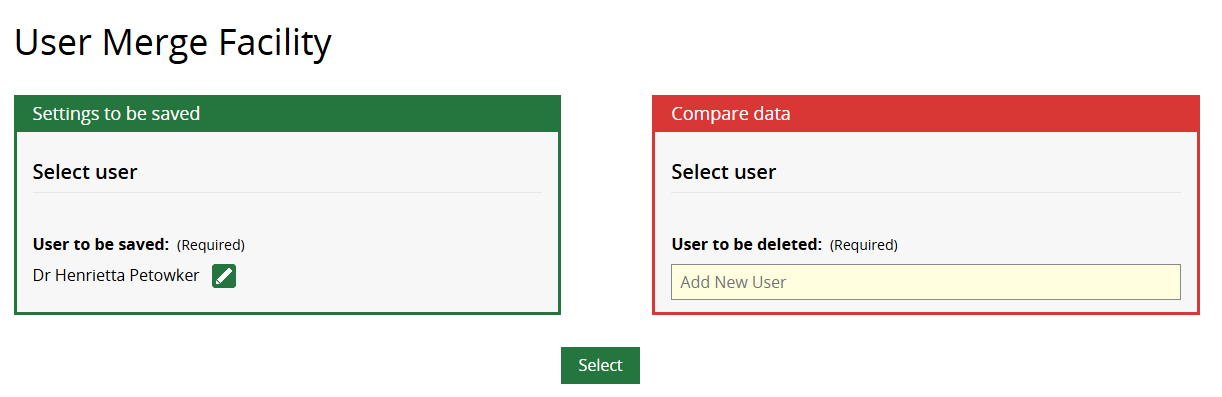
5. Search for the duplicate Member record in the red Compare data column on the right, and click Select when found.
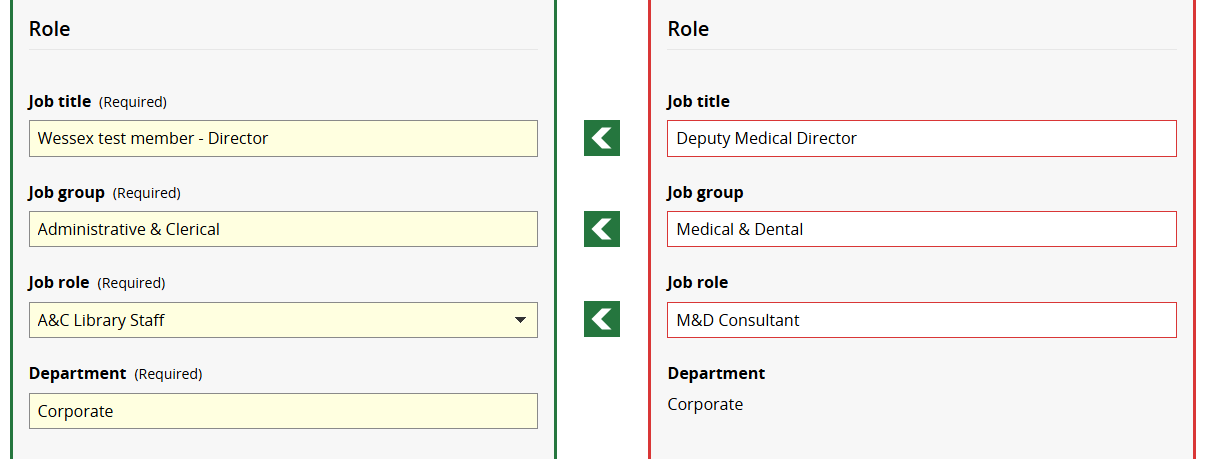
6. Compare the data from the two records and copy any information that needs to be saved into the green column on the left, using the arrow buttons. You can copy missing information into empty fields, or more recent information into filled fields.
Merging Professional Interests for two Member records
There are three options to consider when deciding how to merge the professional interests from two member records:
1. Merge
This allows you to combine the categories from the left-hand record and the right-hand record. You can then unselect categories before Saving.
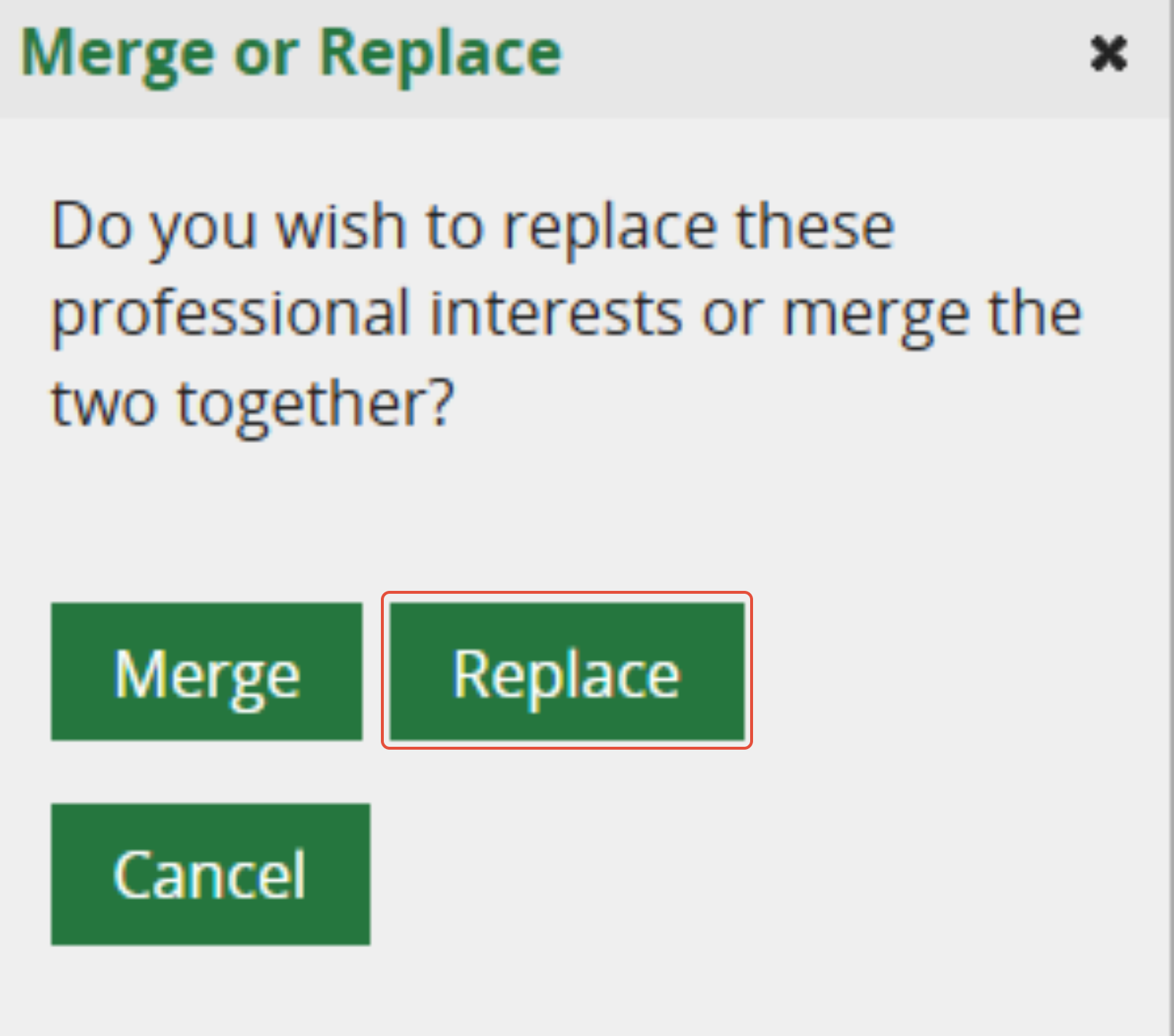
2. Replace
This allows you to replace the categories from the left-hand record with the categories from the right-hand record. You can then unselect categories before Saving.
3. Additional set of interests
This allows you to add the categories from the right-hand record as an additional set of interests for the left-hand record.
To merge
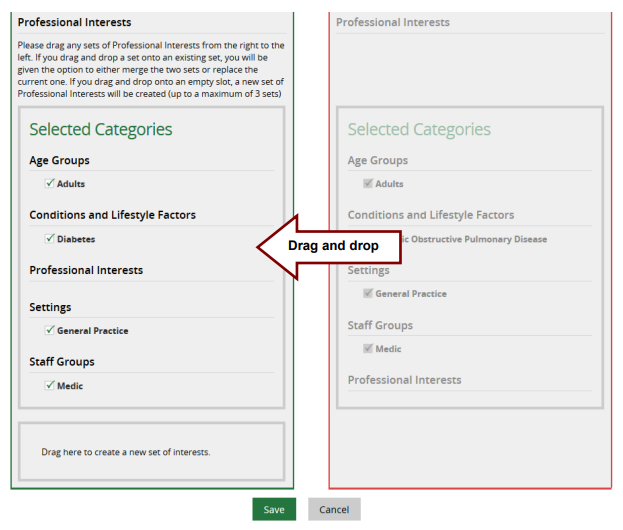
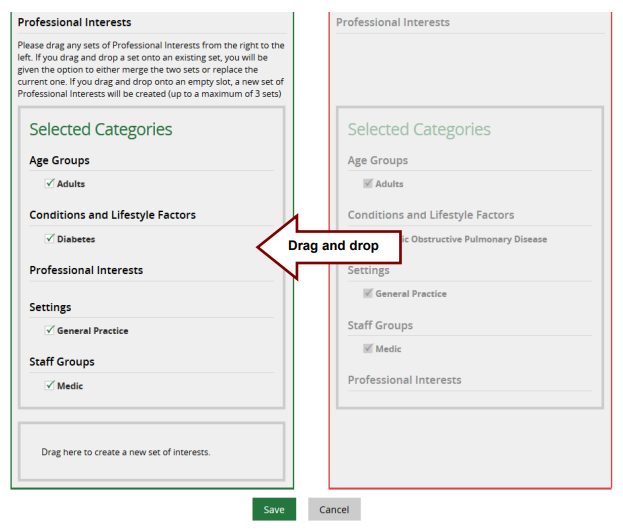
1. Drag the Selected Categories box from the right-hand record, over the Selected Categories box in the left-hand record.
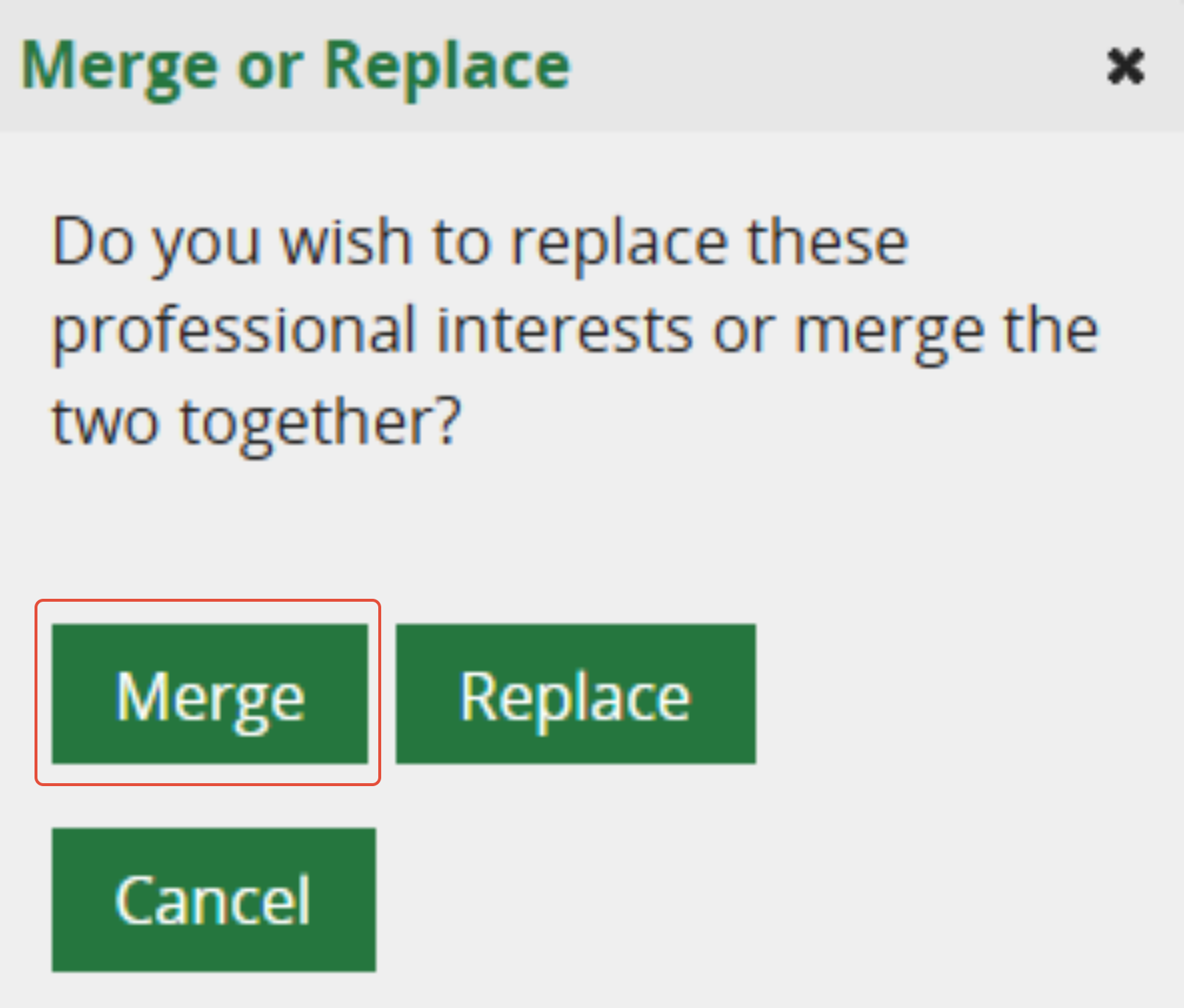
2. In the Merge or Replace pop up message, click Merge.
The categories from both records will be merged together in the left-hand record.
To replace
1. Drag the Selected Categories box from the right-hand record, over the Selected Categories box in the left-hand record.
2. In the Merge or Replace pop-up message, click Replace.
The categories from the right-hand record will replace the categories from the left-hand record.
To create an additional set of interests
1. Drag the Selected Categories box from the right-hand record to the Drag here to create a new set of interests box in the left-hand record.
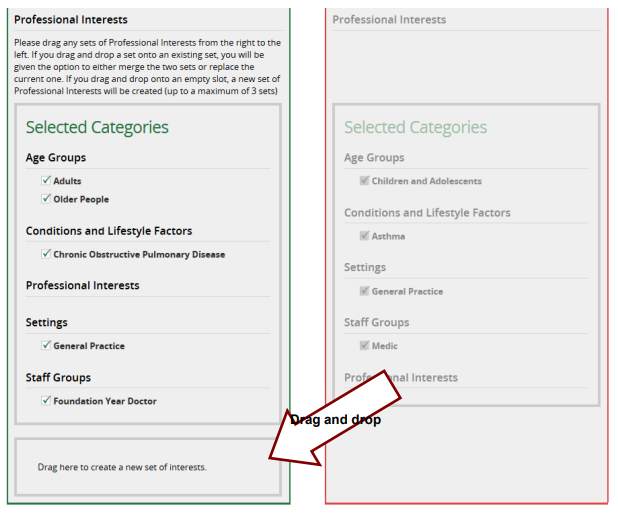
An additional set of interests will be created for the left-hand record (the record to be saved).
Complete the merge
When all the relevant or most recent information is transferred from the red right-hand column to the green left-hand column, click Save.
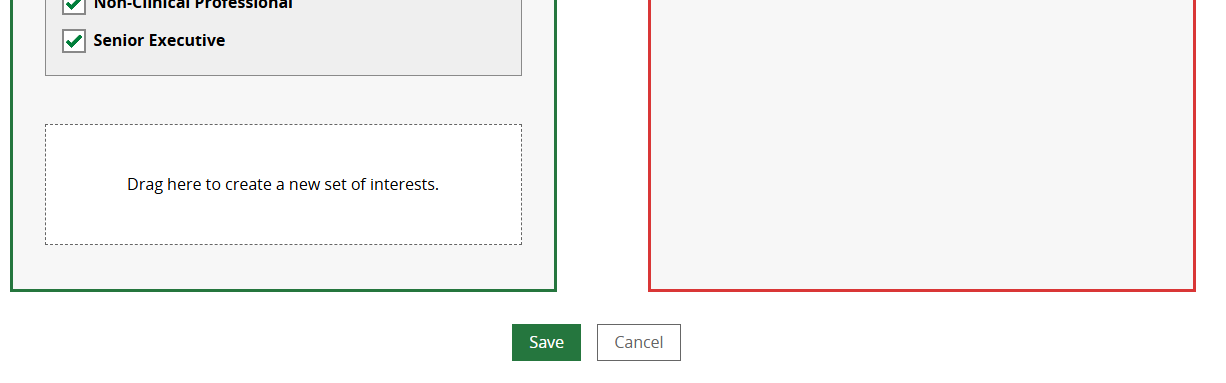
You will be taken to the Member's profile page. The duplicate record is automatically deleted.
Was this article helpful?
That’s Great!
Thank you for your feedback
Sorry! We couldn't be helpful
Thank you for your feedback
Feedback sent
We appreciate your effort and will try to fix the article