What is an email template?
When KnowledgeShare sends emails to members, the body of the email is based on a template. There are many different templates for all of KnowledgeShare's functions.
There are three levels of template:
- System Level Email Template: This is the default template and can only be edited by System Administrators.
- LKS Level Email Template: This overrides any System Level version of this template. The template can be added and edited by LKS Administrators in your library service on behalf of all team members.
- Personal Level Template: This overrides any LKS Level and System Level version of this template. The template is personalised and can be edited by assigned librarians.
Nb to maintain consistency for new users, we do not recommend creating a Personal Level template for the Welcome email.
The system level email
This is the default Welcome email that is sent to newly added Members unless an LKS Level template is created in its place.
The text highlighted below is where the system will insert data to personalise the email, and it is important that you include the code elements at these points if creating a custom version:
Dear {{RecipientSalutation}},
As a member of {{LKSName}}, your details have been added to the KnowledgeShare system, which we use to provide and manage your access to library services.
Please log into KnowledgeShare and check your details:
- Click: [confirmation link] Please accept cookies to allow this process to work
- Enter the email address this email was sent to
- Log in with your NHS OpenAthens username and password
You will then be able to directly access KnowledgeShare using your NHS OpenAthens login. If you don't have an NHS OpenAthens username and password you can self-register at: https://openathens.nice.org.uk/
When you log in you will be asked if you are happy to share your contact information with other KnowledgeShare members. Doing this helps in the sharing of knowledge across healthcare, and connecting staff together across geographical boundaries.
We are committed to safeguarding your information. The information you supply will be used to contact you about services or resources you have requested from the Library and Knowledge Service. For further information on how we keep your information secure, and your rights to access it, read the full KnowledgeShare Privacy Policy.
With kind regards
{{SenderFirstName}}
{{SenderName}}
{{SenderJobTitle}} | {{SenderEmail}}
{{SenderLKSName}} | {{SenderLKSWebsite}}
All code elements are enclosed in a double set of braces {{ }} It is important that these are reproduced exactly.
How to add an LKS level Welcome email template for your team
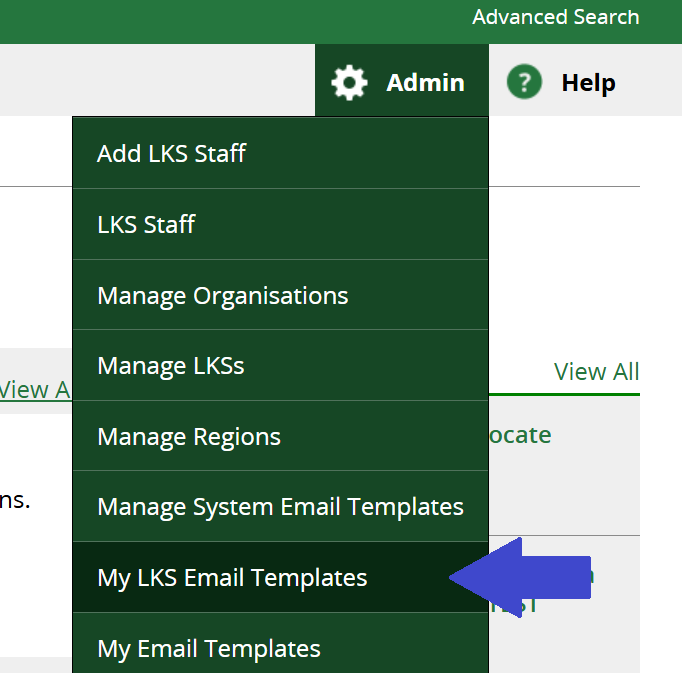
1. Hold the cursor over Admin and click My LKS Email Templates
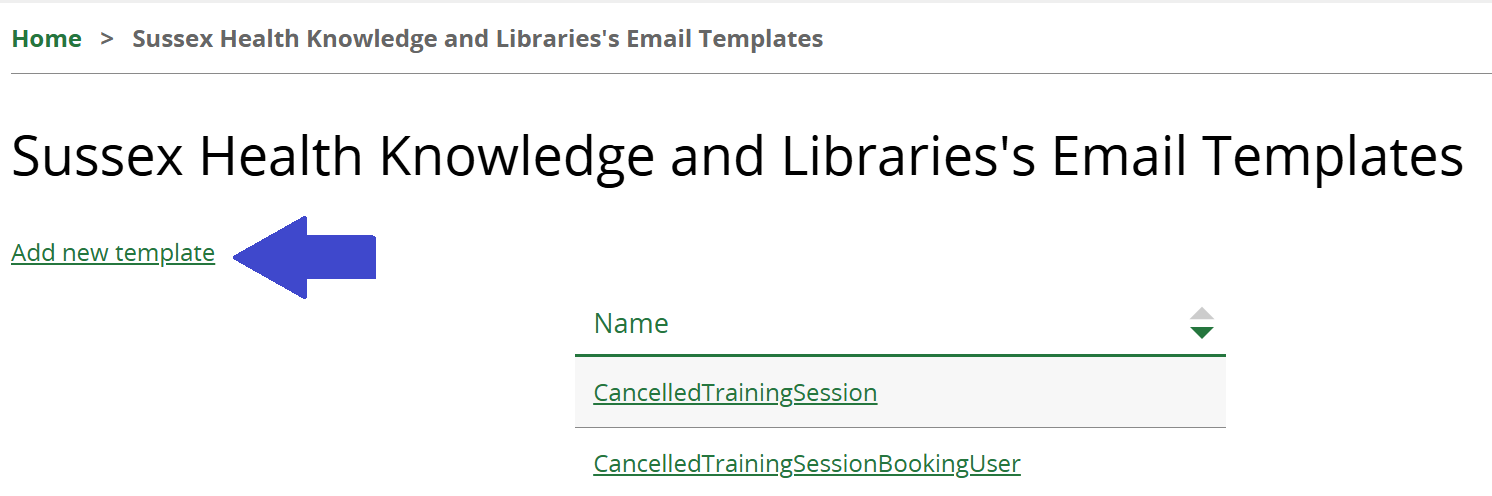
2. Then, click Add new template
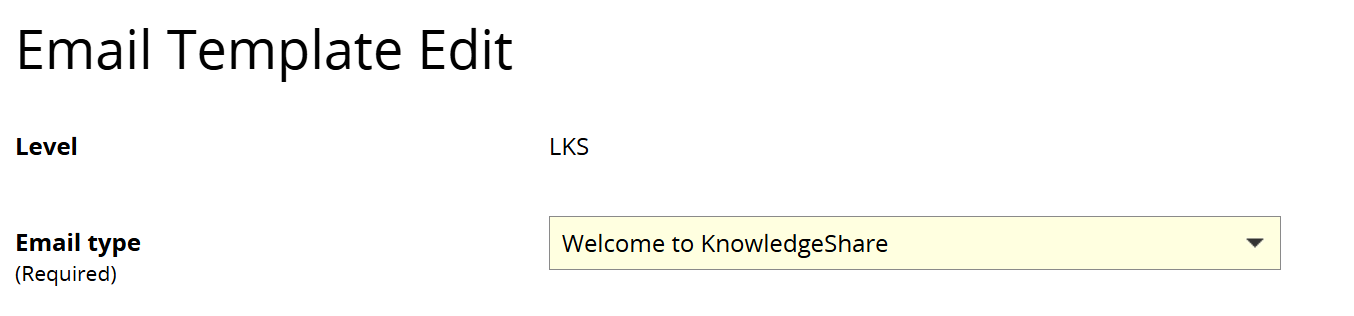
3. From the Email Type drop-down list select Welcome to KnowledgeShare.
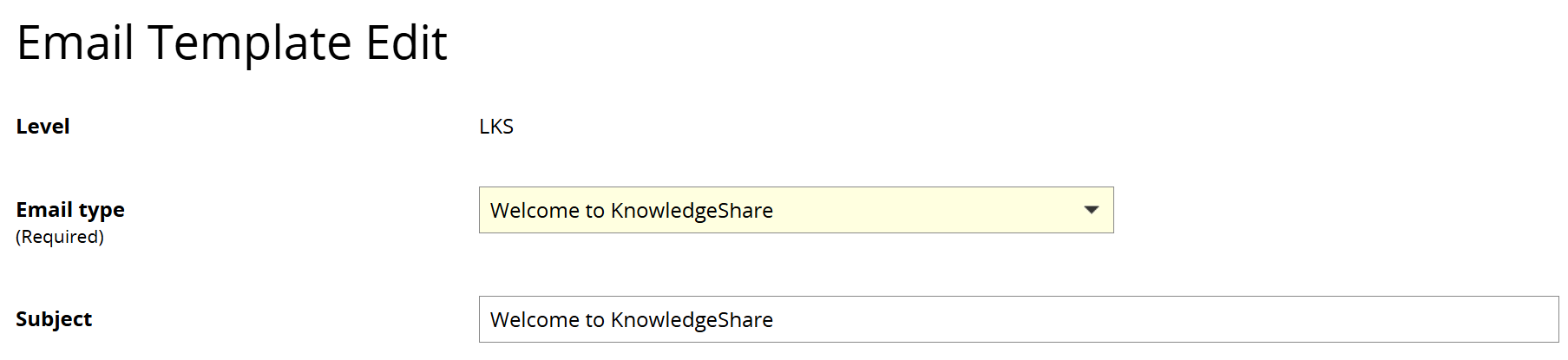
4. In the Subject field type 'Welcome to KnowledgeShare'.
5. Enter in the Body of the email the text you wish to have, retaining the embedded links and code elements within double braces.
Nb new LKS staff receive a different Welcome email, which is controlled at the system level only.
For more on Welcome emails, see How does the automatic Welcome email work?
Was this article helpful?
That’s Great!
Thank you for your feedback
Sorry! We couldn't be helpful
Thank you for your feedback
Feedback sent
We appreciate your effort and will try to fix the article