TABLE OF CONTENTS
- What is a Newsletter?
- Who can receive Newsletters?
- Accessing the function
- How to create a Newsletter
- How to distribute a newsletter
- Newsletter email templates
- Managing Newsletters
- Newsletter walkthrough video
What is a Newsletter?
This function allows resources in KnowledgeShare to be selected by their categories and downloaded for inclusion in a document.
Separate selection criteria can be created for different topics. This downloaded content then groups relevant resources under headings, which you will create when you set up each selection criteria.
Once you have edited these resources and formatted them into your desired document format, you then have the option to upload a PDF copy and distribute this to selected members within KnowledgeShare.
Who can receive Newsletters?
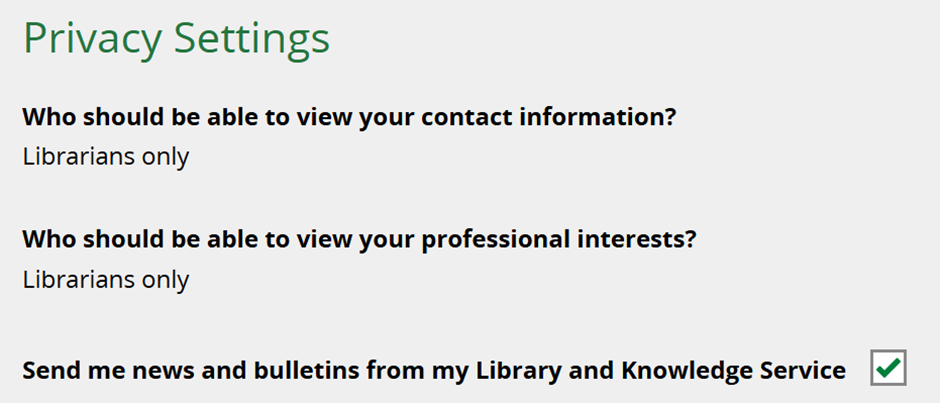
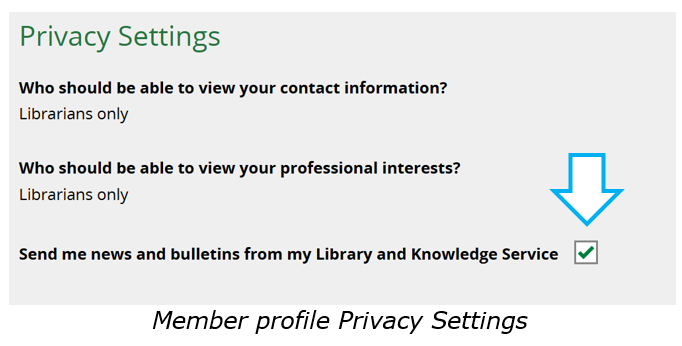
Newsletters will only be sent to your members who have Send me news and bulletins from my Library and Knowledge Service selected in the Privacy Settings of their profile.
All members are automatically opted-in on registration so that they can receive newsletters from your service, but LKS staff can uncheck this box on their behalf if a member requests to opt-out later (Members can also login to update this setting themselves if they prefer)
Accessing the function
Permission to access this function is restricted to Librarians and Local LKS Administrators.
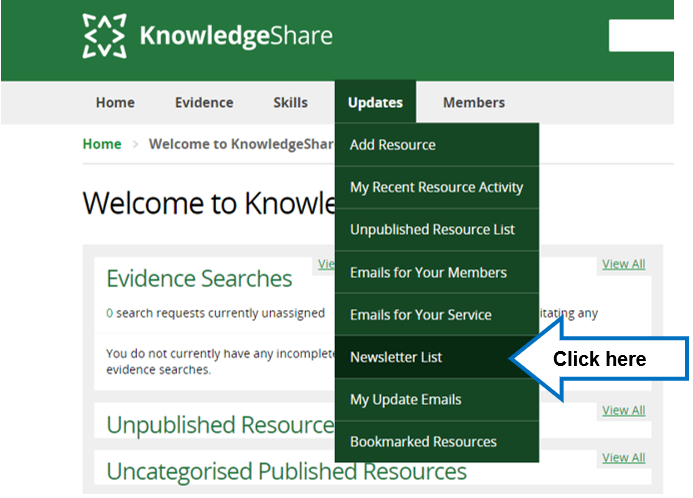
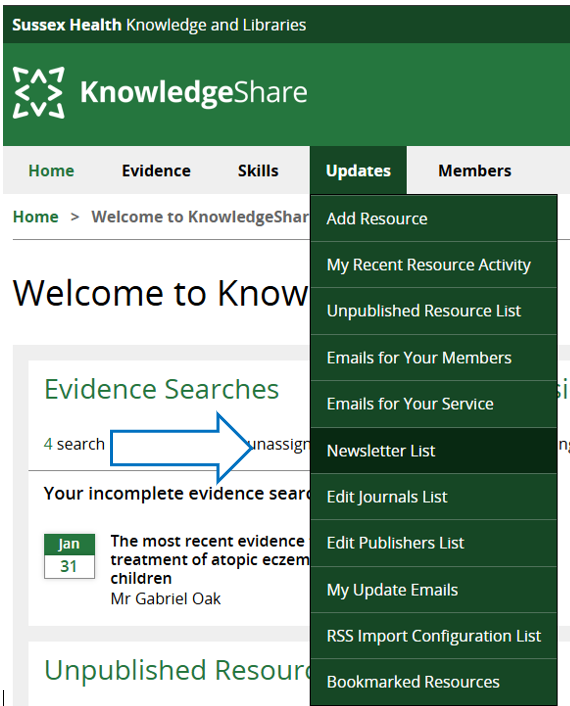
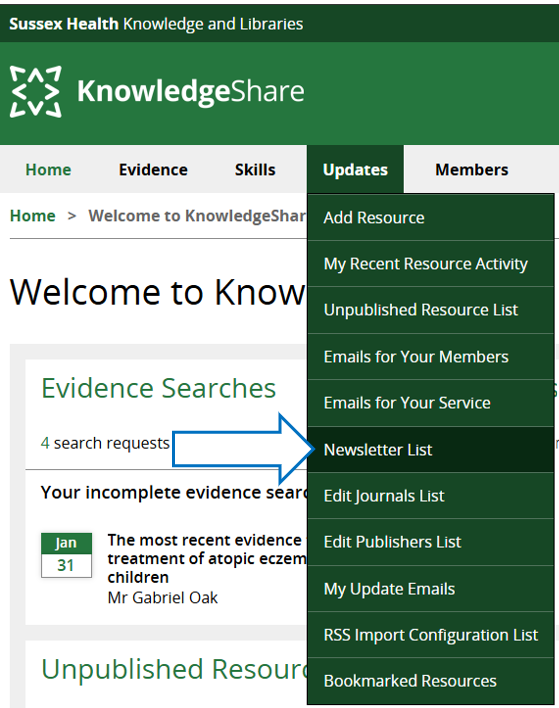
Go to Updates in the navigation toolbar and then click Newsletter List
How to create a Newsletter
1. Start your newsletter
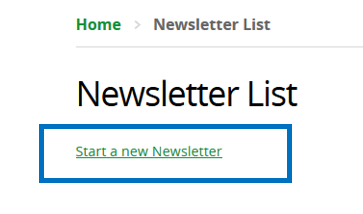
Click the link Start a new Newsletter at the top of the page
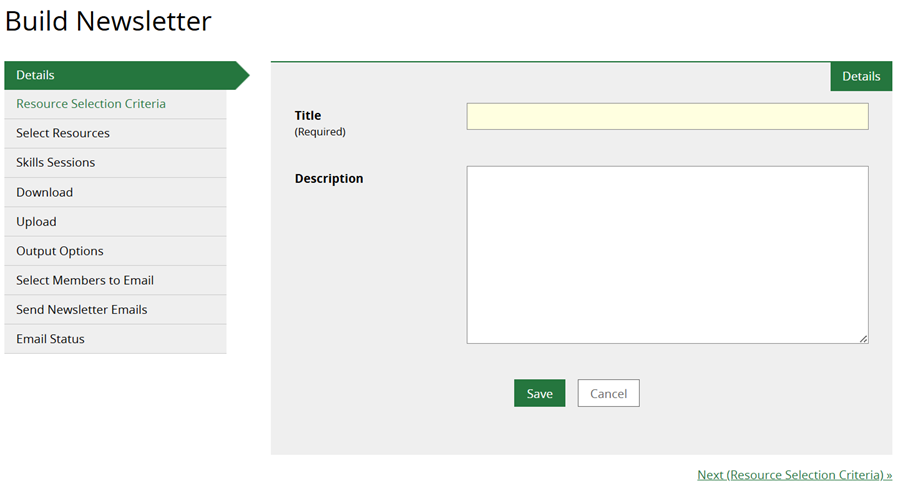
It will bring you to this page with a navigation menu on the left in sequential order of the process:
Details
a. Enter the Title of the newsletter (mandatory)
b. Enter a Description (optional)
c. Then, click Save at the bottom
Your incomplete newsletter will now be saved in the main Newsletter List. This will enable you to save progress and return to it later, if you need to.
2. Add your resource selection criteria
For each topic you wish to include in your newsletter, a resource selection criteria needs to be created.
a. Click Add New Selection Criteria
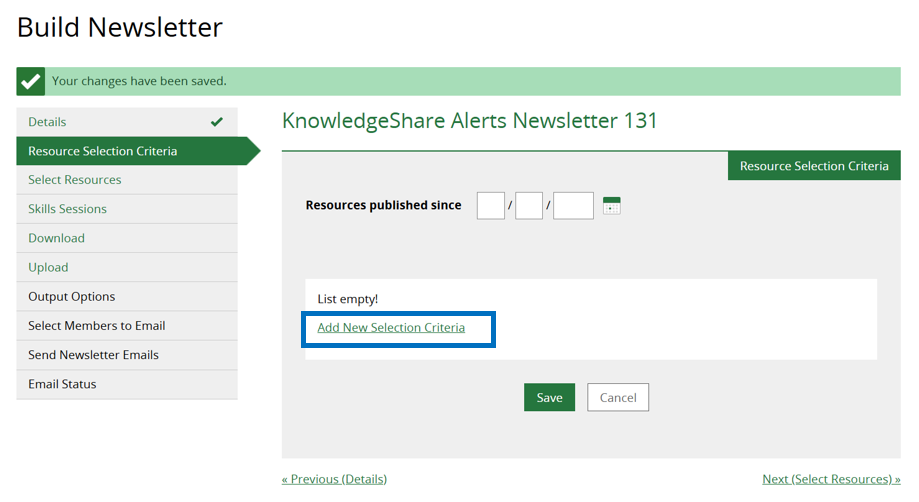
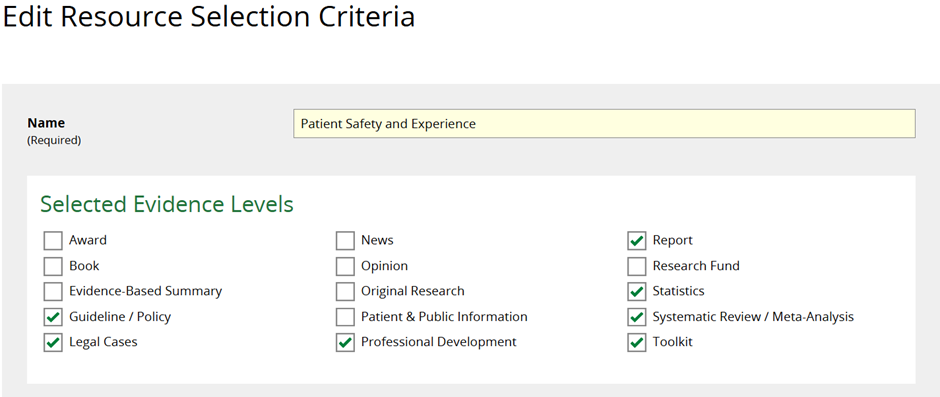
b. Enter a title in the Name field for your first topic (each topic will appear under a heading in your newsletter)

Below this sits Selected Evidence Levels. From this field you can choose which types of evidence to include.
c. Consider limiting to higher levels of evidence (all levels are selected by default):
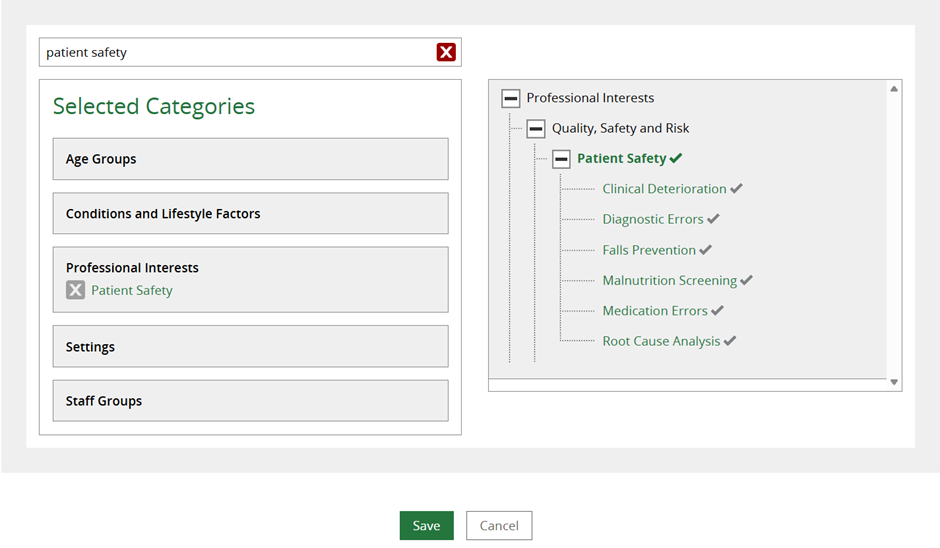
d. Select a category/ categories to define the resources that match your topic.
Unlike Member or Resource Categorisation, a single category can be used (you can edit the resource content later)
e. To see what resources your category selection returns, scroll down to see the sample.
This does not include all resources. It is simply a sample to enable you to judge if your Category and Evidence Level selections are right for the topic:
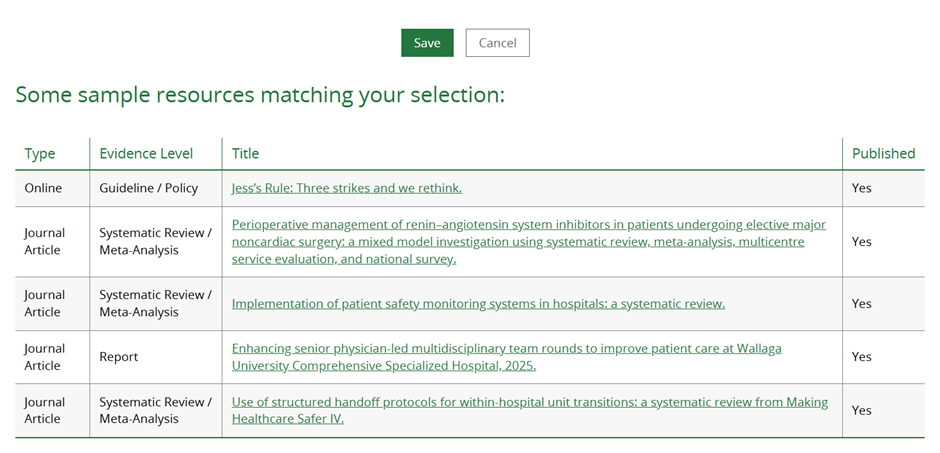
f. If you are satisfied with these, click Save.
Note: geographical availability restrictions are not applied to the sample so resources restricted to other organisations/regions/countries may be displayed. These will not be included in the final newsletter content.
g. If you are adding multiple topics to your newsletter, repeat the Add New Selection Criteria process again, to add these under their own heading(s):
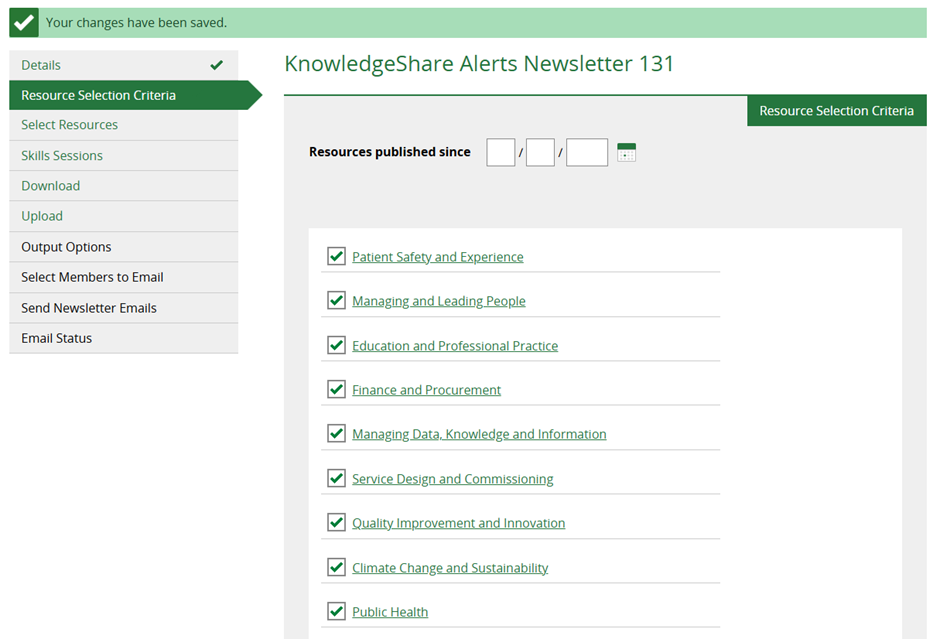
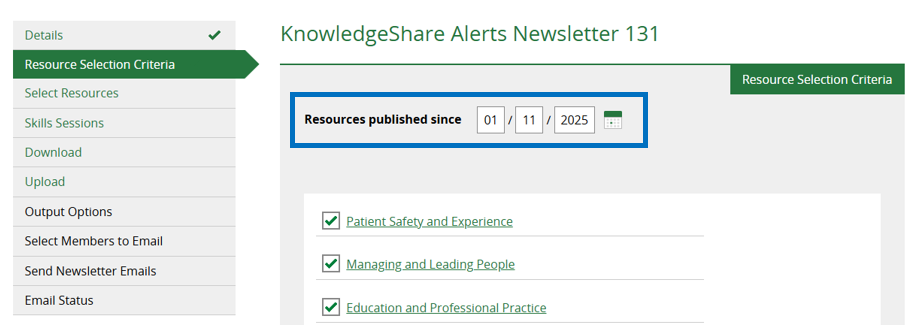
h. To limit the resources by date in your newsletter, enter a date in Resources published since field, or use the function under the calendar icon next to it, then click Save.
3. Select your articles
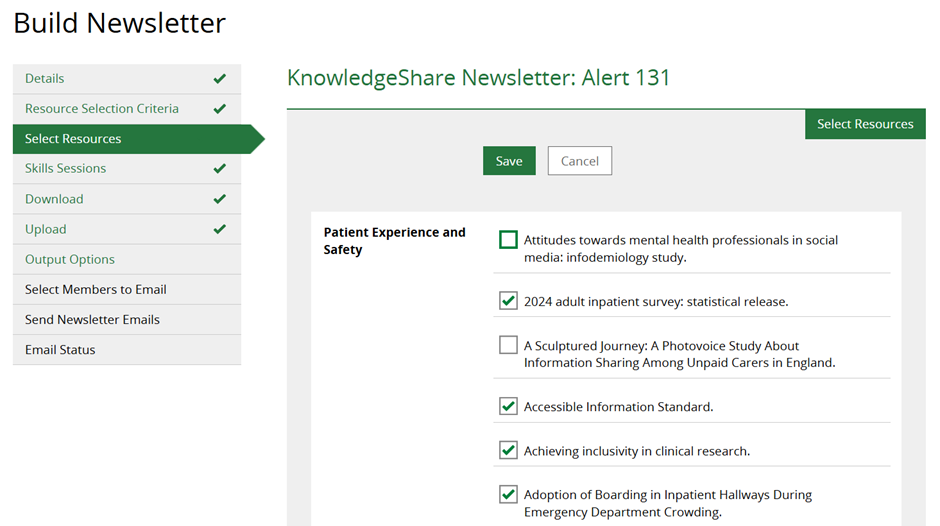
All resources have been automatically selected under each topic heading.
Deselect any articles you do not wish to include by unchecking the boxes next to the article title, then click Save:
4. Include your skills sessions
If your team uses the Skills module of KnowledgeShare, it is possible to include forthcoming skills sessions in your newsletter (If your team does not, or you do not wish to include your teams sessions, skip this step)
- Select the “end” date (Sessions occurring between now and this future date will be included)
- Select Show to open the list of available sessions
- Select the sessions you wish to include via the checkbox to the left of each session title
- Click Save
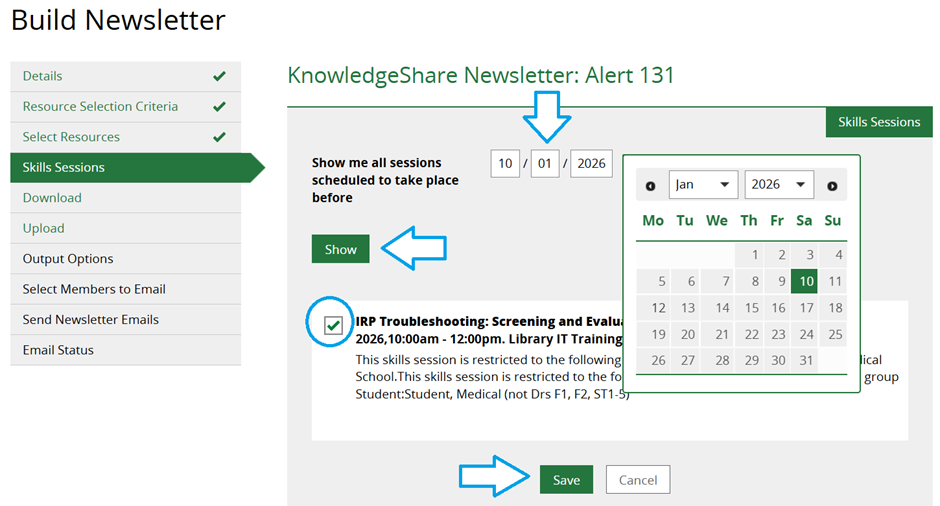
Note: Selected sessions will be listed at the bottom of the Word document for you to edit and format as you wish in the next step.
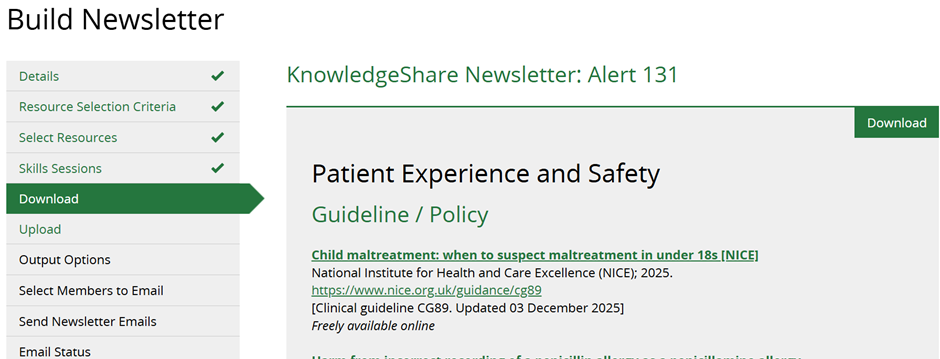
5. Download
If you are satisfied with your content, scroll down to the bottom of the page and click Download as Word Doc
Locate this file in your Downloads folder and format the content in accordance with the newsletter/ bulletin style that your LKS team uses.
How to distribute a newsletter
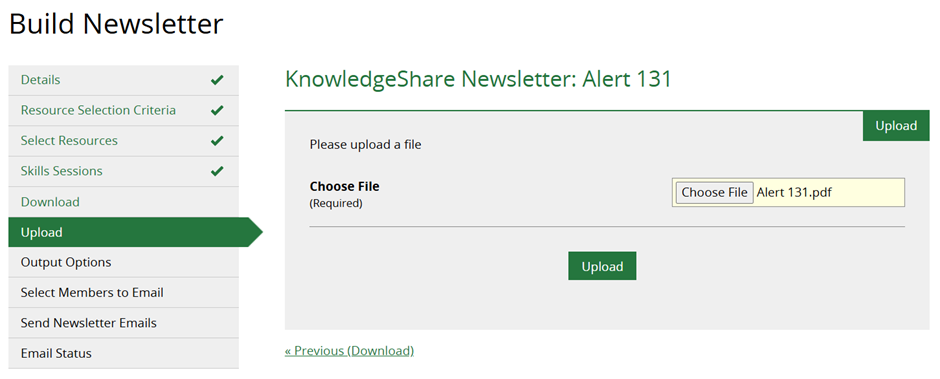
1. Upload
Save your completed newsletter/ bulletin as a PDF. Click Choose File to select it, then click Upload.
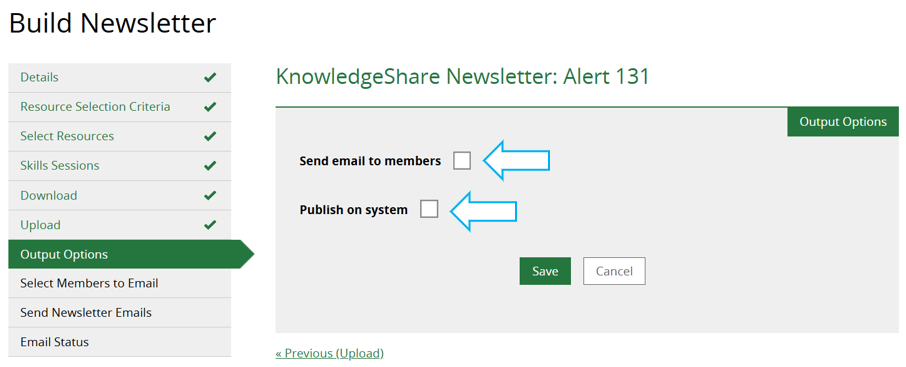
2. Output options
- Check the box next to Send Email to Members then click Save.
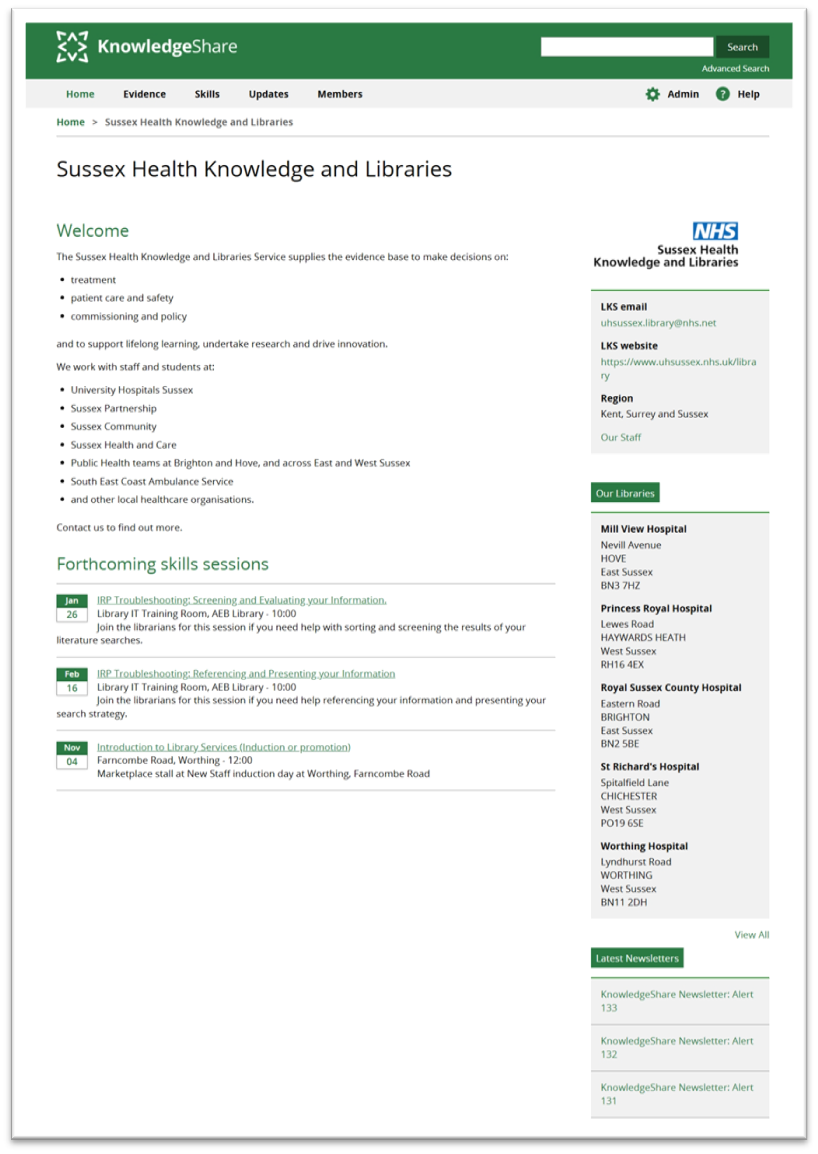
- Checking Publish on system also allows the newsletter to be displayed on the public page for your service, which is the landing page for non-members browsing Knowledgeshare:
Below: Example of a public landing page (accessed by clicking on your LKS name in the top left corner of your screen) Newsletters are listed towards the bottom.
3. Select Members to Email
Newsletters will be sent to members who have the permission Send me news and bulletins from my Library and Knowledge Service checked in the Privacy Settings of their member profile. This is ticked by default unless members remove this during sign-up, or at a later date. LKS staff may also remove this permission on their members behalf if requested:
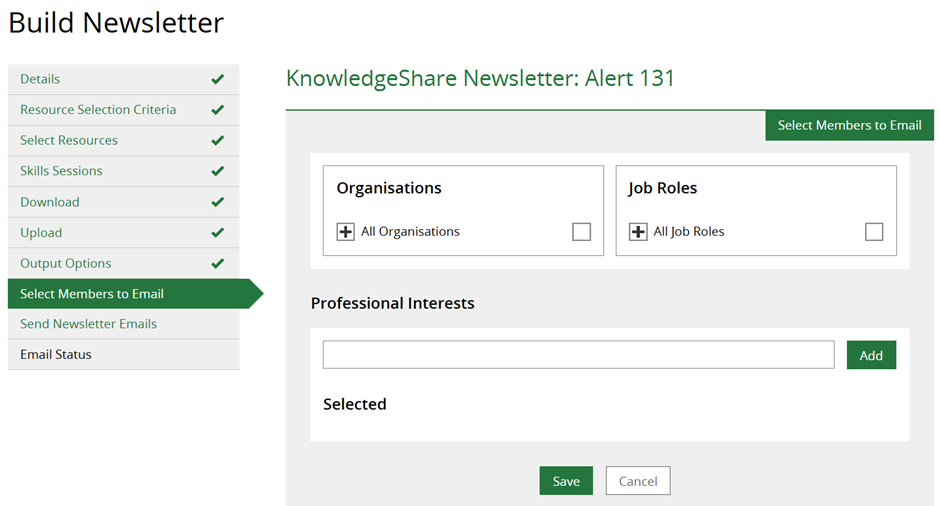
To select recipients, you can filter by Organisations, Job Roles and/ or particular Professional Interests (or leave blank to send to all) Then, click Save:
4. Send Newsletter Emails
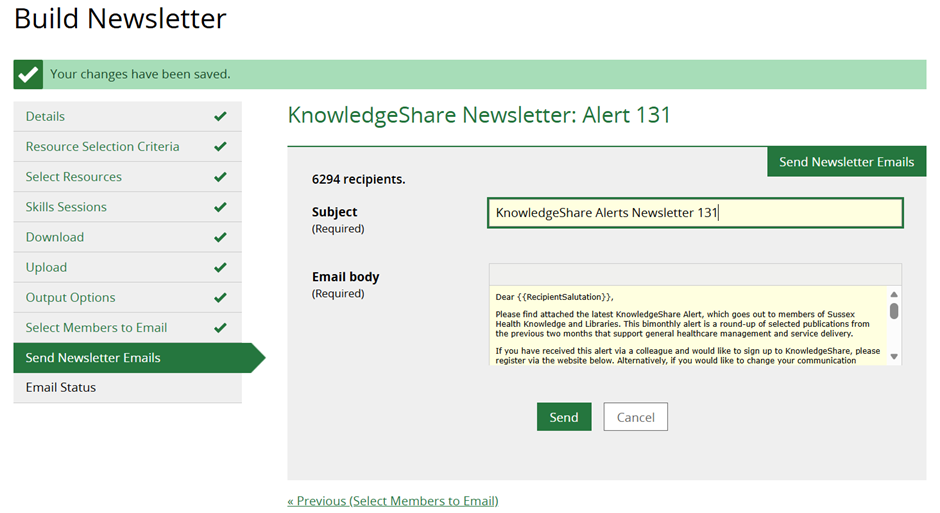
Check the subject and body of your accompanying email, then click Send.
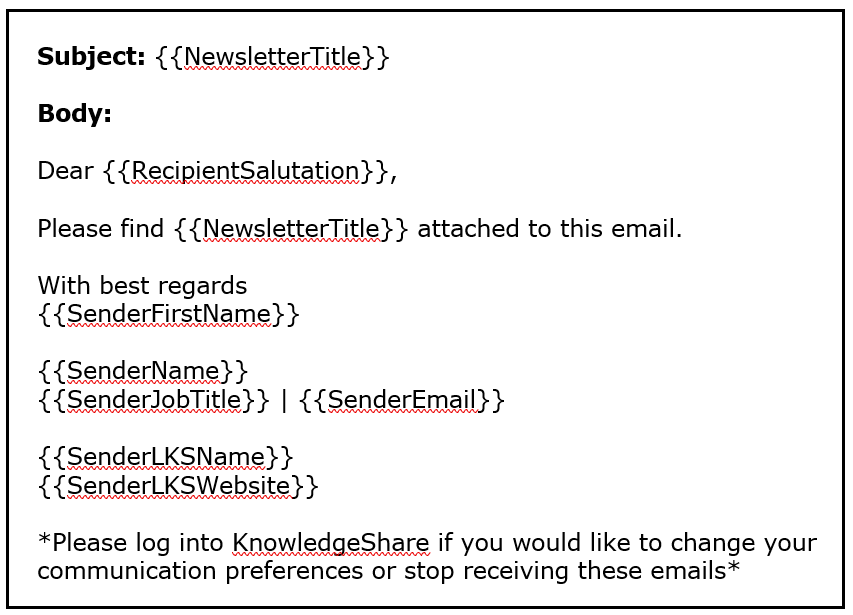
You may make minor edits to the text but do not alter or remove the code elements in double braces as this automatically inserts information to personalise the email for your user.
If you would like to amend or change your personal email template or your team (local LKS administrators only) please see the section below titled “Newsletter email templates”.
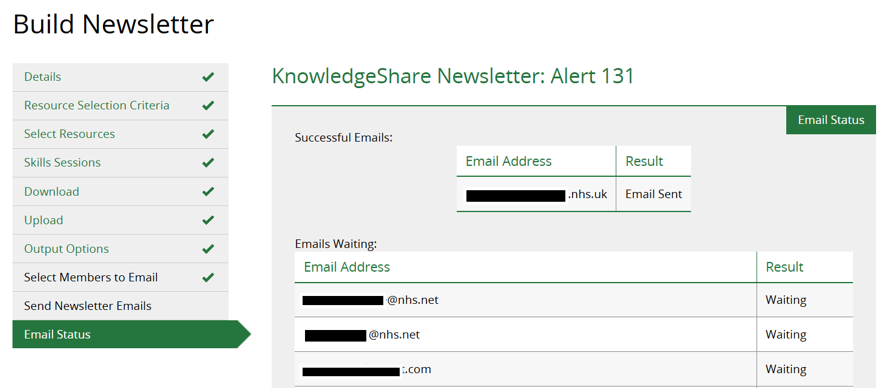
5. Emails Status
The email addresses of the members to whom the newsletter has been successfully sent to will be displayed in this screen, with those pending below:
FAQ’s
Q: Why haven’t I received the newsletter I’ve sent via KnowledgeShare?
LKS staff do not receive the newsletter they, or their library colleagues, have sent as staff profiles do not include the Job Roles field which the system uses to distribute newsletters to the right recipients. To share with your LKS colleagues, you should use a separate email contact list.
Q: Who do members receive the newsletter from?
The member of staff who is logged in and clicks Send will be the person the newsletter appears to be sent by. This will override the members Assigned Librarian, if they have one.
Newsletter email templates
When the system sends out emails, the body and subject line of these are constructed from pre-drafted templates. Code is included so that relevant information is drawn from the database to add personalised details.
There are different templates for the all the automated functions of KnowledgeShare, including the personalised email that accompanies newsletters.
There are three “levels” of email template:
- System Level Template: This is the national default template and can only be edited by system administrators. This is the one that will be available to you if neither you nor your team have created your own.
- LKS Level Template: This overides the System Level version. This template is created, applied and edited by the local administrator(s) in your service to all accounts in your team.
- Personal Level Template: If you create your own template, this overides any LKS Level or System Level versions in place for this function. A Personal Level template is attached to the profile of the member of staff who created it and will only be applied to their own automated correspondence with members. It can also only be edited by this member of staff.
Default System Level email template:
Personal email templates
Add a personal level template
- Hold the cursor over your name in the top right of the screen and click My Email Templates

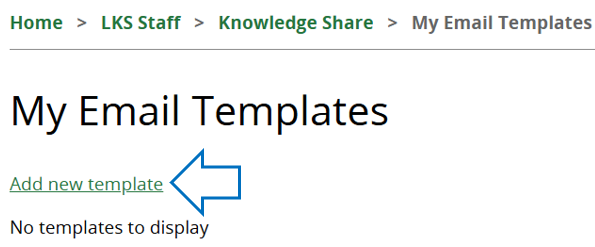
2. Click Add new template
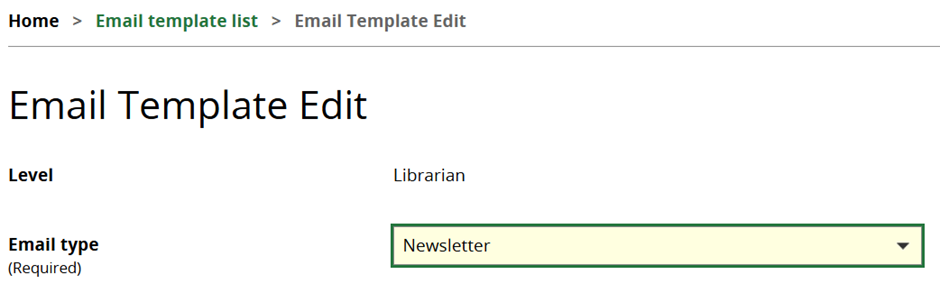
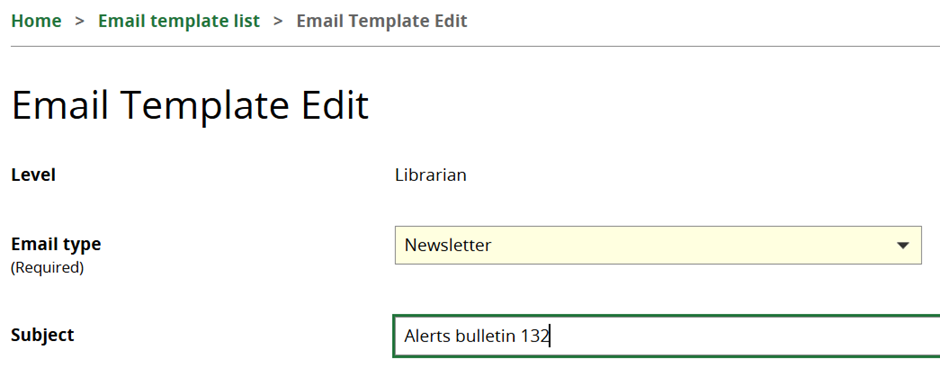
3. Email Type: Select Newsletter
4. In the Subject field, add your newsletter title:
5. In the Body field, use the example text below as the basis for your own, retaining the code in double braces.
At minimum, please ensure the following is included:
- Keep code {{RecipientSalutation}}
- As part of GDPR we must ensure that all members have easy access to their own data. Please ensure that your email templates on KnowledgeShare contain the following statement so that members are clear that they can revise their consent if they wish to:
“Please email me back if you would like to change your communication preferences or stop receiving these emails”
Example: Personal email template:
Dear {{RecipientSalutation}},
Please find attached Please find attached {{NewsletterTitle}} which goes out to members of Sussex Health Knowledge and Libraries. This bimonthly alert is a round-up of selected publications from the previous two months that support general healthcare management and service delivery.
If you have received this alert via a colleague and would like to sign up to KnowledgeShare, please register via the website below. Alternatively, if you would like to change your communication preferences or to stop receiving these alerts, please do get in touch and let me know.
With kind regards
{{SenderFirstName}}
{{SenderName}}
{{SenderJobTitle}}
6. Finally, click Save. The template will now be available in your personal email template list.
Edit a personal level template
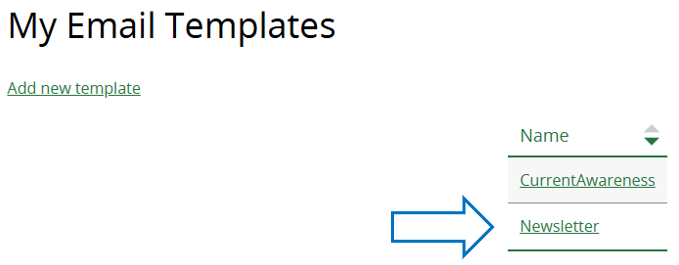
- Hold the cursor over your name in the top right of the screen and click My Email Templates

- Click Newsletter
3. Edit the template as appropriate, and at minimum ensure the following:
- Keep code {{RecipientSalutation}}
- As part of GDPR we must ensure that all members have easy access to their own data. Please ensure that your email templates on KnowledgeShare contain the following statement so that members are clear that they can revise their consent if they wish to:
“Please email me back if you would like to change your communication preferences or stop receiving these emails”
LKS-level email templates
Please contact the local KnowledgeShare administrators within your team if you would like to add or amend a template for your service. Further information for local administrators can be found here.
Managing Newsletters
Copy a newsletter
Newsletters are a manual function and are not automatically updated or sent out. To update the selection of resources in a newsletter copy it. The most common reason to copy a newsletter is to update the resources published date and select more recent resources for a new issue.
- Hold the cursor over Updates and then click Newsletter List
2. Click Copy under Actions for newsletter you wish to update
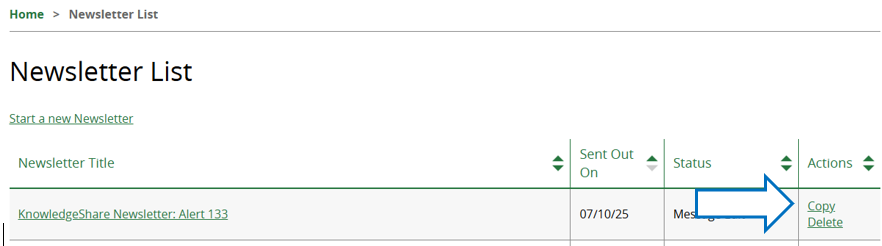
3. Click on the newsletter edition with the suffix [Copy] to edit

4. Click Details in the navigation column and update the title, then click Save below
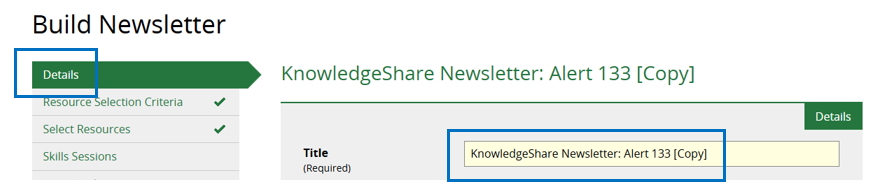
5. You will be taken to the Resource Selection Criteria screen. Resources published since will automatically be populated with the date the ‘parent’ newsletter was sent:

6. Click Save and continue with the creation of your updated newsletter template.
Deleting a newsletter
- Hold the cursor over Updates and then click Newsletter List
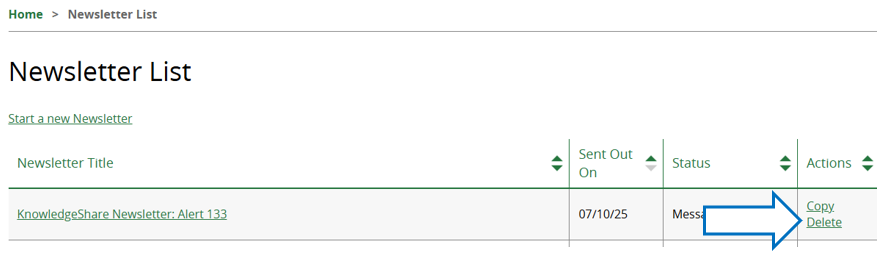
Note: Newsletters expire after 100 days if not modified again. You will receive a warning via email before they are automatically deleted.
Newsletter walkthrough video: https://vimeo.com/1023901927/6d7292700a
Was this article helpful?
That’s Great!
Thank you for your feedback
Sorry! We couldn't be helpful
Thank you for your feedback
Feedback sent
We appreciate your effort and will try to fix the article