TABLE OF CONTENTS
- Add Journal TOC Alerts from the listed journals
- Delete Journal TOC Alerts
- FAQ's
- When will the TOCs be sent?
- Will members receive one email each month listing all their requested TOCs?
- Why has a TOC email been sent with only a single article?
- The journal ToC I want to add is not present in KnowledgeShare
- How do I edit my email template for TOC Alerts?
- Can members add ToC’s to their own profiles?
Journal Alerts allow table of contents (TOCs) for selected journals from the KnowledgeShare journal list to be emailed to members from an Assigned Librarian.
The journal alerts are generated from journal issues listed in PubMed. Articles that are marked [Epub ahead of print] are not uploaded to the system. Additional journals can be added to the list if the most recent complete issues are on PubMed. Some journals are not listed in PubMed and therefore cannot be set up as a TOC on KnowledgeShare.
Add Journal TOC Alerts from the listed journals
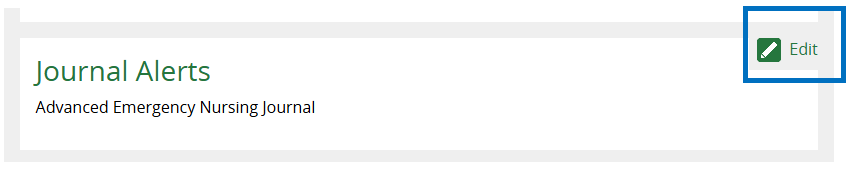
On the Member profile page click on Edit on the Journal Alerts section to add selected journal table of contents (TOCs)
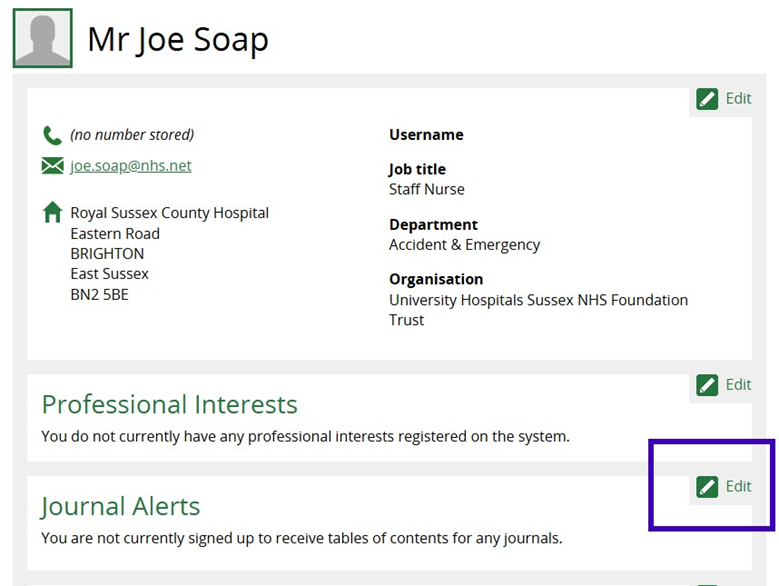
Journal Alerts interface:
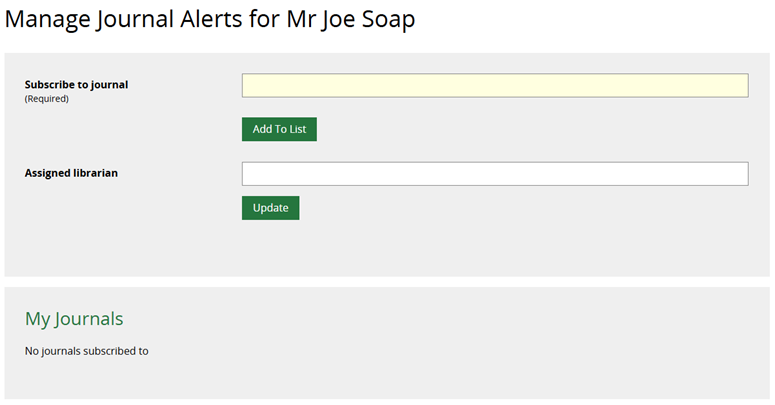
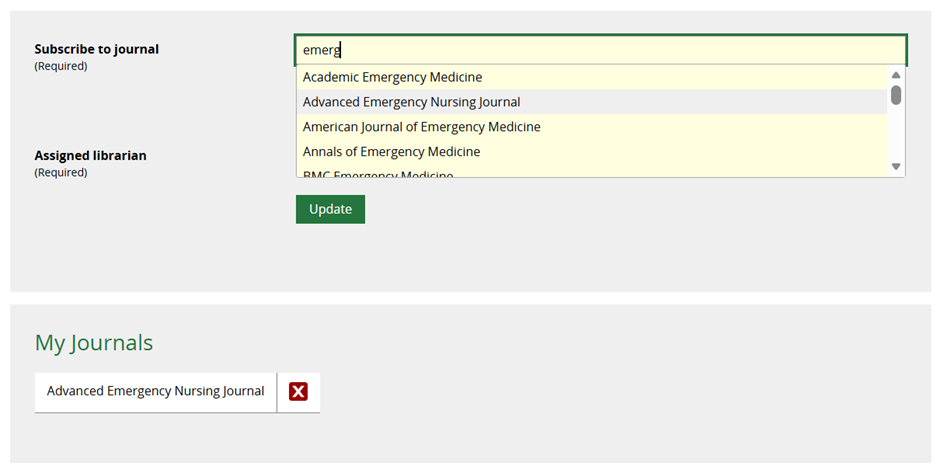
To select journals, click in the field Subscribe to Journal. Those that are already available are listed alphabetically:

If the journal you want is present, click on the title to populate this field, then click on the button Add to List below:
The journal title will appear underneath:
Note: If the journal title that you want is not present and it is listed in PubMed and is indexed for Medline, we can add this for you (See FAQ’s below)
Add an Assigned Librarian in the field below and then click the Update button beneath it. This ensures that the ToC update is formatted as a personalised email from the member of staff responsible for that department within your team.
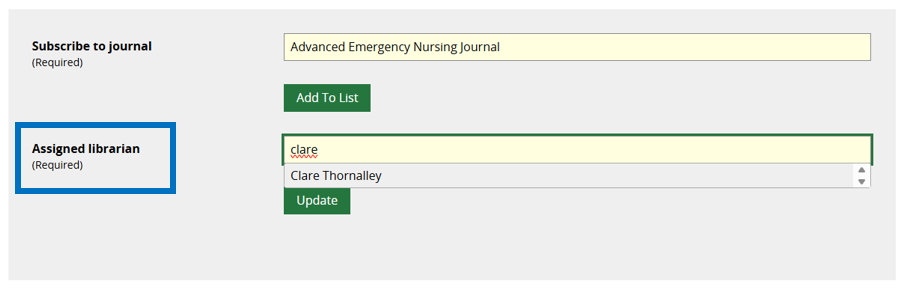
Note: If the member is already receiving Evidence Updates from KnowledgeShare, this field will already be populated (There is no need to update this information elsewhere in the member profile)
Delete Journal TOC Alerts
On the Member profile page click on Edit on the Journal Alerts section to delete selected journal table of contents (TOCs)
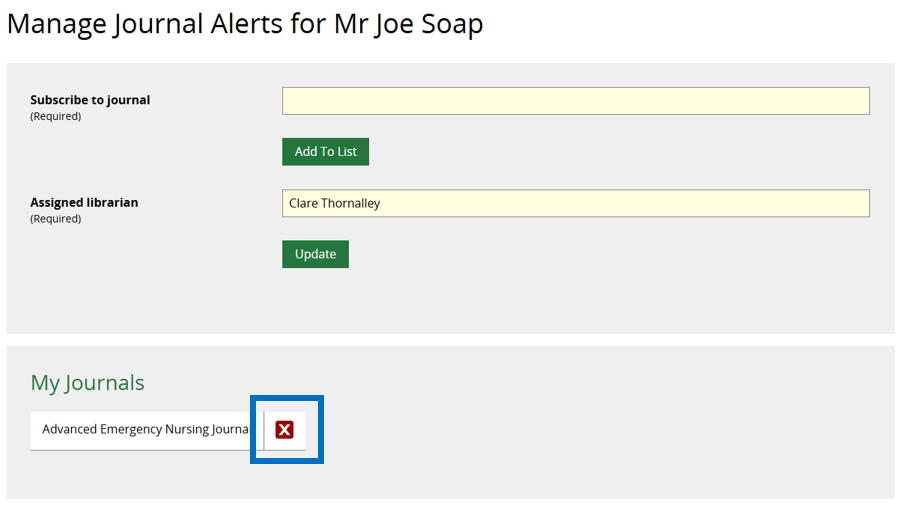
Click on the red cross to the right of the journal you want to delete from the list:
FAQ's
When will the TOCs be sent?
Most TOC emails will be sent on the first weekend after the end of the month in which the articles they contain were published, i.e. if an article was published in June it will be sent out on the first weekend in July. This may cause a short delay but it is needed in order to group all of the articles from a single issue together.
Journals that are added by hand are sent on the first weekend after they are added. The number of journals added by hand is small.
Will members receive one email each month listing all their requested TOCs?
A single email was thought this would be preferable to having multiple emails come through, each with a different journal. Early feedback is that having all journals listed in a single email once a month is too much content in a single email. Based on the feedback on-going development will look at splitting each title into a separate email but the present set up shouldn’t be a barrier to using the system.
Why has a TOC email been sent with only a single article?
Occasionally an email will come through with just a single article in it. This usually happens when PubMed adds an article after the month of its publication, i.e. an article published in June isn’t added to PubMed until July. When this happens, the single article will be sent out by itself shortly after it’s been added.
The journal ToC I want to add is not present in KnowledgeShare
If a journal is not listed, you can check its availability in PubMed using the “Journal” search at https://www.ncbi.nlm.nih.gov/nlmcatalog/advanced Check that the journal is marked as “Currently indexed for MEDLINE”
If available, go to Submit a Ticket and select Request a Journal ToC https://knowledgeshare.freshdesk.com/support/home
If the journal is not available in PubMed, or is not indexed on MEDLINE, you will not be able to use KnowledgeShare to provide a TOC service for this title. You will need to consider other options, such as setting up an individual alert on the journal webpage.
How do I edit my email template for TOC Alerts?
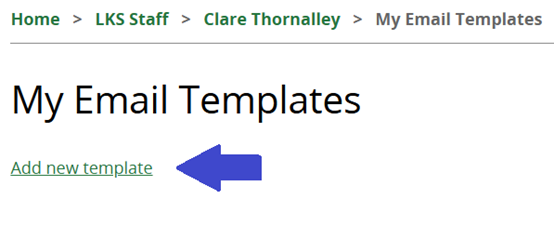
1. Hold the cursor over your name in the top right of the screen and click My Email Templates
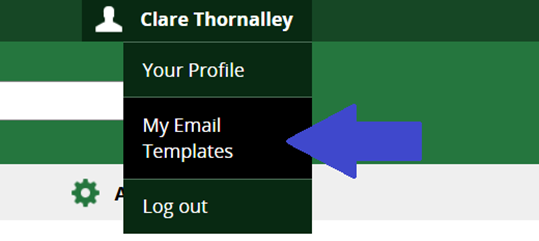
2. Click Add new template
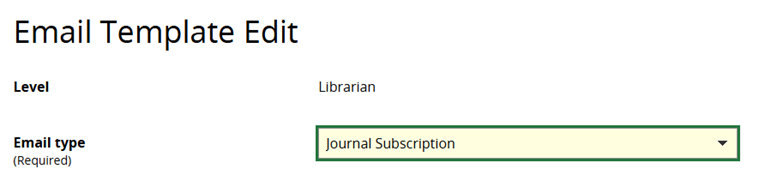
3. From the Email Template List, select Journal Subscription
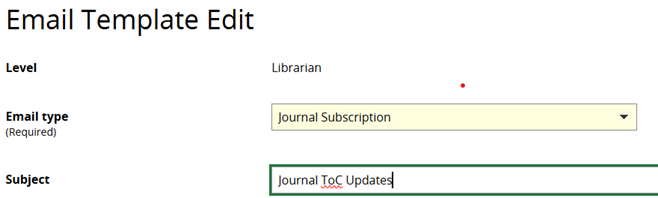
4. In the Subject add an email subject line (Remember, this email with go out with all of the ToC’s for whom you are Assigned Librarian so do not use a specific journal title)
5. Enter in the Body of the email the text you wish to have, and at minimum ensure that the following code is embedded in place of text at appropriate points:
{{RecipientSalutation}} Addresses formally or informally as specified in their profile.
{{JournalSubscriptionContent}} Inserts the ToC content.
{{SenderFirstName}} Inserts the assigned librarians first name.
Also, as part of GDPR we must ensure that members have easy access to their data so that they can view the information that we hold about them and make or request changes.
Please ensure that your email template contains a line that informs them of their right to change their communications: “Please reply to me if you would like to change your communication preferences or to stop receiving these emails”
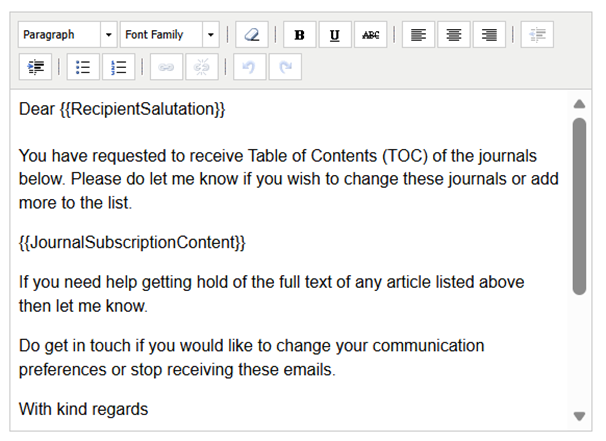 Current default email text for Journal ToC’s
Note: Currently, images cannot be added to email templates.
6. When you have finished editing, scroll to the bottom and click Save.
Can members add ToC’s to their own profiles?
Currently, the ToC functionality that allows members to add and remove their own alerts is disabled.
Library staff must administer this in the interim and we will update teams when this option becomes available again.
Administering a members self-selected ToC request:
A Member cannot receive TOC emails unless they have an Assigned Librarian as this is whom the ToC alert appears to come from. If the member does not have an existing one, this needs to be selected to activate ToC alerts.
Members do not see the Assigned Librarian option when self-selecting TOCs or self-registering. An email alert is sent to your local LKS administrator to inform them that one needs to be allocated so that the correct staff member covering that department is assigned.
Was this article helpful?
That’s Great!
Thank you for your feedback
Sorry! We couldn't be helpful
Thank you for your feedback
Feedback sent
We appreciate your effort and will try to fix the article