All LKS Staff can book Members onto Skills sessions at their own LKS.
To book a Member onto a Skills session:
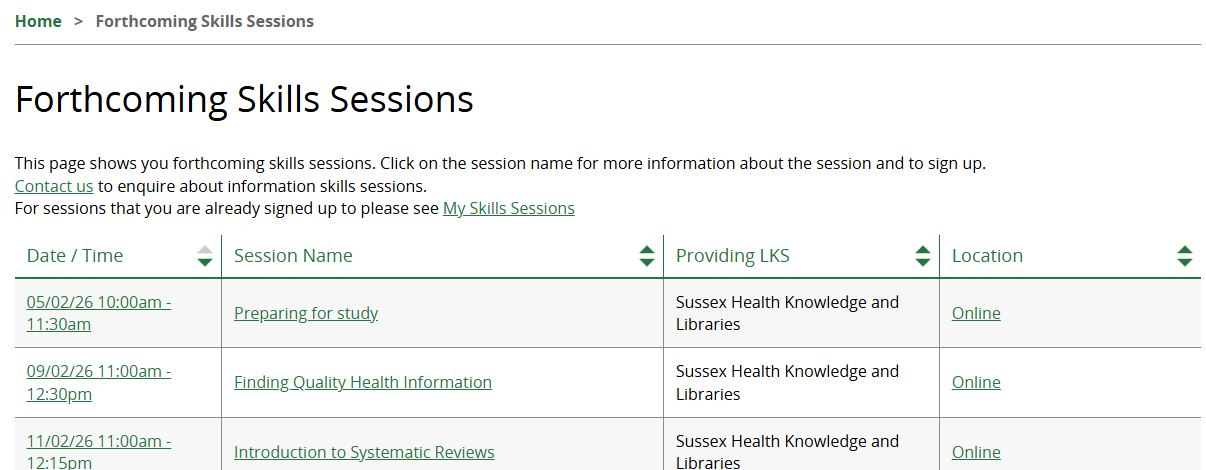
- Find the session via the Forthcoming Skills Sessions page (or via Advanced Search if the session is in the past).
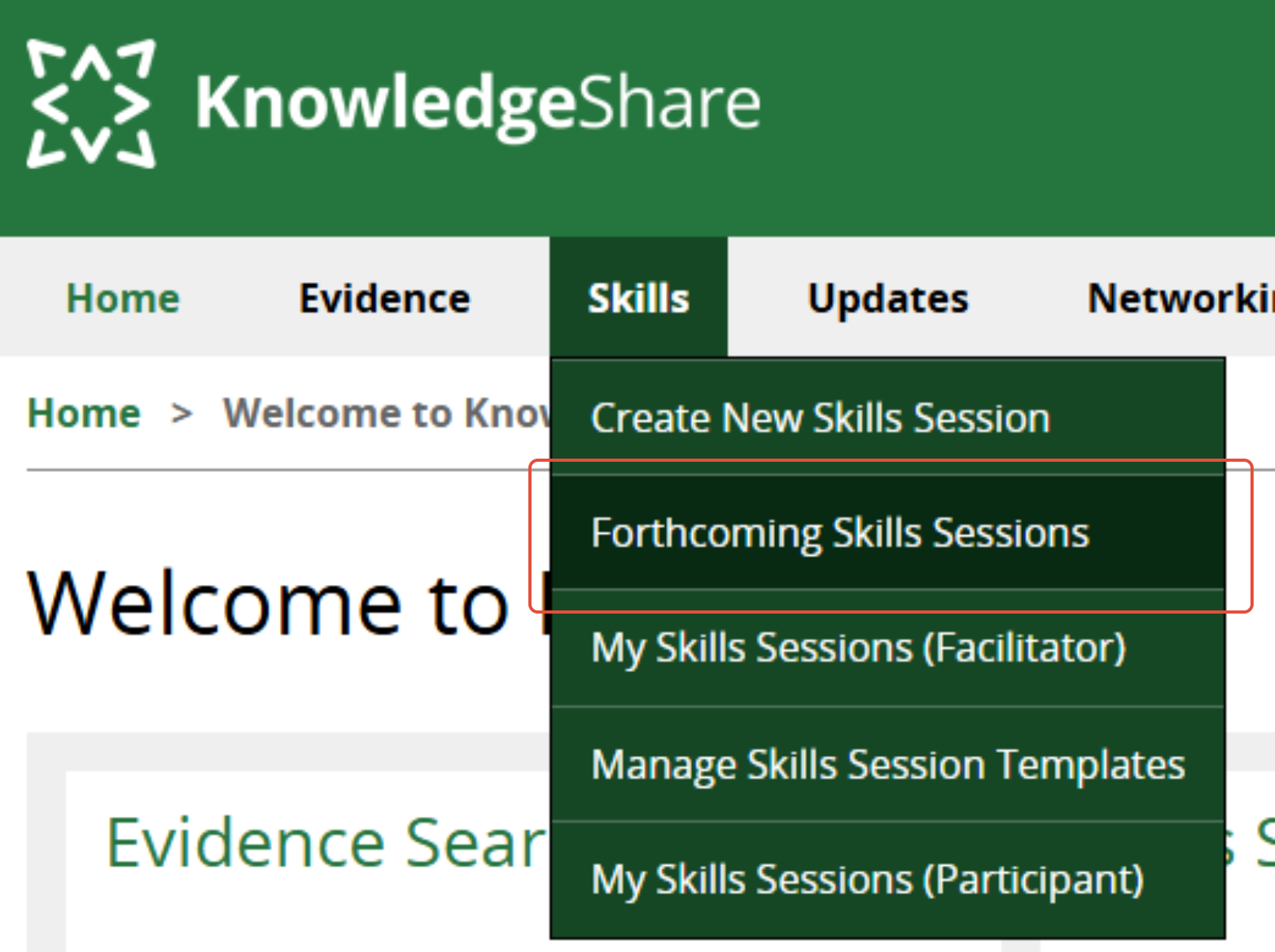
- Click on the session name.
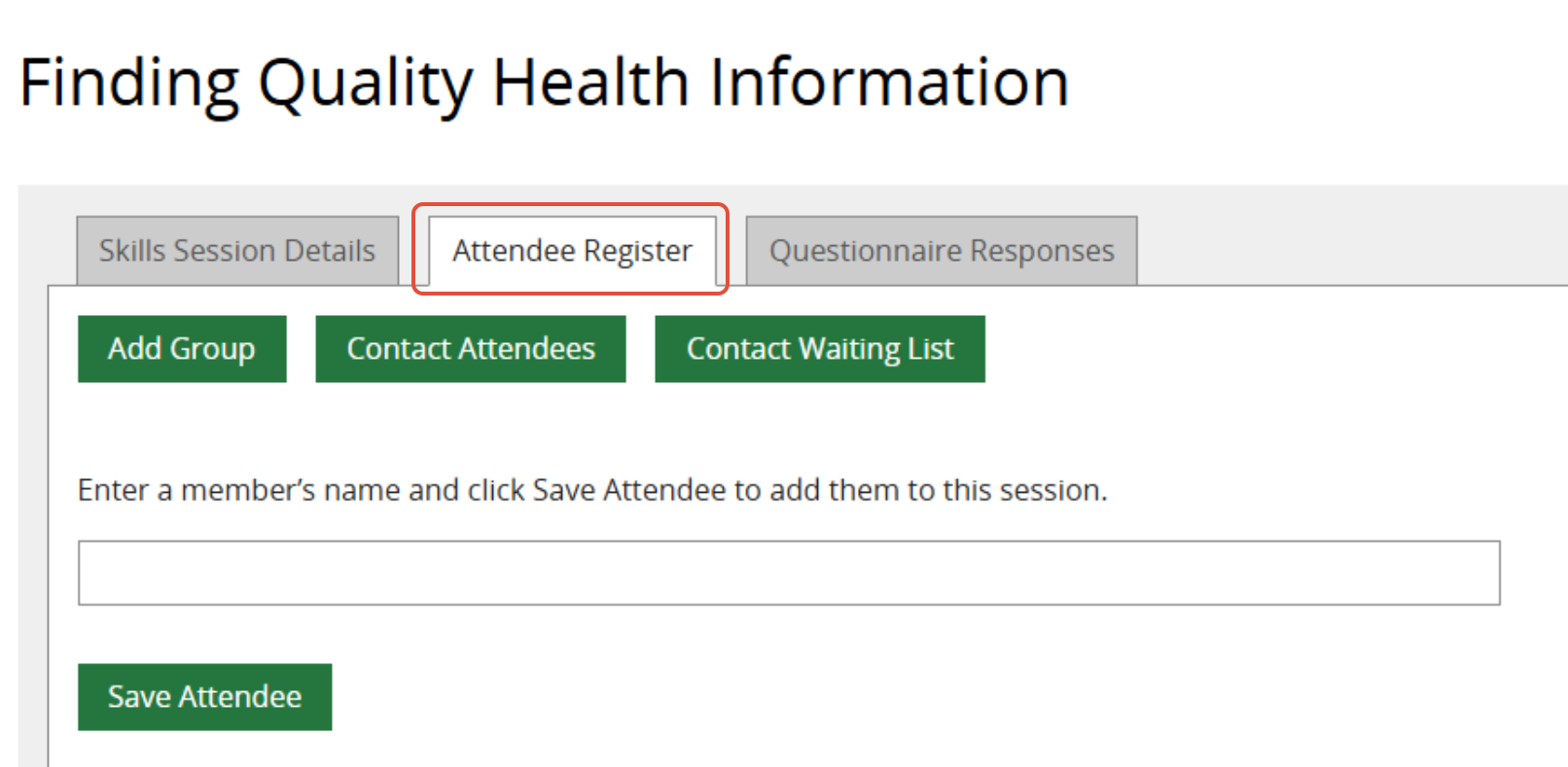
- Select the Attendee Register tab.
- Start typing the Member's name in the field.
- Select the Member’s name from the picklist that appears below.
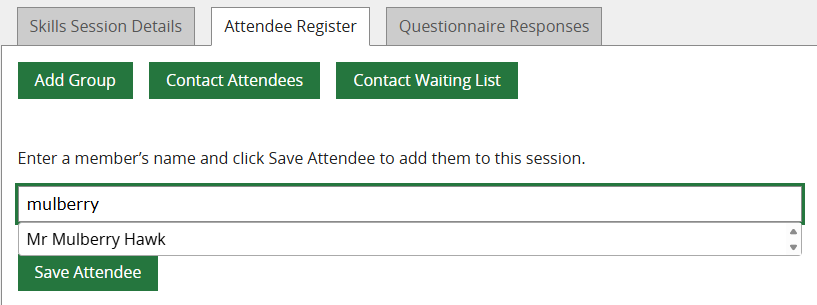
- Click Save Attendee.
If the Member is shown as not eligible and you believe they should be, see our troubleshooting article: Why is a Member showing as not eligible for a Skills session?
Note: If the Member does not have a KnowledgeShare record, their name will not appear in the picklist and you will need to create a record for them before adding them to the Skills session.
When a Member is booked on a session they are listed under the heading Registered Attendees at the bottom of the screen.
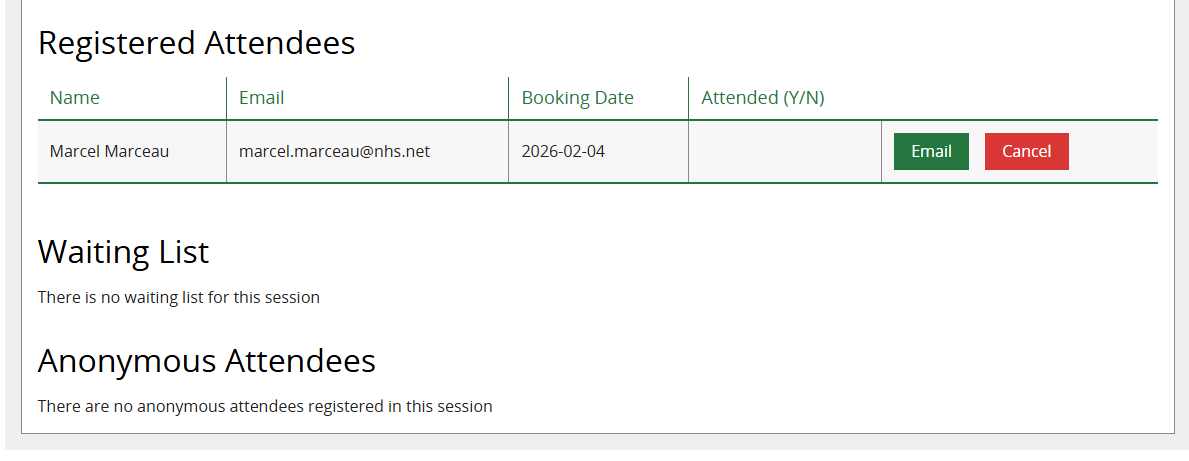
Email confirmations are sent to the Member and to the Session Leader.
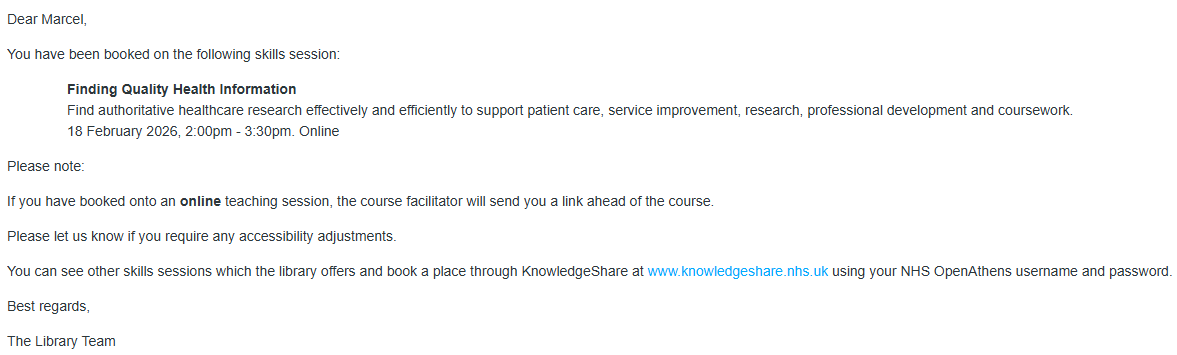
The confirmation email to the Member appears to come from the session leader. It includes the session name, description, date, time, and location. These emails can be customised with a LKS-level template if desired. Any replies will go to the session leader.
Example email
See also:
How to record Skills session attendance
Was this article helpful?
That’s Great!
Thank you for your feedback
Sorry! We couldn't be helpful
Thank you for your feedback
Feedback sent
We appreciate your effort and will try to fix the article