If you deliver the same or similar sessions on a regular basis, Skills Session Templates will save you time by storing information that can populate individual Skills sessions. This also provides consistency for users and for your statistics.
Staff with LKS Administrator permissions can add and edit Skills Session Templates.
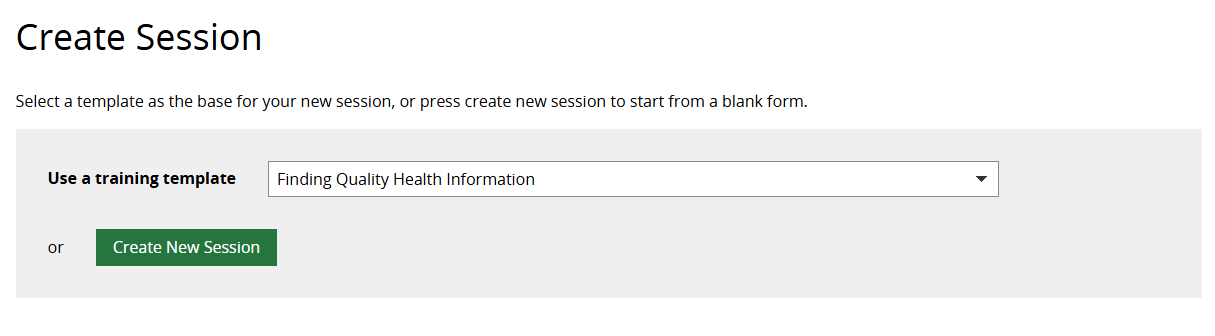
To add a new Template, follow the steps below.
CONTENTS
Manage Skills Session Templates
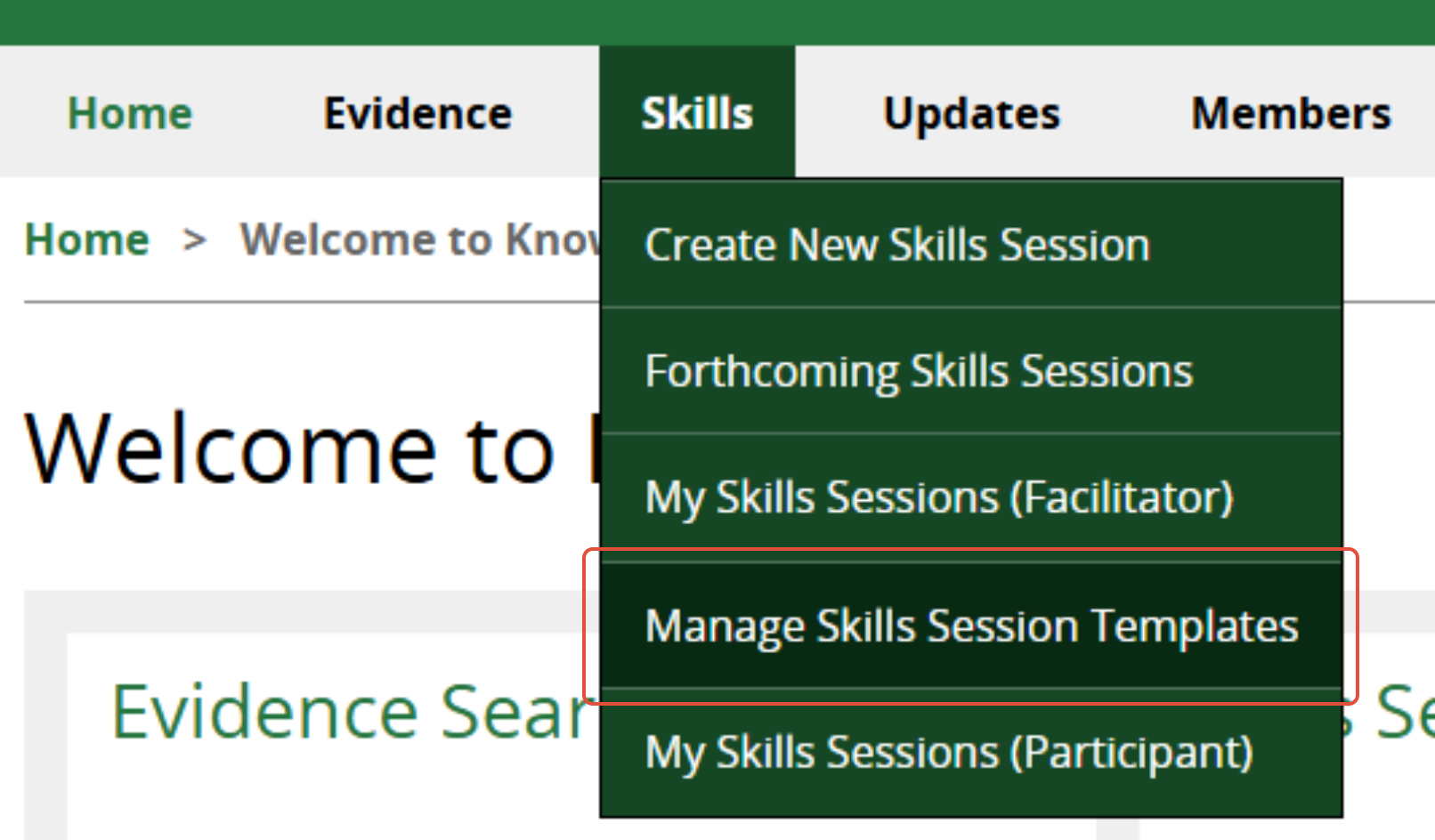
- Hold the cursor over the Skills menu and click Manage Skills Session Templates.
- Click on Create New Skills Template. If you do not see this button, you do not have LKS Administrator permissions.

Create Template
Complete the below fields to populate your Template. Once saved, you will be able to use this template as the basis for multiple individual sessions.
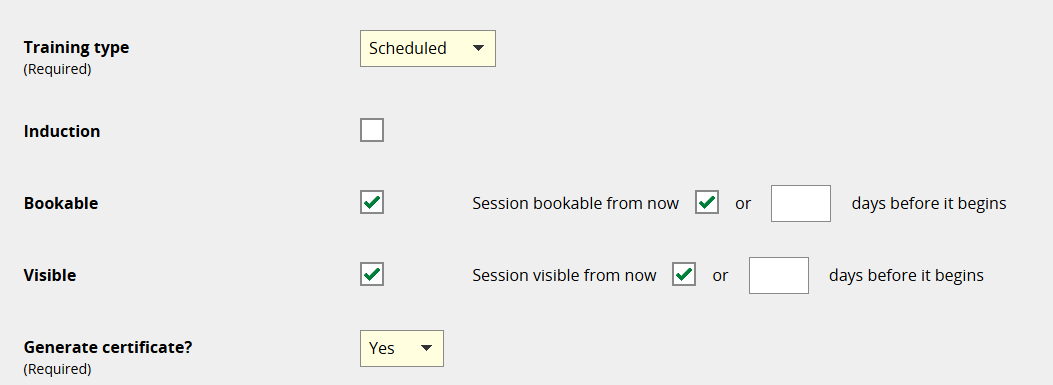
Training type
- Required field. Select Scheduled if session is part of a scheduled programme, or Ad Hoc if by one-off arrangement/bespoke/unplanned.
Induction
- Check the box if the session is an induction (to inform statistics).
Bookable
- Check the box. This enables Members to be booked on a session in advance (or added to it once the session has passed.)
- Check the box to make the session bookable from now OR enter the number of days before the session you want Members to be able to be booked on. E.g. if you want to do the admin of creating the session well in advance, but do not want to accept bookings until 5 days before, enter '5'.
- Can be set when creating individual sessions if preferred.
Visible
- Check the box to show the session in your Forthcoming Skills Session list, on your public LKS page, and in evidence update emails where this is enabled.
- Check the box to make the session visible from now OR enter the number of days before the session you want it to be made visible. E.g. if you do not want to publicise the session until 14 days beforehand, enter '14'.
- Can be set when creating individual sessions if preferred.
Generate certificate?
- Required field. Will you be providing attendance certificates to attendees? Select Yes or No from the dropdown.
Session name
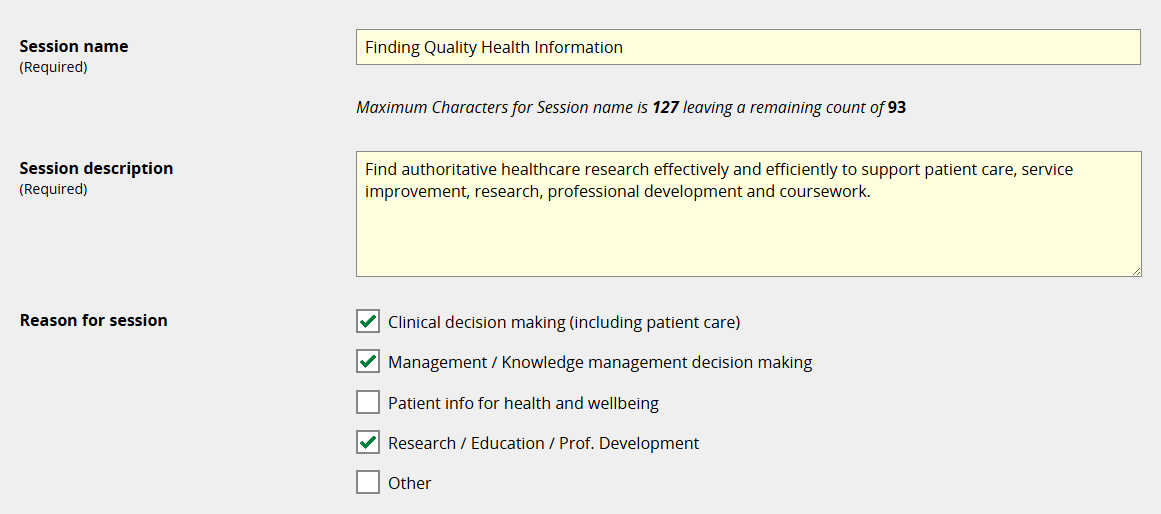
- Required field. Enter the session name. (There is a limit of 127 characters.)
Session description
- Required field. Enter a short session description.
Reason for session
- Check the relevant boxes (to inform statistics).
- Can be set when creating individual sessions if preferred.
Duration (in minutes)
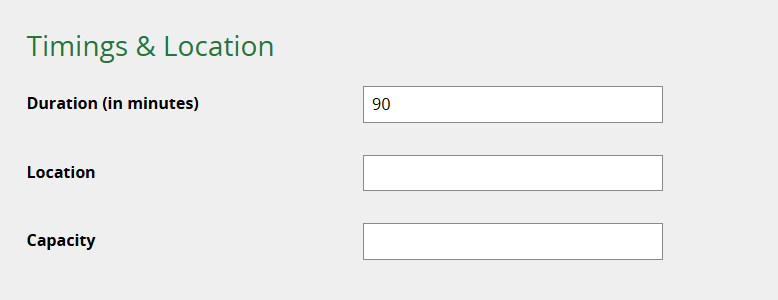
- Enter the standard session length.
- Can be set when creating individual sessions if preferred.
Location
- Enter a location for your session, for example 'Library Training Room' or 'Online via MS Teams'.
- Can be set when creating individual sessions if preferred.
See also: Can we add Teams links to online Skills sessions?
Capacity
- Enter the maximum number of attendees. This will trigger a waiting list if the number of bookings exceeds the capacity.
- Can be set when creating individual sessions if preferred.
See also: How to manage a session waiting list
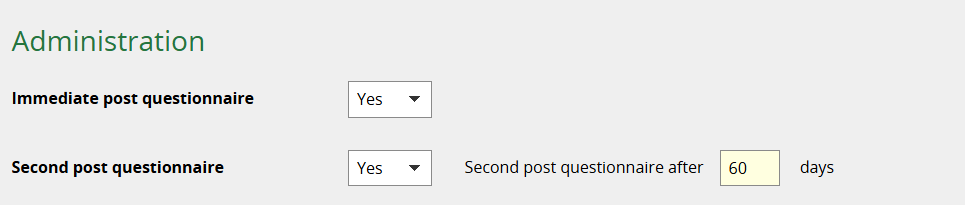
Immediate post questionnaire
- Select Yes to make an evaluation questionnaire available immediately after the session.
Second post questionnaire
- Select Yes to make a follow-up questionnaire available at a later date. If you select Yes, enter the number of days after the session to make it available.
See also: How to collect feedback on Skills sessions
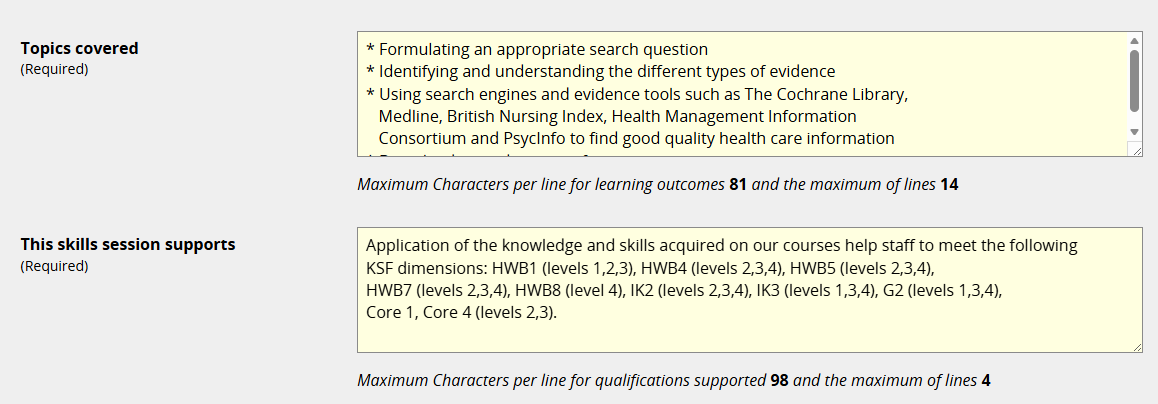
Topics covered
- Required field (if Generate certificate? is set to Yes). Enter the topics covered. This is included on the Certificate. Maximum 14 lines, 81 characters per line.
This skills session supports
- Required field (if Generate certificate? is set to Yes). Enter the qualifications/development areas supported by the session. This is included on the Certificate. Maximum 4 lines, 98 characters per line.
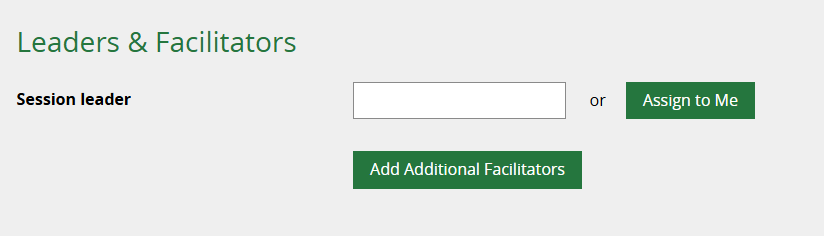
Session leader
- We recommend leaving this blank, to be set when creating individual sessions. (Adding a Session Leader or Facilitators to a template can cause issues if there are staff changes later.)
Restrict Attendees
Restrictions can be made to which Members can be booked on a session based on their organisation, division within the organisation, and their job role. Restrictions can also be applied or changed when creating individual sessions.
To set these restrictions at the Template level:
- Expand the Organisations list using the plus sign.
- Select the organisation(s) you wish to restrict bookings to. (Only Members from the selected organisation(s) can be booked on a session.)
- Select the division(s) within a specific organisation you wish to restrict bookings to, if applicable.
- Expand the Job Roles list using the plus sign.
- Select the job role(s) you wish to restrict bookings to. (Only Members in the selected job role(s) can be booked on a session.)

If all boxes are left unchecked, members from all organisations you serve and in all job roles will be eligible.
Nb only Members from organisations you serve can be booked onto your sessions, even if no restrictions are applied.
If you share an organisation with another library service, members of this organisation can book onto sessions from both library services.
Save your Template
- Click Save to save the Template.
- It will now be available to select when creating an individual Skills session.
Was this article helpful?
That’s Great!
Thank you for your feedback
Sorry! We couldn't be helpful
Thank you for your feedback
Feedback sent
We appreciate your effort and will try to fix the article