TABLE OF CONTENTS
- What is a category?
- Finding a Member's Professional Interests
- Professional Interests Page
- 1. ‘Enter your interests here or use the categories and evidence levels below’ field
- 2. Email alert to Assigned Librarian when one of their Members has edited their own Professional Interests
- 3. Email alert to Assigned Librarian when another library team member has edited one of their Member's Professional Interests
- 4. 'I would like to receive personalised update emails'
- 5. Email alert to Assigned Librarian when one of their Members has edited their frequency selection
- 6. 'I am happy for my professional interests to be seen by'
- 7. Assigned Librarians
- 8. Email alert to Named LKS Administrator that a Member is missing an Assigned Librarian
- 9. 'How did you find out about current awareness?'
- 10. Receive additional bulletins or news from my library and knowledge service
- Selected Evidence Levels
- Adding Categories to the Professional Interests Page
- 1. KnowledgeShare uses Boolean logic to combine categories
- 2. Guidance for selecting User Categories
- 3. Searching for Categories
- 4. Staff Groups can capture a User's interests as well as their role
- 5. Adding an additional Professional Interests Page
- Adding an Additional Professional Interests Page when looking at topics specific to different age groups
- Adding an Additional Professional Interests page when looking at topics specific to different settings
- Adding an Additional Professional Interests page when looking at different aspects to the members role
What is a category?
Categories are terms used collectively to describe the content of a resource, or a Members interests.
The categories are a controlled list of terms structured as a thesaurus. Broader parent terms have narrow child terms.
Hospital Settings [parent term]
Emergency Department [child term]
Hospital Ward [child term]
Intensive Care Unit [child term]
Outpatient Department [child term]
For a print list of the categories see Handbook Appendix 1: Categories.
Finding a Member's Professional Interests
1. Find a new Member's Professional Interests
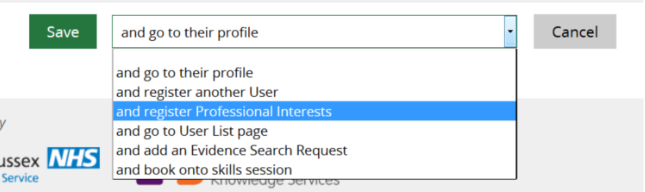
Once you have added the new Member's personal and professional information, scroll to the bottom of the page and select and register professional interests from the drop down menu. Then click Save.
2. Find an existing Member's Professional Interests
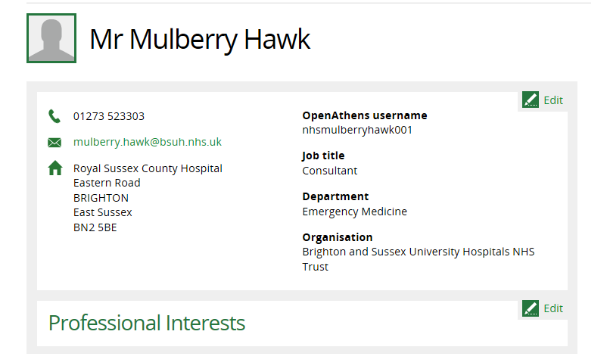
From a Members profile page select Edit on the left of the Professional Interests section.
Professional Interests Page
1. ‘Enter your interests here or use the categories and evidence levels below’ field
The free text box under the text ‘Enter your interests here or use the categories and evidence levels below’ allows members to register their professional interests with the library team without having to use the categories.
This box has no functionality, however, and doesn’t not convert text to categories. The librarian responsible for updating Member interests will have to take this information and apply it to the category groups so that the Member gets relevant resources sent to them.
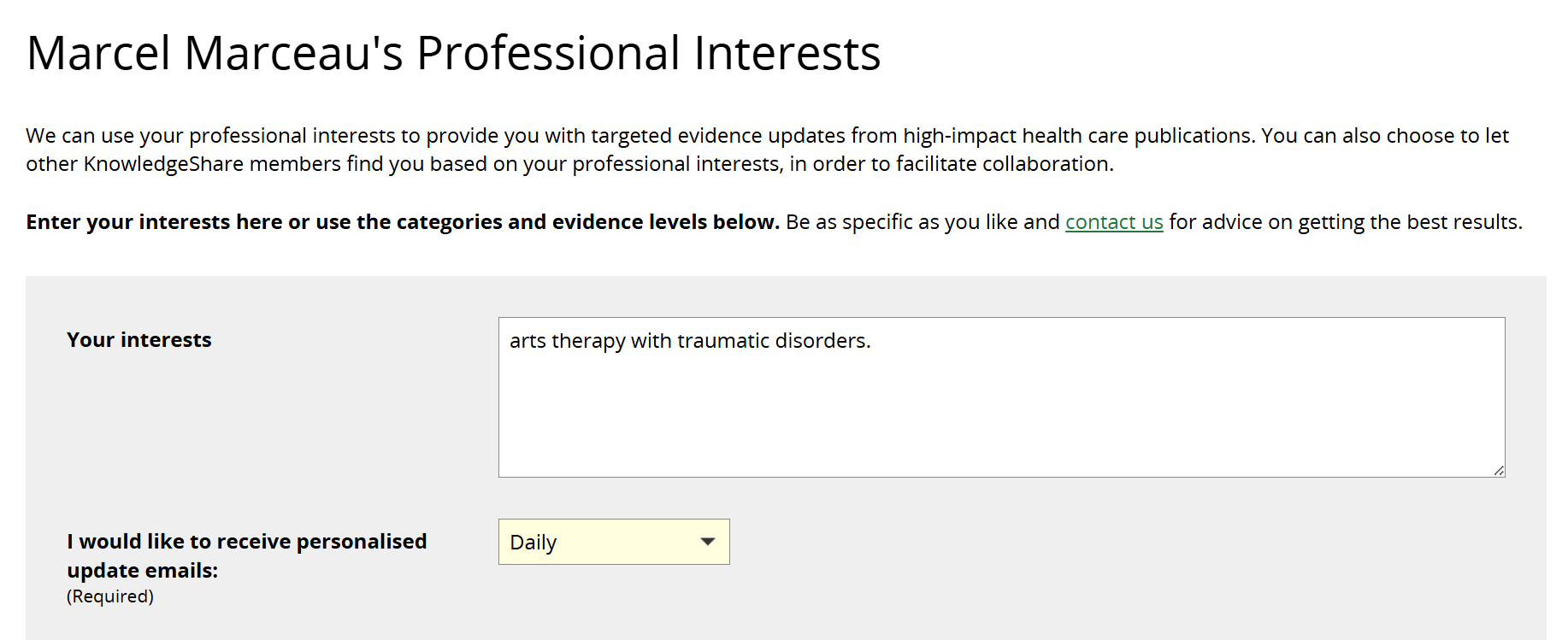
The link in the text ‘Be as specific as you like and contact us for advice on getting the best results’ will send an email to the email address in the Member's LKS Email field on the Manage LKS page.
2. Email alert to Assigned Librarian when one of their Members has edited their own Professional Interests
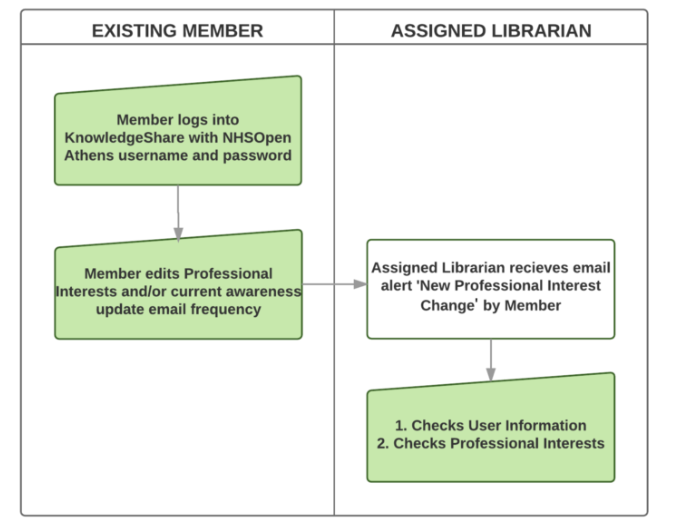
When a member has logged in and changed their professional interests in any way, their Assigned Librarian will receive an email alert.
System Level Template: NewProfessionalInterestChange
Subject Line: New Professional Interest Change
Dear Rachel Playforth,
Mr Gabriel Oak has updated the professional interests for Mr Gabriel Oak as follows:
Changes were made to the professional interest text field.
The previous value was:
Knee surgery
and it was changed to:
Adult hip and knee surgery and postgraduate education including simulation
You can see their professional interest page at:https://staging.knowledgeshare.nhs.uk/index.php?PageID=saved_search_edit&ForUserID=12404&SavedSearchID=8577
Regards,
KnowledgeShare
------------------------------- Sent out by KnowledgeShare------------------------
There are a number of actions that need to be taken by library staff after the email alert:
- Check User Information page is correct:
- Click Edit next to the User Information selection;
- Check User Information.
- On the professional interest page check categories capture requested professional interests.
3. Email alert to Assigned Librarian when another library team member has edited one of their Member's Professional Interests
When a library staff member other than the Assigned Librarian changes a Member's professional interests or the current awareness update emails frequency, their assigned librarian will receive an email alert.
System Level Template: NewProfessionalInterestChange
Subject Line: New Professional Interest Change
Dear Rachel Playforth,
Clare Thornalley has updated the professional interests for Augustus Snodgrass as follows:
Changes were made to the professional interest text field.
The previous value was:
Blank
and it was changed to:
Diabetes, acute medicine. Elderly.
The current awareness frequency option has changed from: 'Never' to 'Every two weeks'.
You can see their professional interest page at: https://www.knowledgeshare.nhs.uk/index.php?PageID=saved_search_edit&ForUserID=17269&SavedSearchID=12919
Regards,
KnowledgeShare
------------------------------- Sent out by KnowledgeShare------------------------
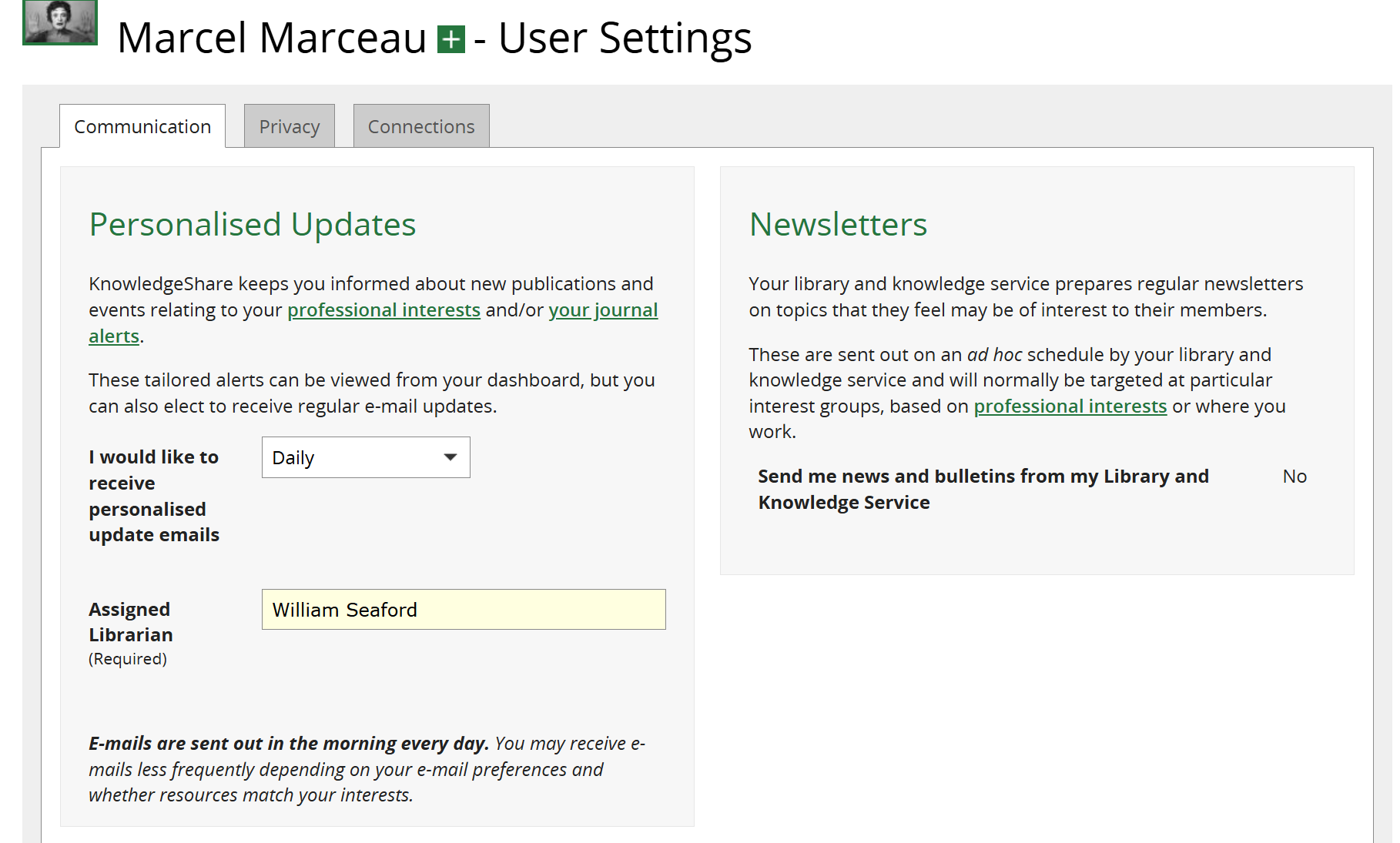
4. 'I would like to receive personalised update emails'

- Never (default setting)
- Daily
- Weekly
- Every Two Weeks
- Monthly
The selection is synchronised with the other occurrences of this question on the Member Settings page on the Communications tab:
5. Email alert to Assigned Librarian when one of their Members has edited their frequency selection
When a member has logged in and changed the frequency selection for their current awareness update emails, an alert email is sent to their Assigned Librarian.
System Level Template: NewProfessionalInterestChange
Subject Line: New Professional Interest Change
Dear Rachel Playforth,
Mr Mulberry Hawk has updated the professional interests for Mr Mulberry Hawk as follows:
The current awareness frequency option has changed from: 'Every two weeks' to 'Weekly'.
You can see their professional interest page at:https://staging.knowledgeshare.nhs.uk/index.php?PageID=saved_search_edit&ForUserID=15413&SavedSearchID=11126
Regards,
KnowledgeShare
There are a number of actions that need to be taken by library staff after the email alert:
- Check the User Information page is correct:
- Click Edit next to the User Information selection;
- Check User Information.
- On the professional interest page check categories capture requested Professional Interests.
6. 'I am happy for my professional interests to be seen by'

The default for this is 'Librarians only'. You or the user may select one of the following options from the drop down list:
- All KnowledgeShare members
- Librarians and staff of your organisation
- Librarians
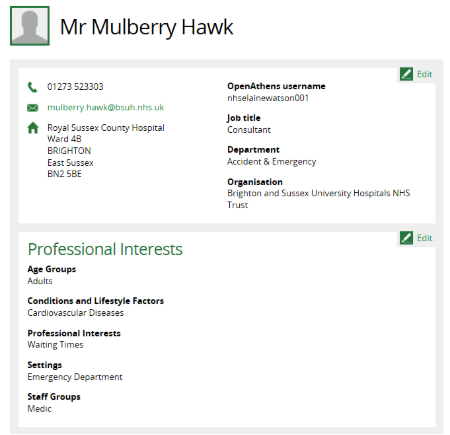
The selection determines who will see the Members’ professional interest categories on their member profile record.
This is the display of the Member's profile which other Members will be able see where 'All KnowledgeShare members' has been selected:
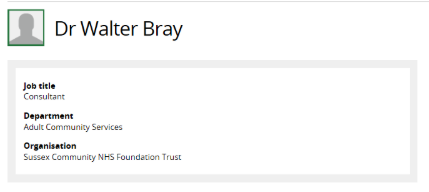
If 'Librarians Only' has been selected, this is the view of the Member's profile other non-librarian Members will be able to see:
7. Assigned Librarians

An Assigned Librarian is the member of staff a Member receives current awareness emails from.
Library services that have Clinical Librarians can match Members to the appropriate librarian supporting their team to maintain regular contact
The Assigned Librarian field is mandatory if anything other than 'Never' has been selected in the 'I would like to receive personalised update emails' field.
Once you start typing the librarians name, a list will appear from which you can select the right person.
Members themselves do not see this option when self-registering or when self-selecting current awareness interests. Please note that Members cannot receive current awareness updates unless they have an Assigned Librarian.
8. Email alert to Named LKS Administrator that a Member is missing an Assigned Librarian
When a Member self-registers and adds information to their Professional Interests page, an alert is sent to the Named LKS administrator. There are a number of actions that need to be taken by library staff after the email alert:
- The Member self-registration process does not include filling in the Job Group and Job Role fields so these fields need to be populated:
- Click Edit next to the User Information selection;
- Appropriately populate the Job Group and Job Role fields.
- On the professional interest page add an Assigned Librarian:
- Click Edit next to Professional Interests;
- From the drop down list next to Assigned Librarian select a member of staff.
- Check categories capture requested professional interests.
9. 'How did you find out about current awareness?'
This mandatory list captures the user's interaction with the library service (via staff, services or communications) and the latter's promotional success in leading library members to use the current awareness service.

The Member or you will need to select one of the following options from the drop-down list:
- Colleague or Educational Supervisor
- Commissioning Zone
- Library current awareness
- Library enquiry desk
- Library publication (leaflet, display etc.)
- Library staff in your workplace
- Library teaching session
- Library website
- Trust induction
- Trust publication
- Used the service before
10. Receive additional bulletins or news from my library and knowledge service

The default for this is 'No'. Selecting this option allows Members to receive Newsletters emailed via KnowledgeShare (see the following article: How to create a Newsletter (bulletin) : KnowledgeShare Support). Whatever is selected for this is synchronised with the other occurrences of this question on the:
- Member Settings page on the Communications tab
- Member Professional Interests page
Selected Evidence Levels
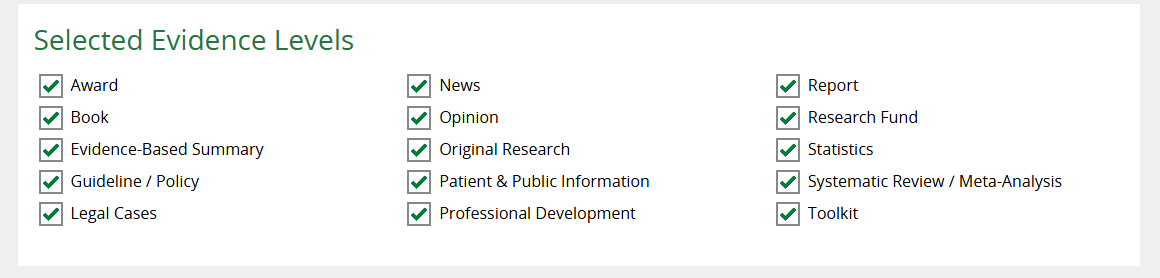
Resources in KnowledgeShare cover a wide range of evidence levels. The Selected Evidence Levels function provides the option to filter the types of evidence members receive in their evidence update email. If a member has a broad topic of interest they will initially receive a lot of resources with a wide range of evidence levels. The Evidence Level function can be used to filter this broad topic for higher level evidence, which would increase the quality of their current awareness. If a member has a very narrow topic of interests then the default selection of all evidence levels would help capture all resources on this topic.
Selected Evidence Levels as a default setting has all evidence levels selected:
1. Evidence level descriptions
Type | Description | Example Resources |
Award | Recognition for achievement in a field | |
Book | Complete printed or electronic book | Clinical Endocrinology and Diabetes at a Glance [with local library location and shelfmark]
[with local online access instruction]
|
Evidence-Based Summary | Critically appraised research and syntheses of evidence | |
Guideline | National, international, or institutional guideline | |
Legal Cases
| Publically reported legal case details | |
News | Recent health news | |
Opinion
| Healthcare related opinion piece | |
Original Research | Article reporting a trial, observational study, case report etc | |
Patient & Public Information | Resource designed for patients or the public | |
Professional Development | Professional development opportunity including face to face training and e-learning | |
Report | Institutional publications that do not fall into the other categories | |
Research Fund | Details of research grants or funding | |
Statistics | Statistical reports, data tables etc | |
Systematic Review/ Meta-Analysis | Systematic review and/or meta-analysis, or other comprehensive review with stated methodology | |
Toolkit | Collection of practical resources |
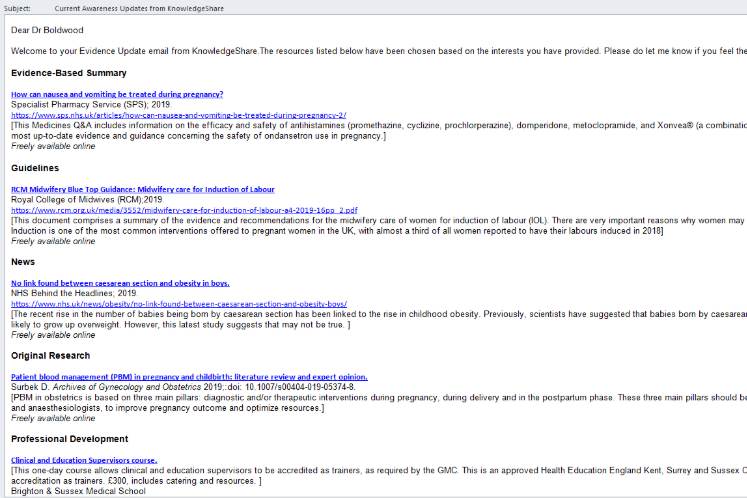
2. Evidence levels in Evidence Update Emails
Resources in KnowledgeShare cover a wide range of evidence levels. The Evidence Levels are displayed as headers within a member’s evidence update email so they can quickly assess the weight of evidence of each resource listed.
Adding Categories to the Professional Interests Page
Categories are selected from the list on the right and displayed in the boxes on left:
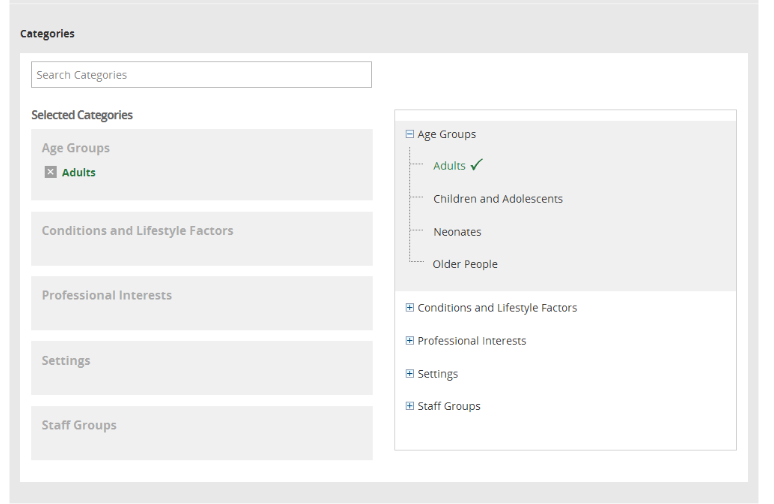
Each box has categories about areas of professional interest:
Age Groups | What is the age group of the patients the member is interested in?
|
Conditions and Lifestyle Factors | What clinical conditions or risk factors is the member interested in? |
Professional Interests | What non-clinical interests does the member have, such as leadership, commissioning or patient safety?
|
Settings | What is(are) the setting(s) in which members work with their patients OR in what setting(s) do they have influence on the management of the service?
|
Staff Groups | What staff group describes what the member does OR is interested in?
|
Combining these terms creates a unique, user-tailored search, that will pull in Resources matching their interests.
NB Both 'Conditions and Lifestyle Factors' and 'Professional Interests' cannot be empty.
1. KnowledgeShare uses Boolean logic to combine categories
Categories within each box (e.g. 'Adults' and 'Older People' in 'Age Groups') are combined using the OR modifier.
The boxes are also combined with one another (e.g. 'Age Groups' and 'Professional Interests'), using the AND modifier.
IMPORTANT - The exception to this rule are the boxes 'Conditions and Lifestyle Factors' and 'Professional Interests'. These are combined with BOTH the OR and AND modifiers.
Boolean Modifiers - what do they mean?
| AND | Searching terms combined with 'AND' excludes all results that only contain one of the terms and includes only results that contain both terms. E.g. combining 'Asthma' and 'Hospital Settings' will only return Resources containing both asthma and hospital settings. Articles looking at asthma in community settings, for example, will be excluded. |
| OR | Or will bring up all Resources containing either term searched individually or both together. For example, 'Asthma' OR 'Hospital Settings' will return all articles containing either asthma or hospital settings or both asthma and hospital settings. |
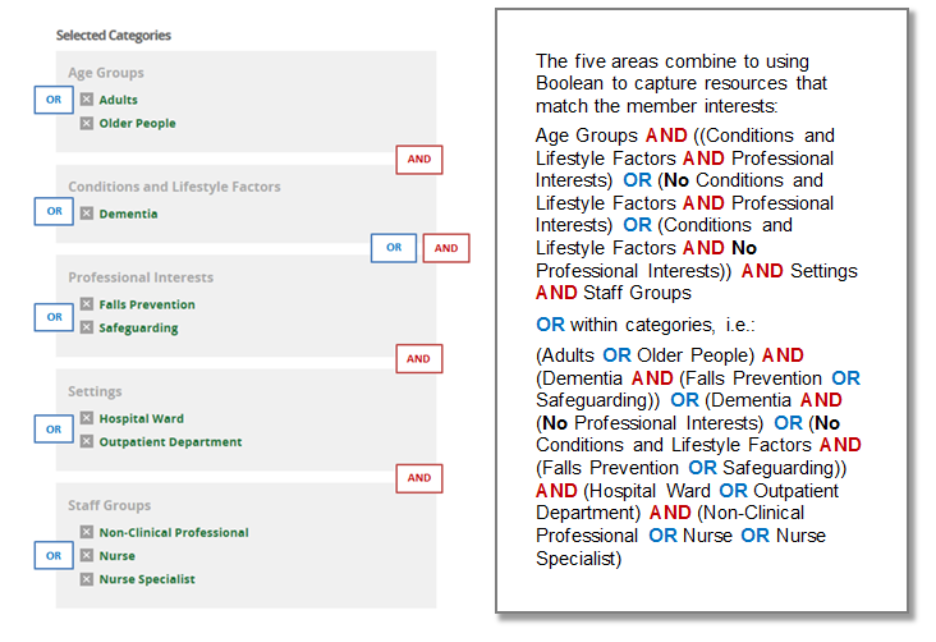
KnowledgeShare will search as widely as possible within each box but only include Resources that match the User's combination of interests.
This means that a mental health nurse working in the community, for example, will not receive resources intended for one who works in hospital settings or vice versa. Rather, their Resources will be tailored to the specific 'Age Groups', 'Conditions', 'Professional Interests', 'Settings', and 'Staff Groups' they belong to, whilst ensuring that all relevant Resources still get to them.
Because 'Conditions and Lifestyle Factors' and 'Professional Interests' are combined with both AND and OR modifiers, they operate slightly differently. With these boxes, KnowledgeShare will search against all Categories using both AND and OR modifiers, even if the User has no Categories in one of the two boxes. The following table explains the significance of this:
| User has selected Categories in Both 'Conditions and Lifestyle Factors' AND 'Professional Interests' (e.g. 'Frailty' and 'Patient Safety'). | User will receive all Resources about: 1. Frailty and Patient Safety together (due to the 'AND' modifier);* 2. Frailty on its own ('OR' modifier); 3. Patient Safety on its own ('OR' modifier). |
| User has Categories in only 'Conditions and Lifestyle Factors' selected. | KnowledgeShare will 'switch off' 'Professional Interests' and only search for Resources the User has selected in 'Conditions and Lifestyle Factors'. |
| User has Categories in only 'Professional Interests' selected. | KnowledgeShare will 'switch off' 'Conditions and Lifestyle Factors' and only search for Resources the User has selected in 'Professional Interests'. |
* If you don't want this to happen - for example, the User wants information on 'Patient Safety' and 'Frailty' separately for whatever reason - you may need to add additional Professional Interest pages. See the section below, Adding an Additional Professional Interests page.
2. Guidance for selecting User Categories
a. Be specific
In each box, select the Category most specific to the Resource.
Categories are divided into parent categories and child categories. If you select a parent term in the category thesaurus the system automatically selects all the child terms as well.
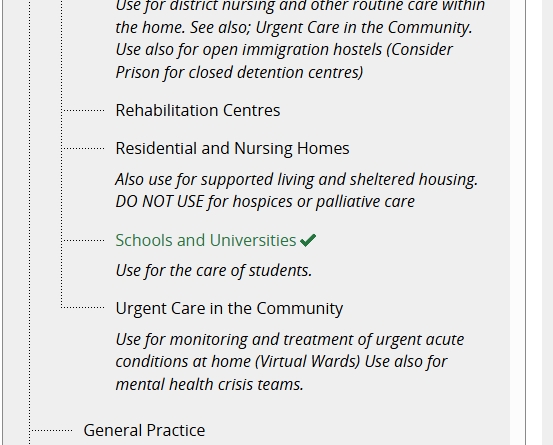
If you select the category ‘Community Settings’ your member will get resources applying to (Community Clinics OR End of Life Care in the Community OR Home Care OR Rehabilitation Centres OR Residential and Nursing Homes OR School Health Services).
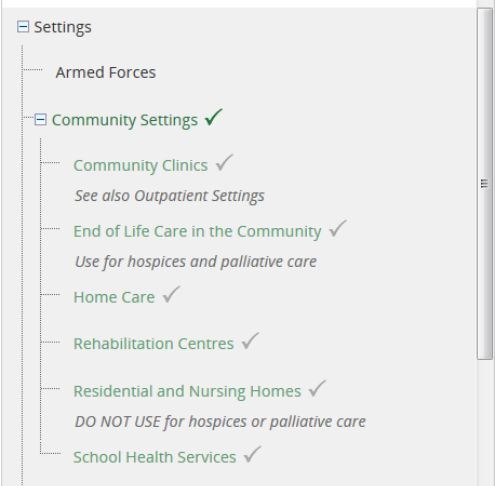
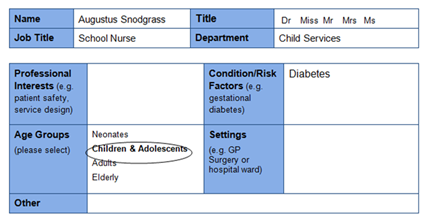
This will obviously not be appropriate if the User is, say, a school nurse, as they will receive information about things like palliative care.
Selecting the child category, 'School and University' would be more appropriate for this User.
b. Both 'Conditions and Lifestyle Factors' and 'Professional Interests' cannot be empty.
If both boxes are empty, the member will get resources about ALL 'Conditions and Lifestyle Factors' AND ALL 'Professional Interests'.
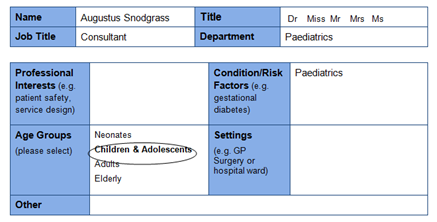
From this User's request form we can see this paediatrics consultant wants resources on their speciality:
If you do not select any Categories in 'Conditions and Lifestyle Factors' or 'Professional Interests':
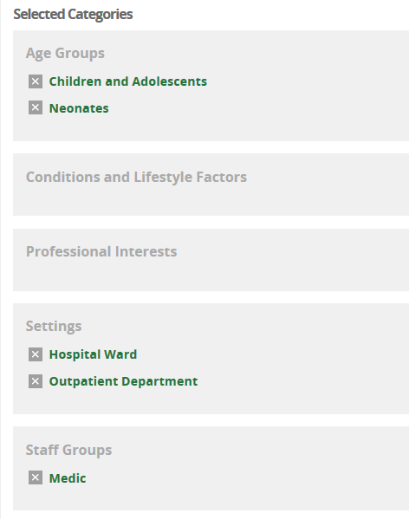
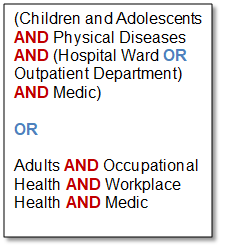
KnowledgeShare is in fact selecting resources with ALL Conditions and Lifestyle Factors and resources with ALL the Professional Interests and only using the (Neonates OR Children and Adolescents) AND Medic AND (Hospital Ward OR Outpatients Departments) to restrict the selection:
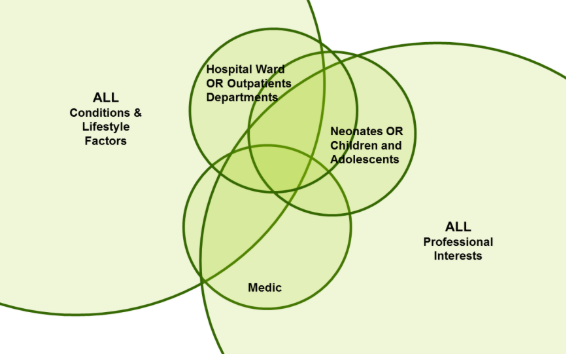
This will lead to the User being overwhelmed with irrelevant results.
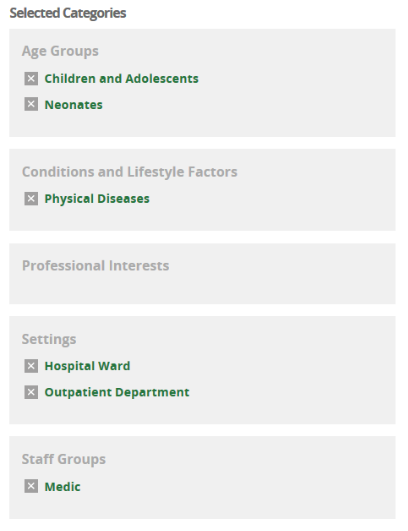
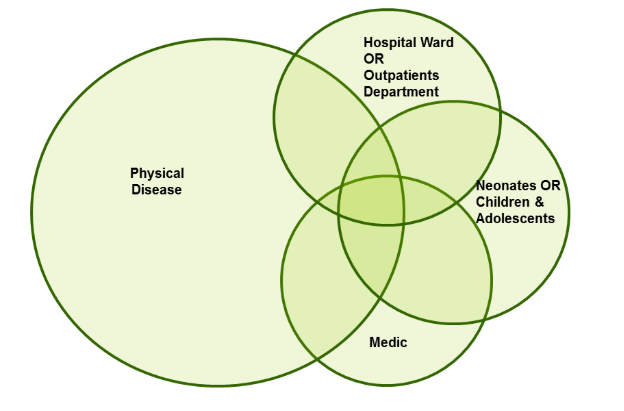
If we look again at their registration form, we see that the User is working in an acute trust. This suggests they will be mainly be treating patients with physical diseases. Selecting ‘Physical Diseases for the ‘Conditions and Lifestyle Factors’ box restricts the resources to only those with a clinical aspect.
3. Searching for Categories
As well as locating Categories via the Category tree on the right hand side of the page, it is also possible to search for them via the search bar, located at the top of the 'Professional Interests' page:

Terms are linked to appropriate synonyms and acronyms and can be retrieved by the search:
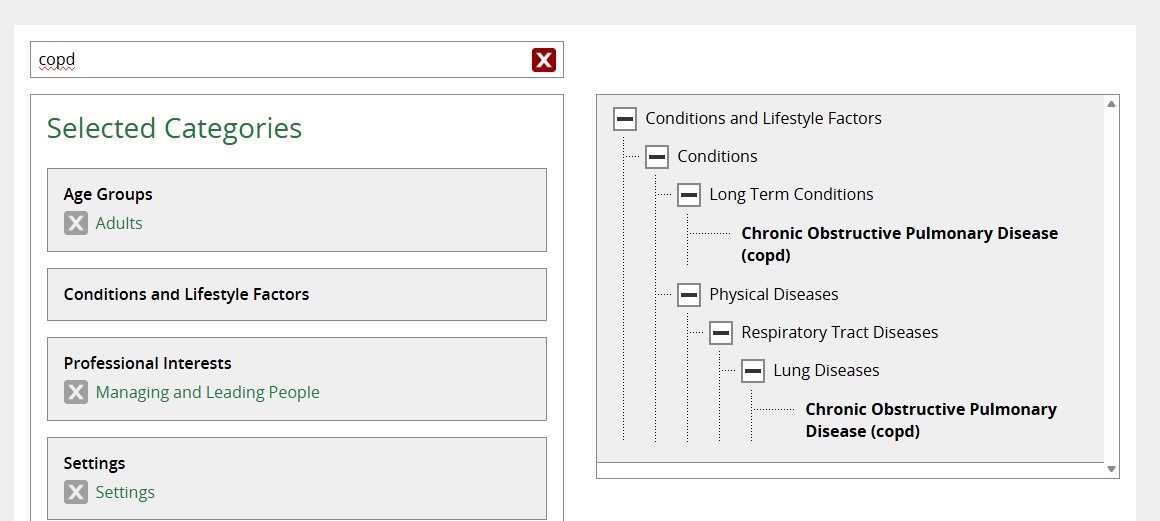
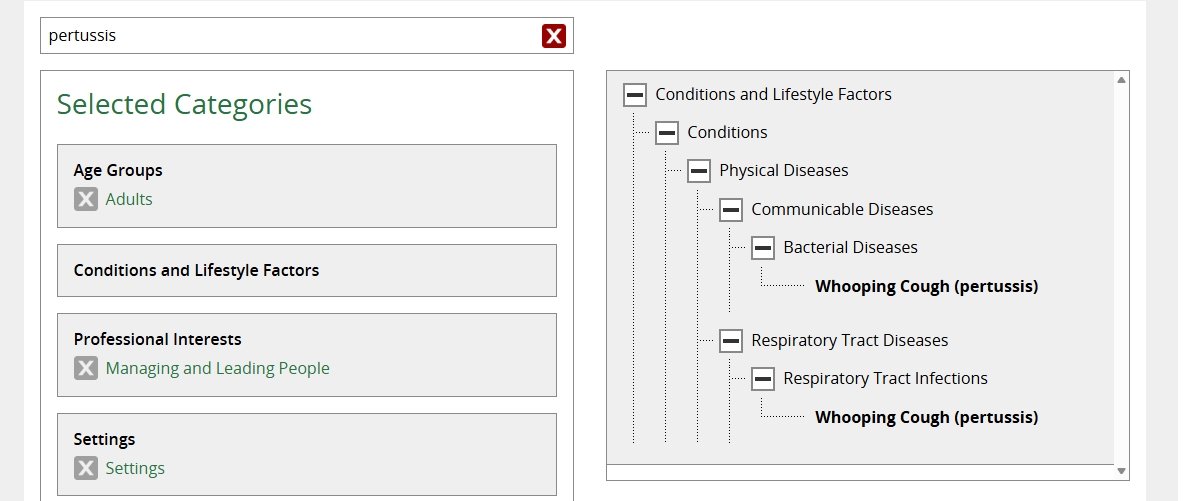
Click on the red on the right of the search box to escape from the search function.
4. Staff Groups can capture a User's interests as well as their role
The Staff Group categories are not a linguistic match for a Member’s job title but a way of ensuring the member gets resources at a level they can make use of. The Staff Groups represents a skill set. For some this is expressed with a specific role such as the category ‘Physiotherapist’ for some it is more general like ‘Nurse’. A Member many have multiple Staff Group categories to capture the different skill sets involved in their role.
A Member can have more than one Category in the Staff Group box. For example, a Nurse Practitioner could have the following:
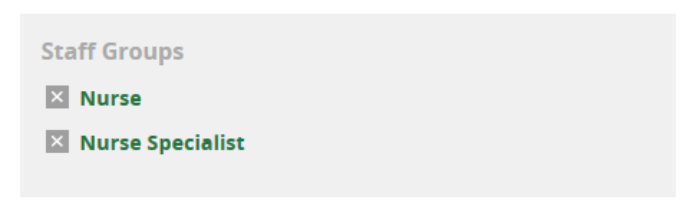
The Category 'Nurse' captures resources aimed at nurses in general, whilst 'Nurse Specialist' captures resources that support significant involvement in medical treatment and diagnosis.
Similarly, a Smoking Cessation Nurse could have the following:
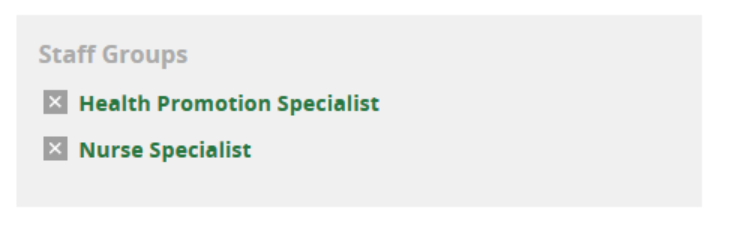
Health Promotion Specialist will capture more resources on interventions to stop and prevent smoking.
Or a Foundation Year Doctor could be categorised as follows:
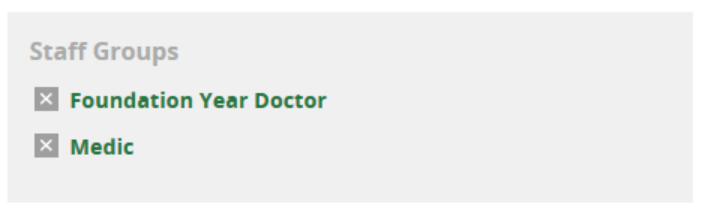
Foundation Year Doctor ensures that they get resources aimed at supporting them during these years.
5. Adding an additional Professional Interests Page
Library Staff can create additional professional interest pages for a member, up to a maximum of three pages. Members cannot create additional interest pages.
Additional pages can be created where the Members professional interests look at:
i. topics specific to different age groups;
ii. topics specific to different settings;
iii. topics which are applicable to different aspects of the members role.
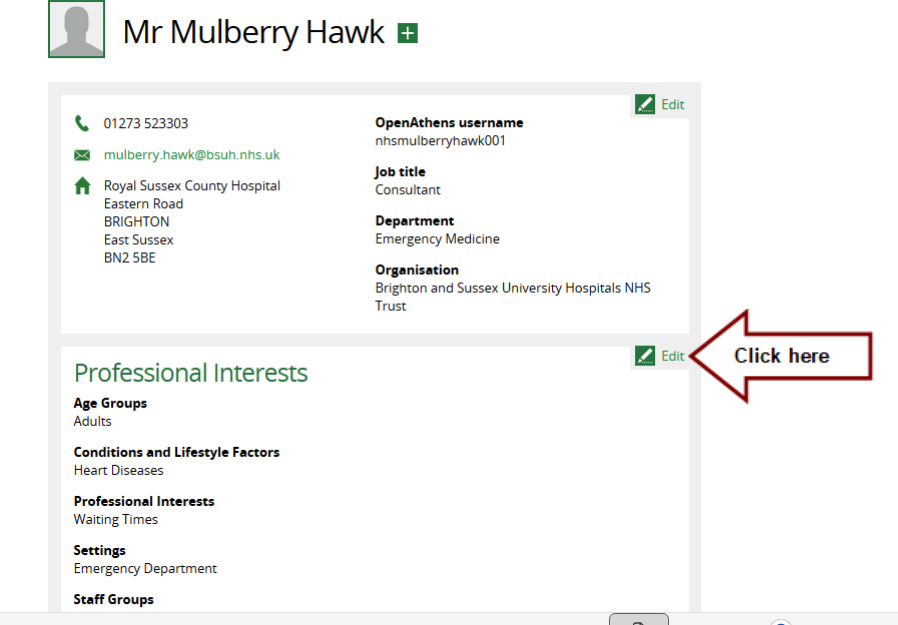
From the Member's profile page, select Edit on the left of the Professional Interests section:
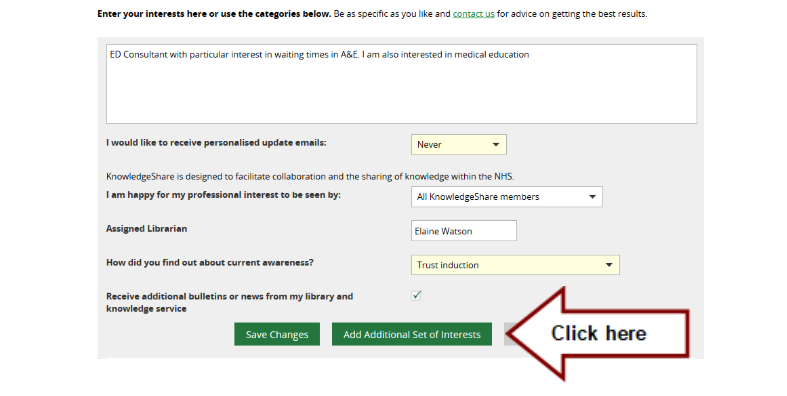
Then click on Add Additional Set of Interests
Adding an Additional Professional Interests Page when looking at topics specific to different age groups
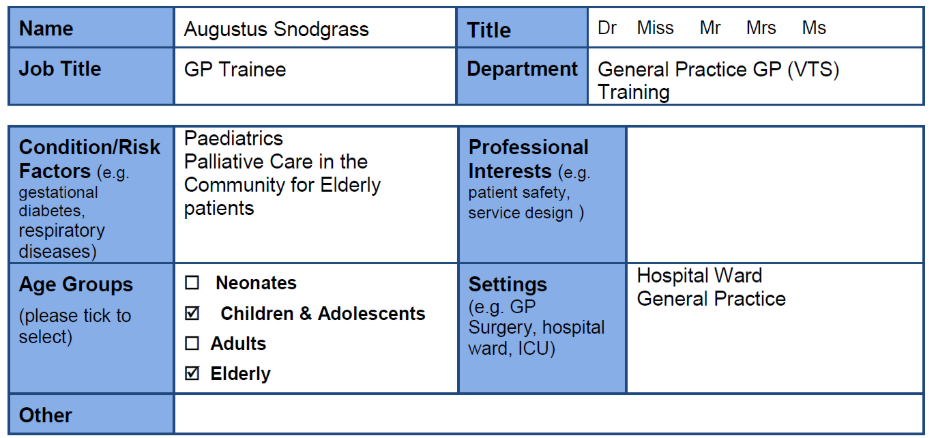
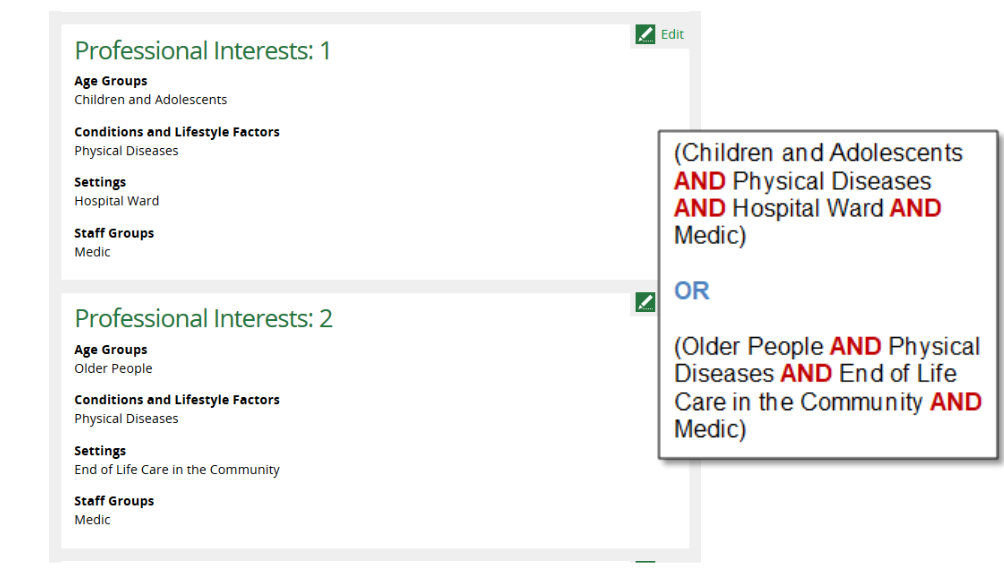
Using the additional professional interest page function allows the interests of Paediatrics and Palliative Care in the Elderly patients to be captured individually and with greater focus than using a single interest page.
The Age Group ‘Children and Adolescent’ is part of the key to capturing resources on Paediatrics in combination with the acute setting ‘Hospital Ward’ and the condition ‘Physical Diseases’ to ensure clinical topics are selected.
Adding an Additional Professional Interests page when looking at topics specific to different settings
Member Example 2: Professional interests looking at topics specific to different settings
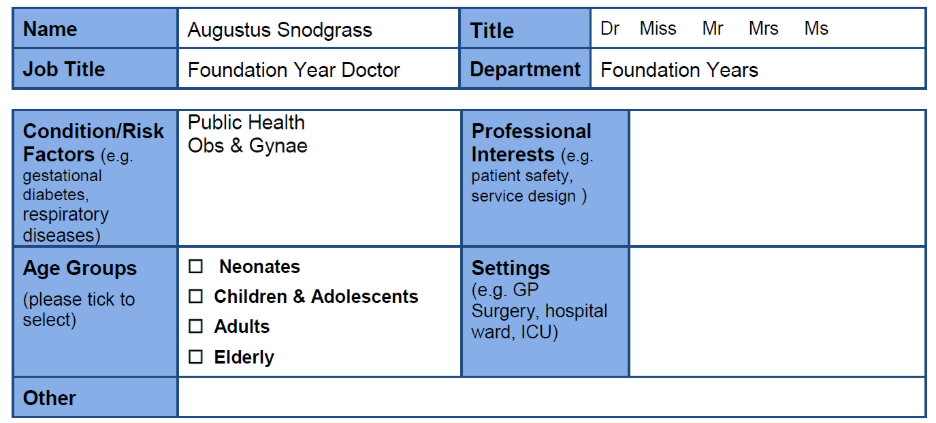
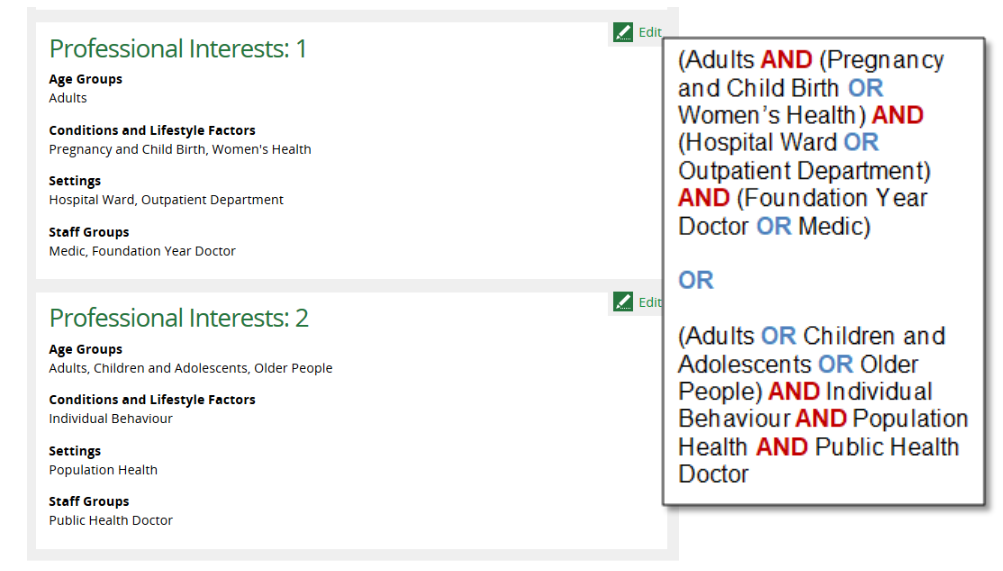
Using the additional professional interest page function allows the interests of Obstetrics & Gynaecology and Public Health to be captured individually and with greater focus than using a single interest page.
The settings ‘Hospital Ward’ and ‘Outpatient Department’ capture the acute setting of Obstetrics and Gynaecology, in combination with the conditions ‘Pregnancy and Child Birth’ and ‘Women’s Health’
The use of an additional professional page allows the Setting ‘Population Health’ to be separately combined with the condition term ‘Individual Behaviour’ to capture resources on the interest of Public Health.
Adding an Additional Professional Interests page when looking at different aspects to the members role
Member Example 3: Professional interests looking at different aspects to the member’s role
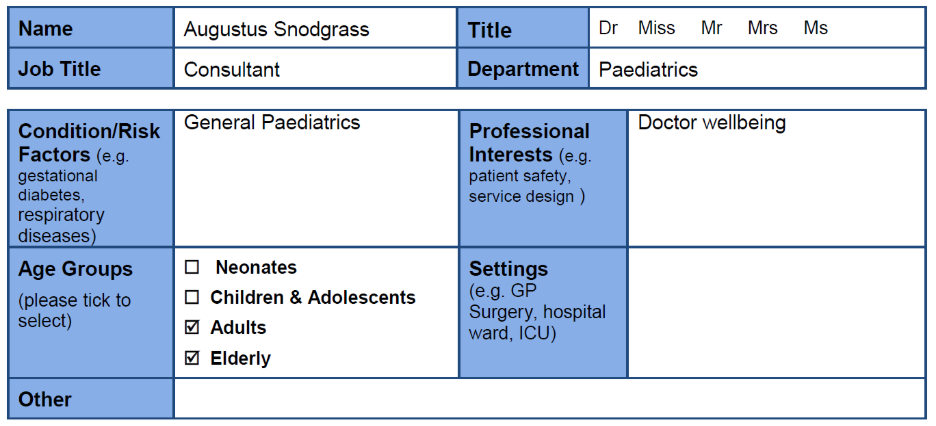
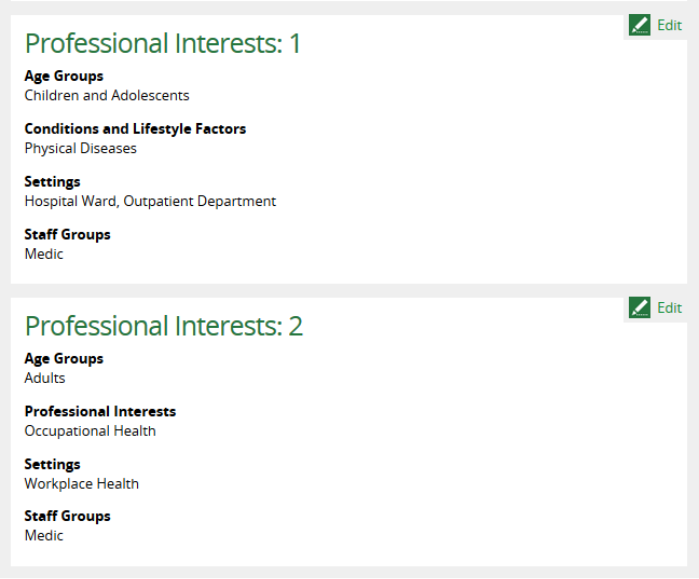
Using the additional professional interest page function allows the interests of General Paediatrics and Doctor Wellbeing to be captured individually and with greater focus than using a single interest page.
The settings ‘Hospital Ward’ and ‘Outpatient Department’ capture the acute setting of General Paediatrics, in combination with the Age Group ‘Children and Adolescent’ and the condition term ‘Physical Diseases’ to ensure clinical topics are selected.
The use of an additional professional page allows the Setting ‘Workplace Health’ to be separately combined with the condition term ‘Workplace Health’ and the Age Group ‘Adults’ to capture resources on the interest of Doctor Wellbeing.
Was this article helpful?
That’s Great!
Thank you for your feedback
Sorry! We couldn't be helpful
Thank you for your feedback
Feedback sent
We appreciate your effort and will try to fix the article