Attendance certificates can be provided for Members who have been registered as attending a Skills session.
1. Find the relevant Skills session.
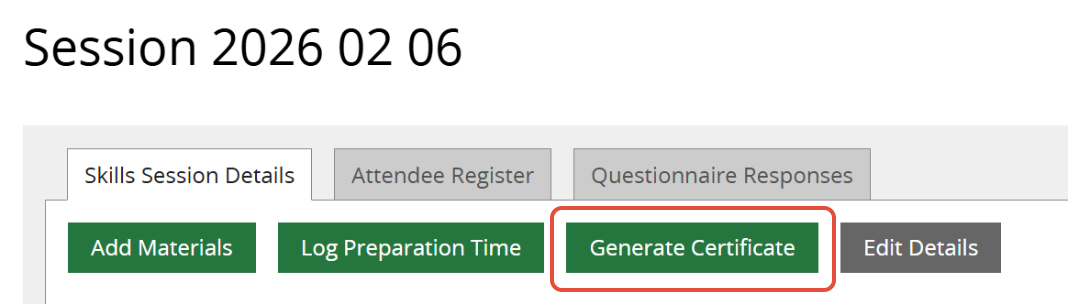
2. Click on the Skills Session Details tab and click Generate Certificate.
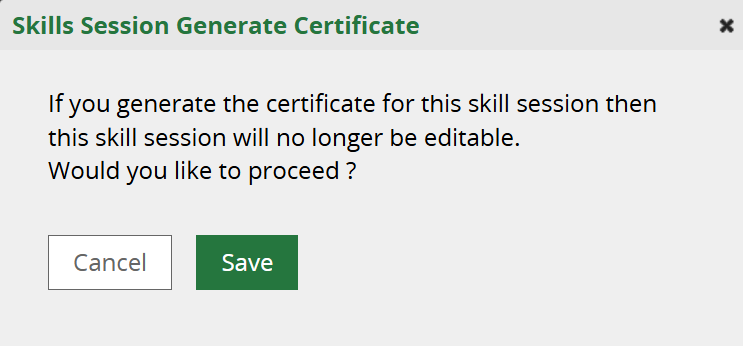
3. Click Save on the popup message If you generate the certificate for this skill session then this skill session will no longer be editable. The Skills session details are confirmed as final by the creation of a certificate. However, further Members can still be booked and registered on the session and Member Feedback can be added.
4. Click on the new Certificates tab that appears.
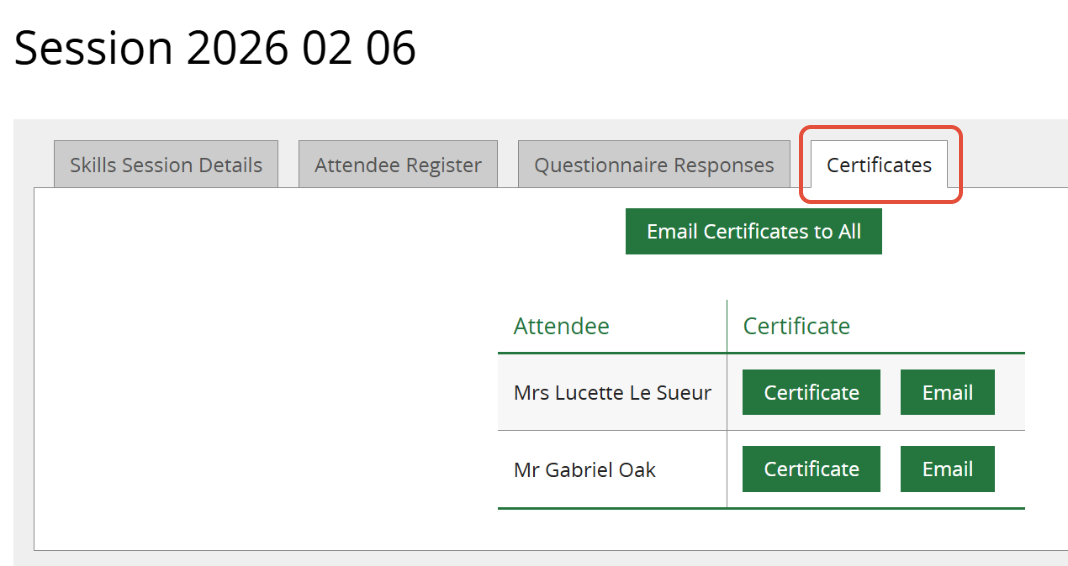
This tab provide three ways to save or send certificates to Members:
- Click Email Certificates to All to create a group email message
- Click Email next to a name to email the certificate to a specific Member
- Click Certificate next to a name to view and download a certificate for a specific Member
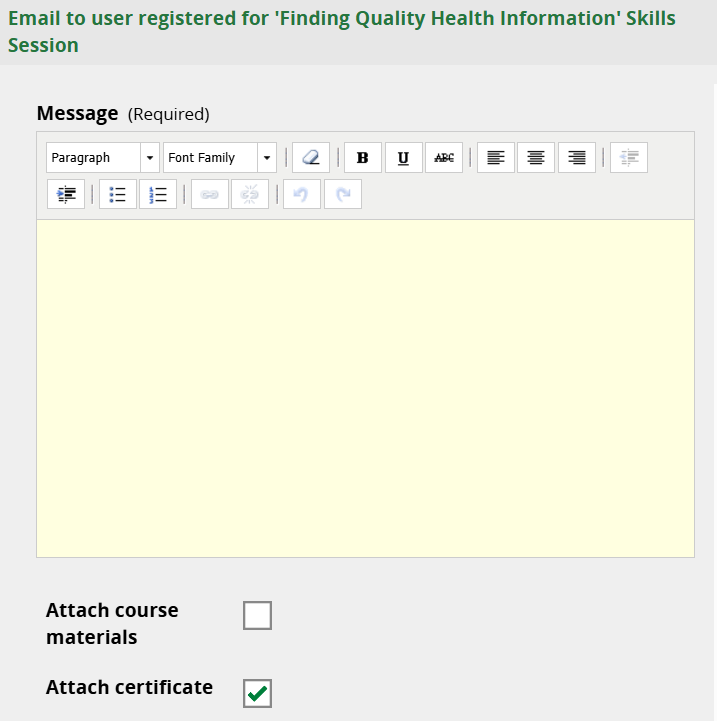
If emailing certificates, a blank form is provided for your message, as well as a checkbox to confirm the certificate attachment (ticked by default) and an checkbox to attach course materials if desired.
See also How to add course materials to a Skills session.
Certificates include the following information:
- Attendee name
- Session name, date and duration
- Topics covered
- Session leader's name
- Date of certificate
- Qualifications or development areas supported by the session
- LKS logo
- KnowledgeShare logo
Download an example certificate below.
Was this article helpful?
That’s Great!
Thank you for your feedback
Sorry! We couldn't be helpful
Thank you for your feedback
Feedback sent
We appreciate your effort and will try to fix the article