CONTENTS
- Promotion via your LKS page
- Promotion in Update emails
- Forthcoming Skills Sessions page
- Downloading a list of sessions
Promotion via your LKS page
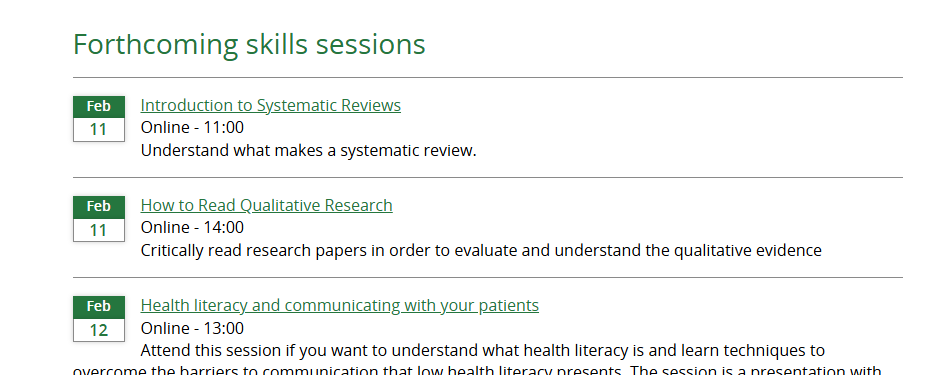
Sessions that are set to Visible will appear on your LKS landing page (up to 10 forthcoming sessions). This page can be viewed by anyone and login is not required.
See an example at https://www.knowledgeshare.nhs.uk/index.php?PageID=lks_public&LKSID=1.
You can view your own page by clicking on the name of your LKS shown in the top left corner when logged in to KnowledgeShare.
Consider sharing the link wherever you would like to promote your training (note that clicking through to view and book a specific session will take users to an OpenAthens/institutional login page).
Promotion in Update emails
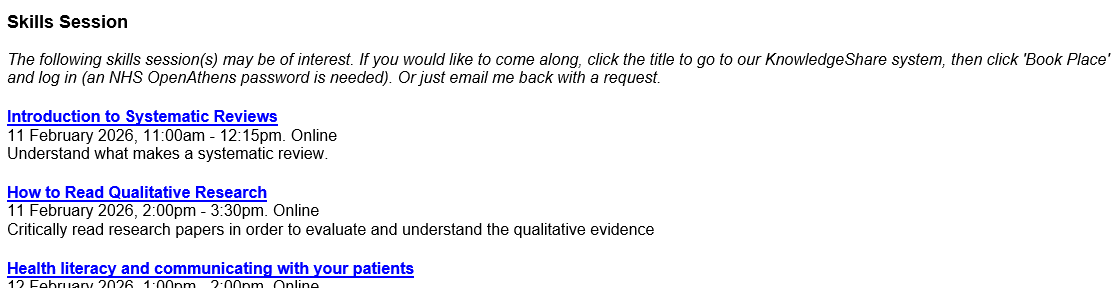
You can choose to promote your forthcoming sessions within your Members' evidence update emails. Sessions are shown at the bottom of the personalised content. Only sessions that are set to Visible are included.
To enable this, you need to edit the settings on your Edit LKS page (LKS Administrators only).
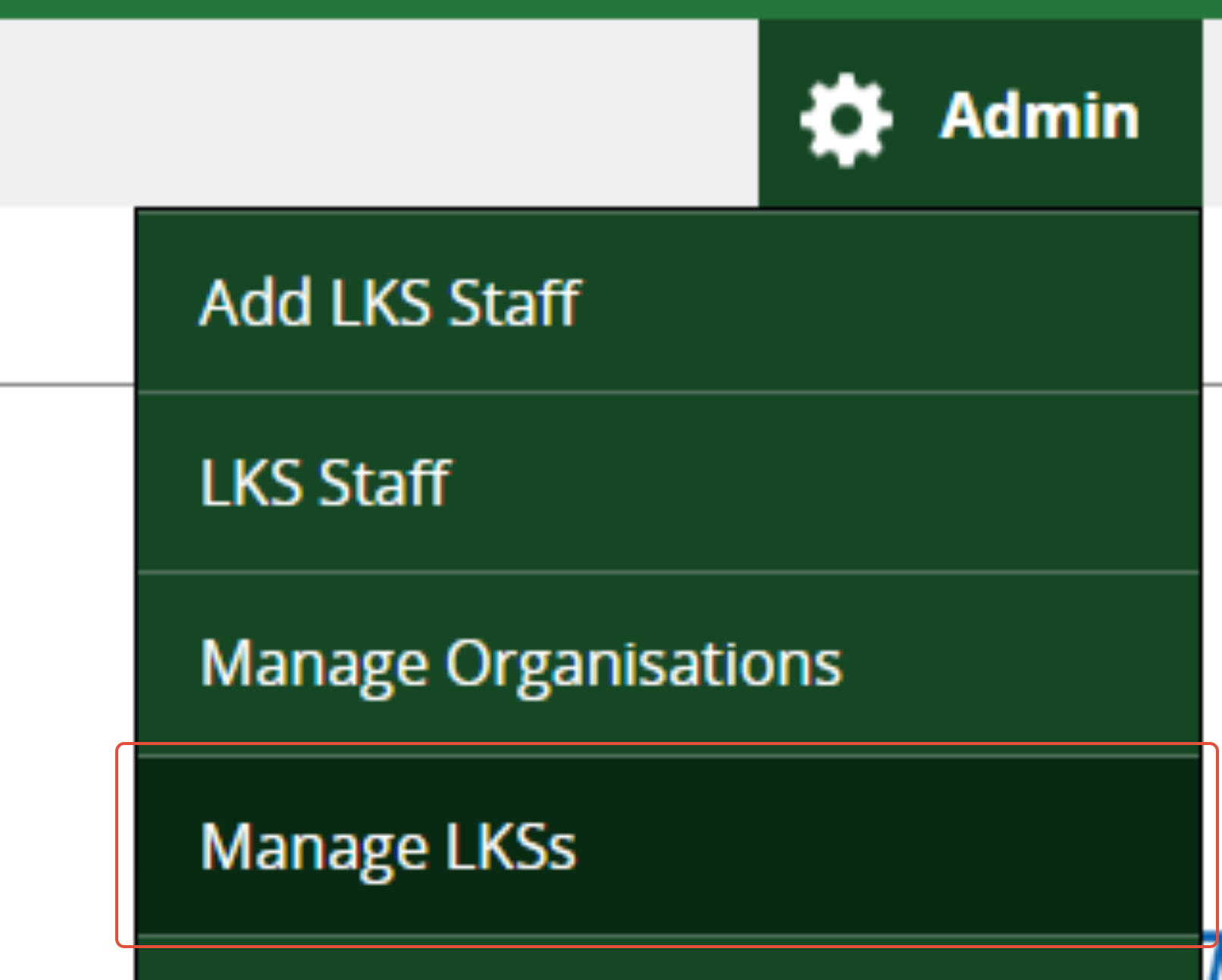
1. Hover over the Admin menu cog and click on Manage LKSs.
2. Select your Library and Knowledge Service from the list.
3. Scroll down the page to Settings.
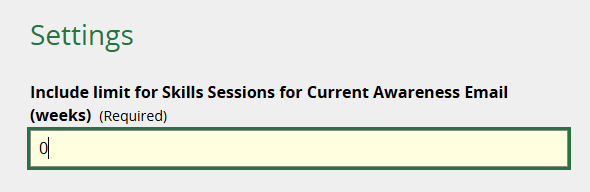
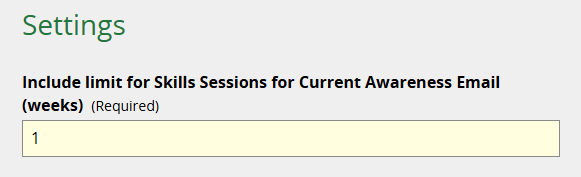
4. Enter the number of weeks’ of Forthcoming Skills Sessions you wish to include. The default value is 0 (no sessions will be included).
To add eg sessions that take place within the week following the Member receiving their Evidence Update email, enter: 1
Forthcoming Skills Sessions page
Sessions are visible and bookable via the Forthcoming Skills Sessions page for logged in users who are a) LKS staff or b) Members eligible to attend the session.
This may include Members at another LKS if you are sharing the Member's Organisation with that LKS.
If a session has attendance restrictions by organisation, department, or job role, it will only be shown to eligible users.
Only sessions set to Visible are included.
Downloading a list of sessions
You can download a list of all your Forthcoming Skills Sessions as a .csv file to view as a spreadsheet.
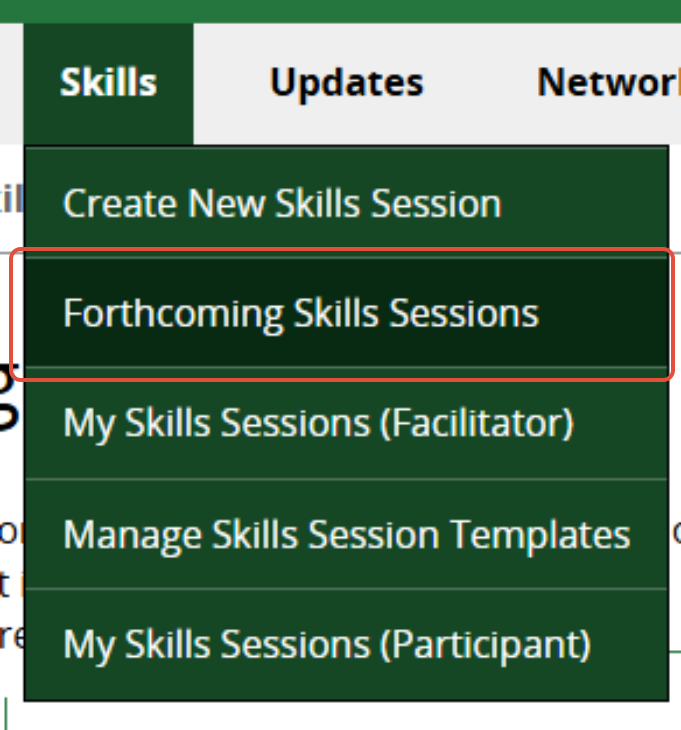
1. Click on Forthcoming Skills Sessions under the Skills menu.
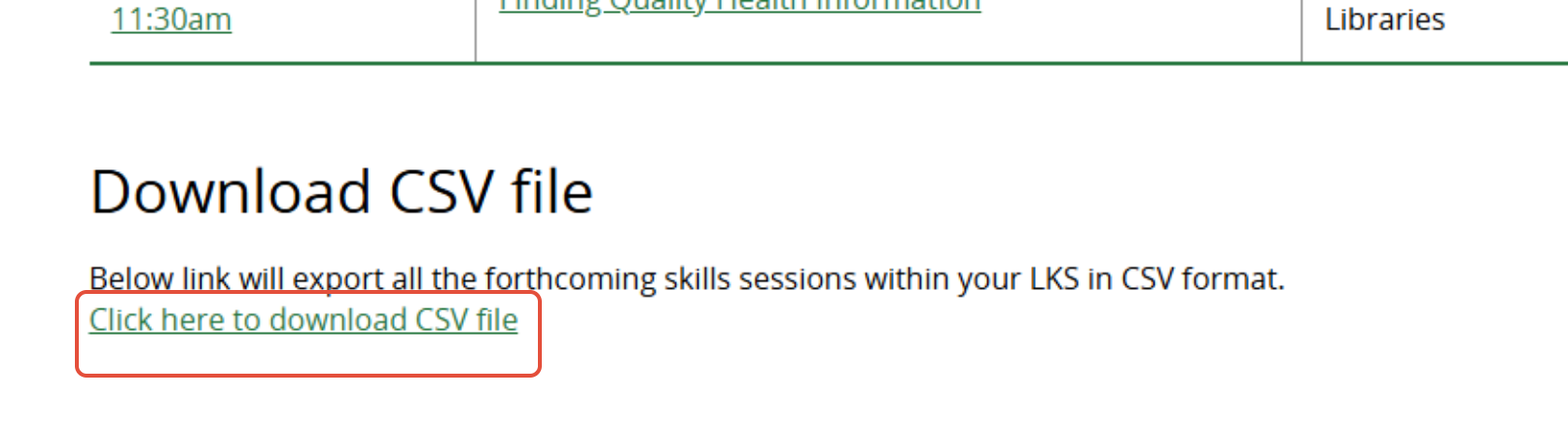
2. Scroll down to the bottom of the page.
3. Click to download.
Included columns:
- Name
- Description
- Leader
- Location
- Start Date/Time
- Duration
Sessions scheduled from the current day onwards are included. Nb the download does not take account of start time. If you download a file at 3pm on 19th July, sessions starting at 11am on 19th July will still be included.
Was this article helpful?
That’s Great!
Thank you for your feedback
Sorry! We couldn't be helpful
Thank you for your feedback
Feedback sent
We appreciate your effort and will try to fix the article