TABLE OF CONTENTS
- Viewing Members for whom you are the Assigned Librarian
- Email templates
- Emails pending
- Viewing emails pending
- Managing Evidence Updates when your member leaves
Viewing Members for whom you are the Assigned Librarian
Hold your cursor over Members and then click My Members
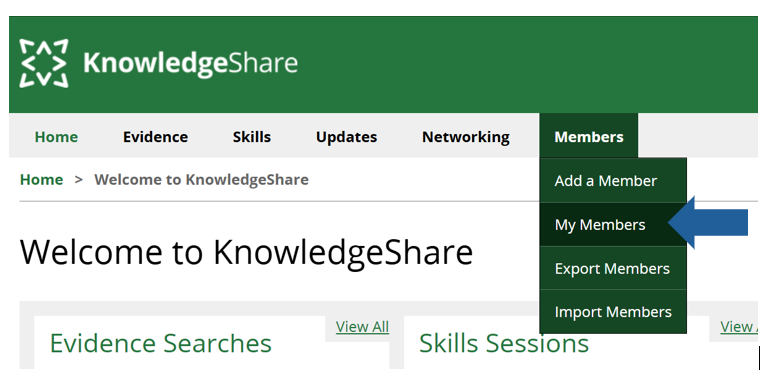
This shows a list of the Members for whom you are the Assigned Librarian providing Current Awareness. The list is ordered by surname.
Email templates
When KnowledgeShare system sends out emails to members, the body of the email is based on a template. The different types of email have different templates.
As Update emails appear to come from you as an Assigned Librarian, you can edit this template to make the emails more personal.
See: Personalising the email that accompanies evidence updates for your assigned members
Your team can also create a custom template that is used by all Assigned Librarians in your team (The local administrator in your team has the permissions to action this)
See: Creating a custom LKS email template for Evidence Updates from your library team
Emails pending
New resources matching a members interests will added to a pending email in the interval up until their next update is due. This will be released according to the frequency determined in their member profile.
Please note, when no matching resources are published within a particular interval, there will be no email pending for this member.
Viewing emails pending
The Emails for your Members and Emails for your Service pages display a list of emails due to be sent under Pending Emails, along with recent activity under Sent Emails.
The email list is ordered by the due date (earliest first) The activity dashboard above it displays the number Evidence Updates and Journal Alerts (Table of Contents) emails sent in the last 7 days and the last 24 hours:
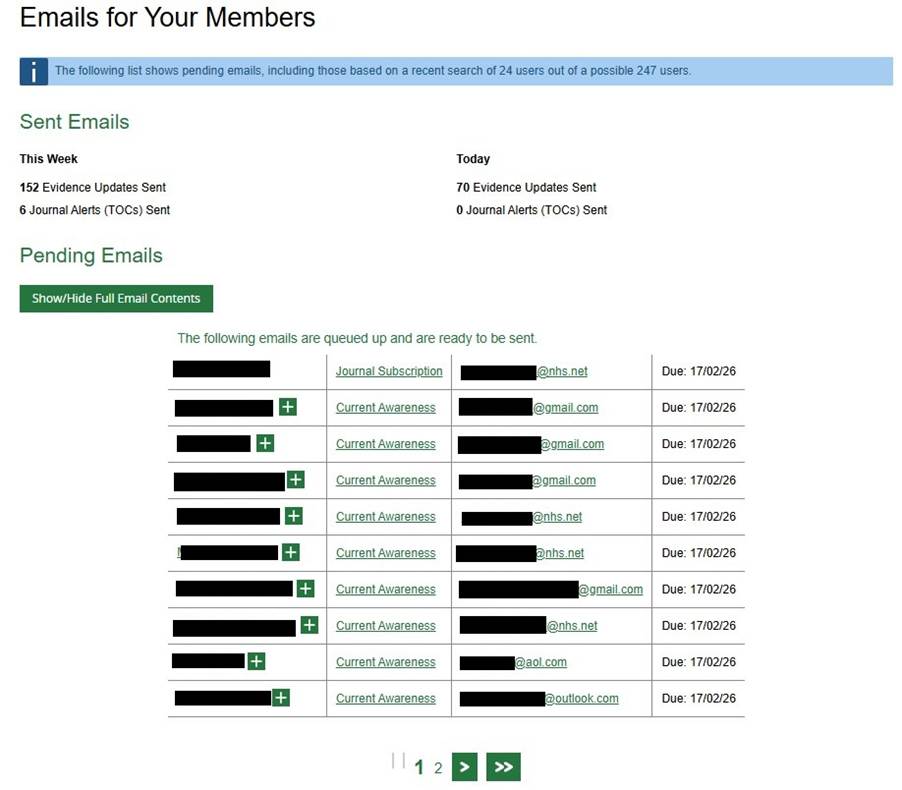
Note: This is a dynamic process and while the Current Awareness/ TOC emails are being sent, you may get unexpected results because emails are being added and removed at the same time.
Emails for your members
This page will list the pending emails for members for whom you are the Assigned Librarian. This list will show you a sample of the queue turnover, with imminent emails at the top.
To find emails for an individual member, see Find emails queuing for an individual member below.
To access the sample list, hold the cursor over Updates and then click Emails for your members
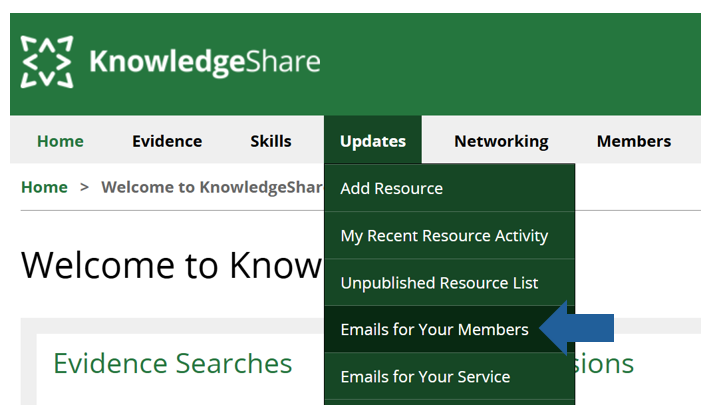
Clicking on this tab will provide a sample of your assigned members with emails pending imminently. This sample will consist of between 10-100 of your members.
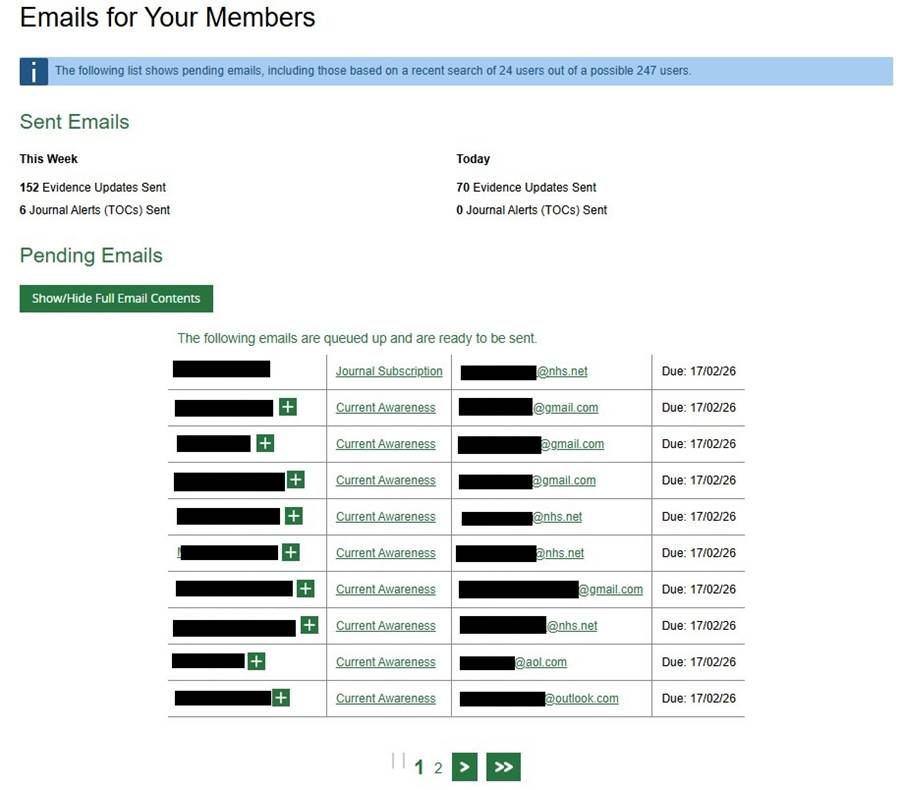
If you would like to search further, click the Find more emails button below. This will return up to 300 members with pending emails:

The blue banner at the top tells you how many members have been searched out of your total number of assigned members:

Viewing emails: To expand the view to show the contents of emails in this list, click the Show/Hide Full Email Contents button above the names:

You can also click on an individual name in the list to see the pending email for that member:

Emails for your service
The Emails for your service page link can only be seen by library staff with local LKS Admin permissions:
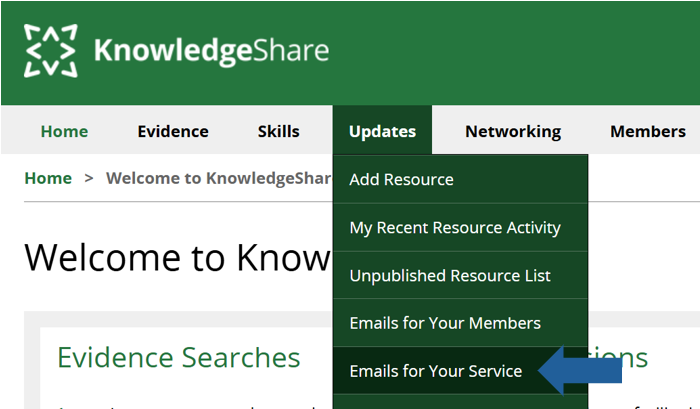
It lists the members of all Assigned Librarians in your team who have a pending Evidence Update email:
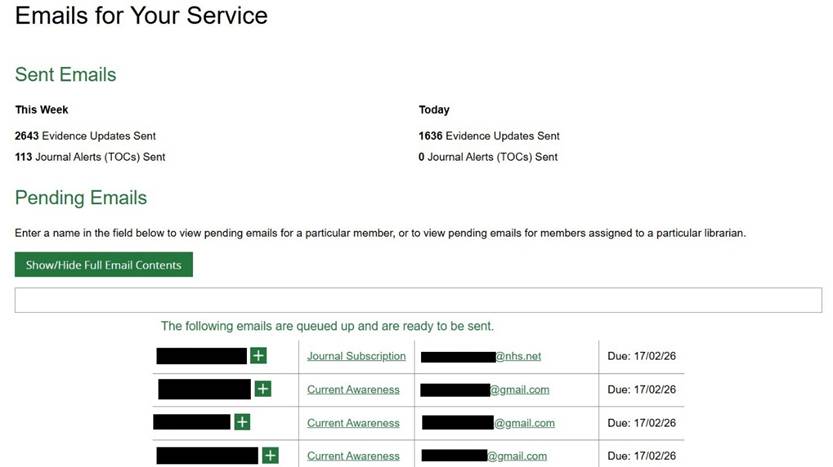
Find emails queued for an individual member
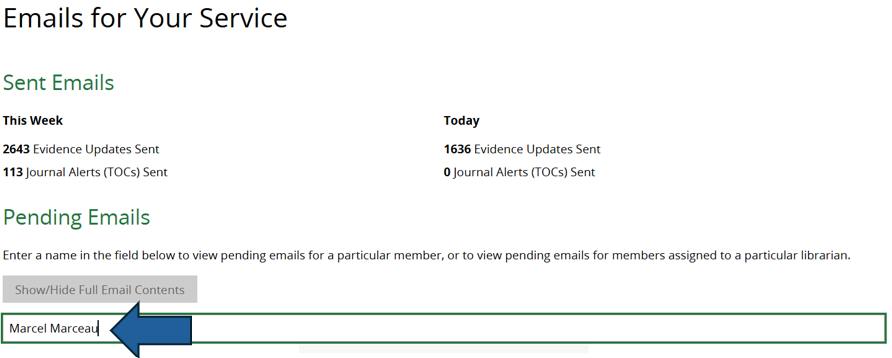
On the Emails for your service page enter the name of an individual member to see if they have any emails pending.
Note: Local LKS administrator permissions are required to do this - Please speak to the relevant member of your team if this is not you.
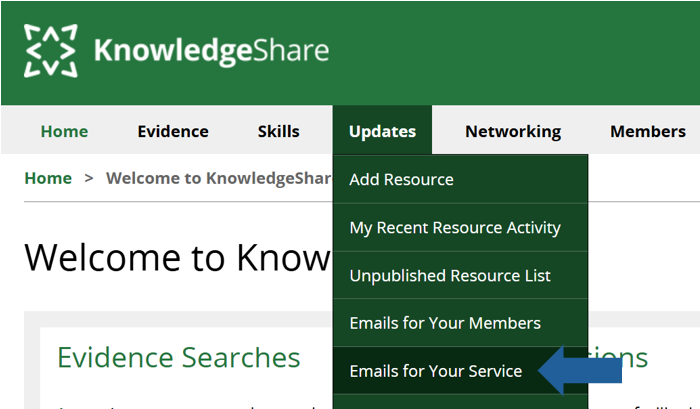
1. Hold the cursor over Updates and then click Emails for your service:
2. Use the search box to find your member and see any emails pending for them:
Managing Evidence Updates when your member leaves
See:
See:
Disable All E-mails for a Member
Temporary suspension for sabbaticals, maternity leave and other long-term leave periods
See also:
Member accounts: Unassigning versus deletion
Information Governance and Privacy Policy
Was this article helpful?
That’s Great!
Thank you for your feedback
Sorry! We couldn't be helpful
Thank you for your feedback
Feedback sent
We appreciate your effort and will try to fix the article