There are three settings on a Member record that affect how their emails from KnowledgeShare are addressed:
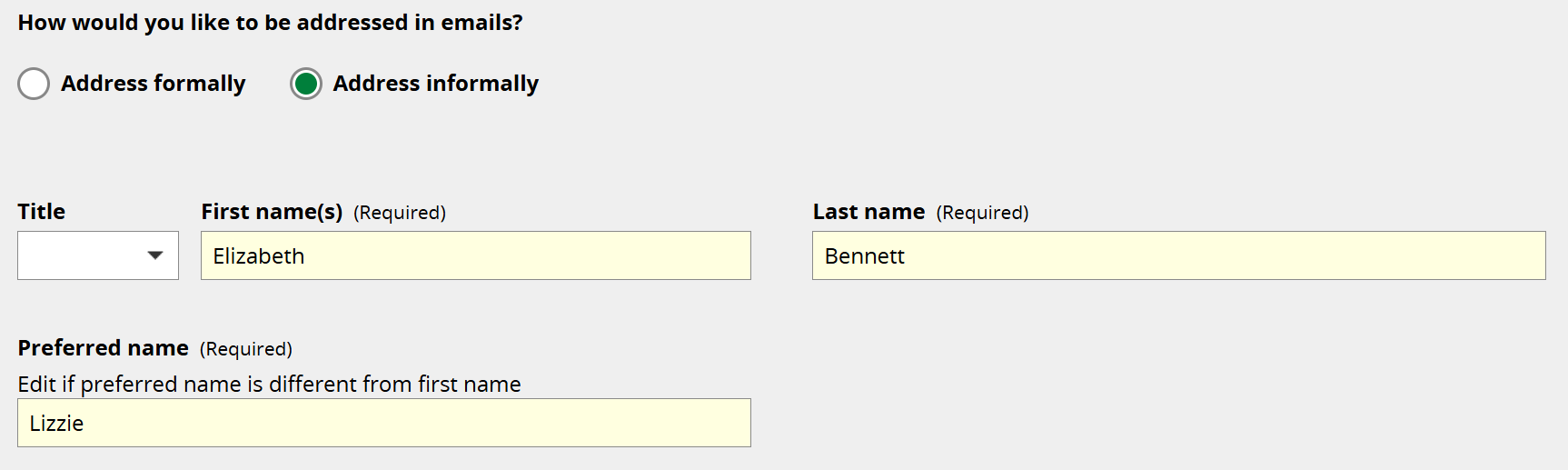
1. Address formally. If a Member likes to be addressed as e.g. 'Dr Smith' or 'Ms Patel', keep Address formally selected and choose their title from the dropdown options. (Default setting.)

2. Address informally. If a Member likes to be addressed by their first name, or has not provided a title, select Address informally.

3. Preferred name. If you have selected Address informally, you will also see the Preferred name field. This is populated with the first name by default. Edit this field if the Member likes to be addressed by an alternative or shortened name. For example, if a member is called Elizabeth but likes to be addressed as Lizzie, enter 'Lizzie' in the Preferred Name field. Her record will still show that Elizabeth is her first name, but her emails will be addressed to Lizzie.
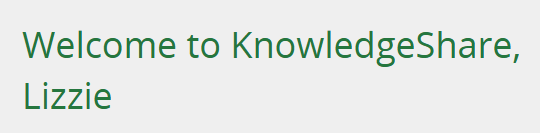
The Member's current form of address is displayed at the top of their personal information section, within the Welcome to KnowledgeShare message.
See also How do I use the mandatory Title field if the member's title is unknown?
Was this article helpful?
That’s Great!
Thank you for your feedback
Sorry! We couldn't be helpful
Thank you for your feedback
Feedback sent
We appreciate your effort and will try to fix the article