Before adding a new Member record, use the site search box or Advanced Search to see if they already have a record.

To avoid duplicate records, if the Member has an existing record at another library service you can request a transfer. See: How to transfer a Member from another Library and Knowledge Service
Jump to:
Add a new Member record
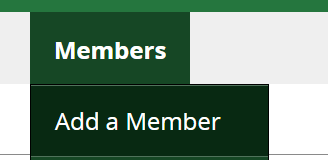
1. Hover over the Members menu and click Add a Member
2. Complete the fields. Fields with a yellow background and marked Required are mandatory, and the record will not save if any of these are missing. See below for full guidance on completing the fields.
3. On completion click Save. The Member will receive an automatic Welcome email. See: How does the automatic Welcome email work?
Member fields
User Information - Login Details

Access to KnowledgeShare for Members can be provided by manually adding the OpenAthens Username and Persistent User ID to their record. However, this is optional, and we now recommend leaving these fields blank.
Newly added Members can use the link in the Welcome email to access the system. Their OpenAthens Targeted ID is captured as part of the authentication process, which is a more secure identifier and is not visible on the Member record.
User Information - Personal Information
Profile picture: Optional Member feature
Title: Required field when Address formally is checked. Select from the dropdown options.

Optional field when Address informally is checked. Select from the dropdown options, or leave blank where a title is not used/not provided.

See also: How to change the way Members are addressed in emails
First name(s): Required field. Capitalise the initial letter.
Last name: Required field. Capitalise the initial letter.
Preferred name: Required field when Address informally is checked. Populated with first name by default. Edit this field if the Member uses a shortened or alternative name.

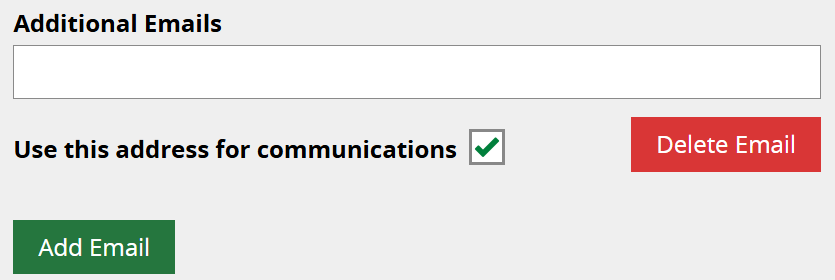
Email address: Required field. Each Member must have at least one email address in their KnowledgeShare record. The checkbox 'Use this address for communications' indicates that the system will use this email address to send Welcome emails, current awareness updates etc.

Additional Emails: Optional field. Members may provide a secondary/personal email address, and can receive communications to both or switch between them.
Phone number, LinkedIn, Twitter [X]: Optional fields. Leave blank for Member to complete if they choose.

Possible Matching Users
A pop-up screen showing possible existing users based on First name, Last name, and Email address may appear. This helps to prevent duplicate records. Clicking on a possible match will cancel the Add Member function and take you to
the selected record to update instead. Click Close to remove the pop-up screen.

Organisation and Role
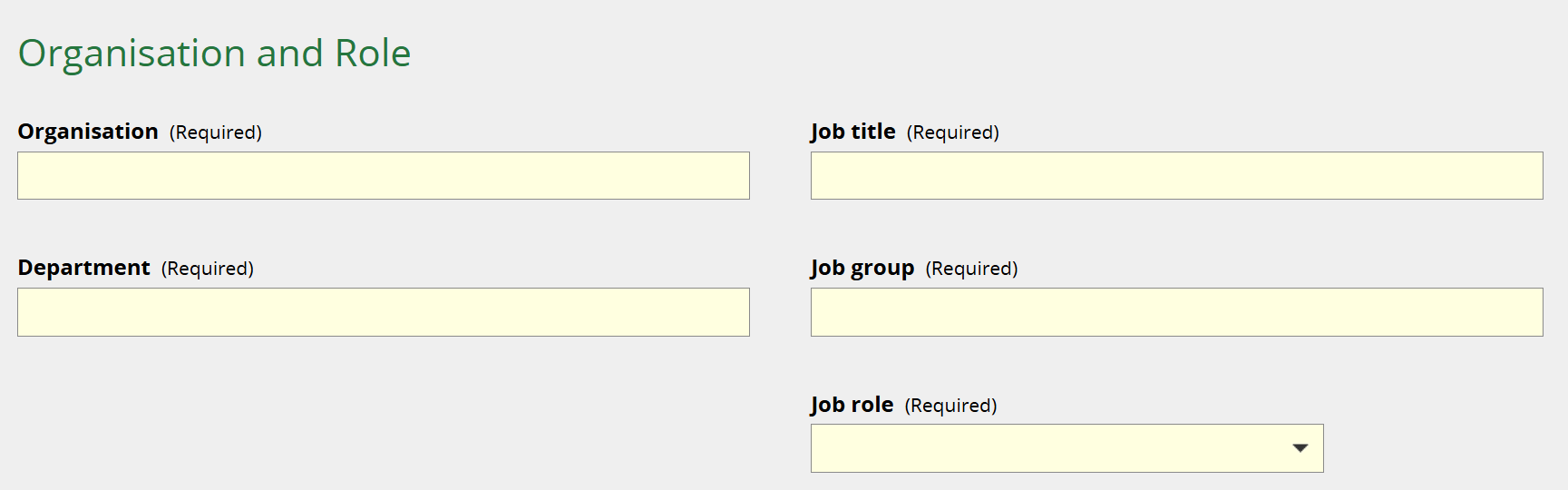
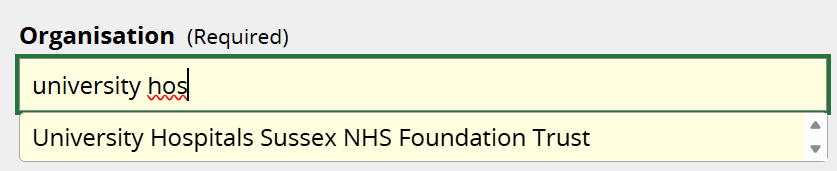
Organisation: Required field. Click into the box and select the correct Organisation from the full pull-down menu, or start typing and select from the matching options. If the Member's Organisation is not listed, contact your LKS Administrator or the KnowledgeShare team. Note: The Organisation in KnowledgeShare needs to match the Member's OpenAthens organisation so they can log in.
Job title: Required field, free text. Capitalise all initial letters and avoid abbreviations.

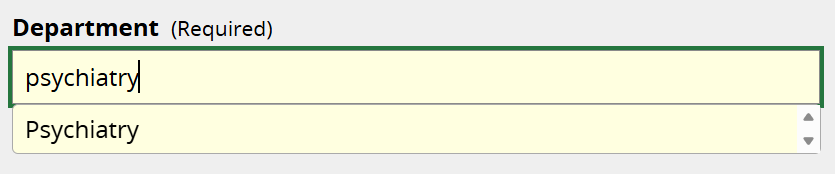
Department: Required field. Click into the box and select the correct Department from the full pull-down menu, or start typing and select from the matching options. If the Member's Department is not listed you can add free text BUT avoid creating variations of departments that already exist. Use official department names and avoid abbreviations. LKS Administrators can add new Departments to the master list. See: How do I edit organisations and departments?
Job group: Required field. Select the correct option from the drop-down list.

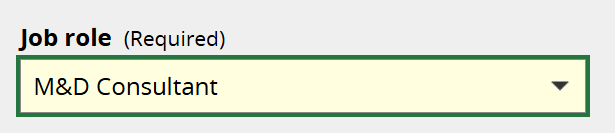
Job role: Required field. The drop-down options will change depending on the selected Job group above.
Address
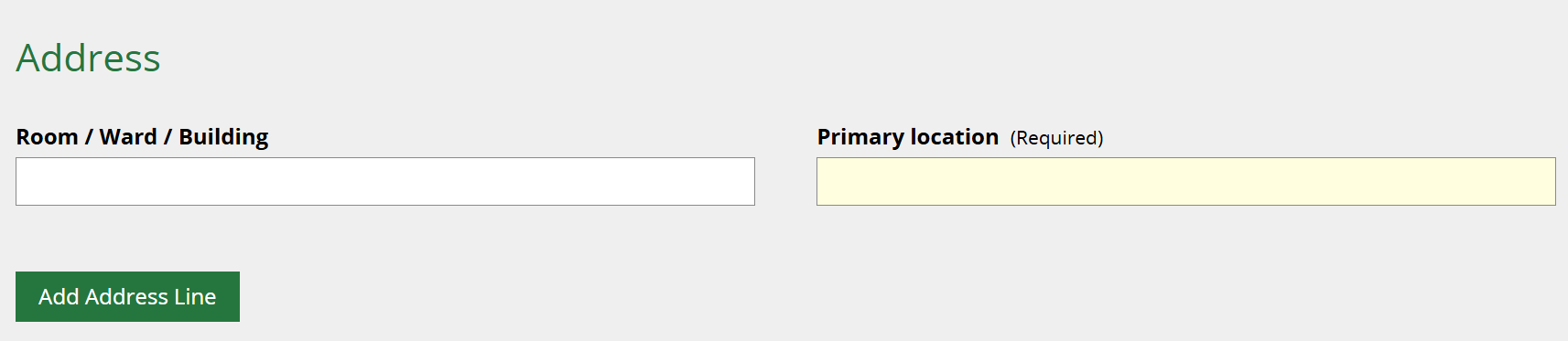
Primary location: Required field. Click into the box and select the correct site from the full pull-down menu, or start typing and select from the matching options. If the Member's site is not listed you can add free text BUT avoid creating variations of sites that already exist. Use official site names and avoid abbreviations. LKS Administrators can add new Sites to the master list. See: How do I edit organisations and departments?
Room / Ward / Building: Optional field. Address data for primary locations is already captured separately, but you can add specific room/ward/building details if helpful.
Library and Knowledge Service
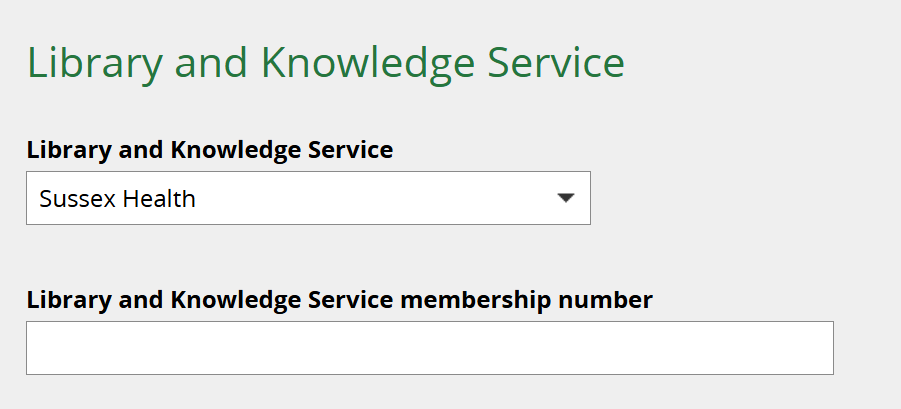
Library and Knowledge Service: Pre-selected field. This will match the Library and Knowledge Service of the member of staff adding the Member.
Library and Knowledge Service membership number: Optional field.
Privacy Settings
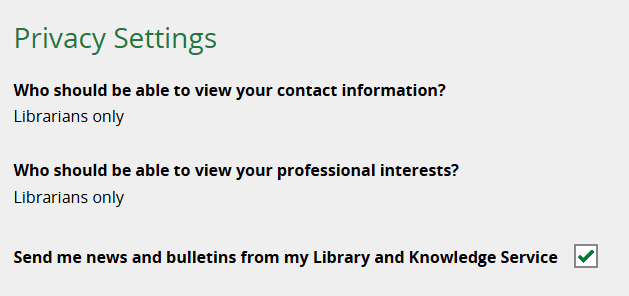
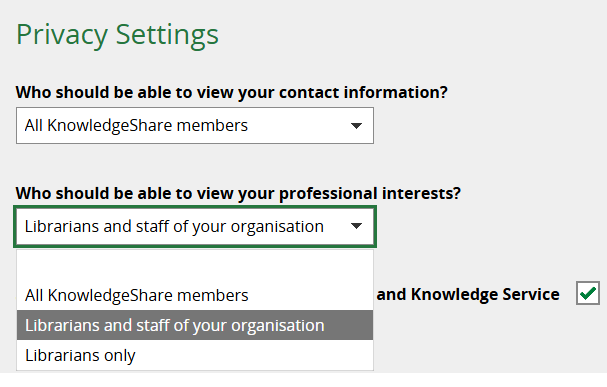
Who should be able to view your contact information: Pre-selected, default setting = Librarians only. This cannot be edited by LKS Staff.
Who should be able to view your professional interests: Pre-selected, default setting = Librarians only. This cannot be edited by LKS Staff.
'Librarians only' means that the Member’s contact details and professional interests are only shared with library staff at their own LKS. Members can edit these settings by logging in to KnowledgeShare. They have the option to share their contact information and/or professional interests with 'Librarians and staff of your organisation' or 'All KnowledgeShare members'.
Send me news and bulletins from my Library and Knowledge Service: ticked by default. This allows Members to receive Newsletters. Members can opt out by logging in to KnowledgeShare, or LKS staff can uncheck the box if the Member asks to stop receiving Newsletters and doesn't want to log in.

Next steps
To set up the Member to receive evidence updates, choose and register professional interests from the dropdown options, then click Save.
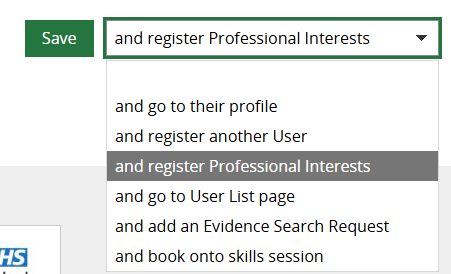
The Professional Interests page will load, and staff who have been trained on categorising Members should complete the categories and select an Assigned Librarian.
Was this article helpful?
That’s Great!
Thank you for your feedback
Sorry! We couldn't be helpful
Thank you for your feedback
Feedback sent
We appreciate your effort and will try to fix the article