The Manage Member Sets page shows which of your staff are Assigned Librarians and the number of Members they provide evidence updates/journal alerts for.
Staff with LKS Administrator permissions can move Members from one assigned librarian to another on this page, either temporarily or permanently.
CONTENTS
View Member Sets
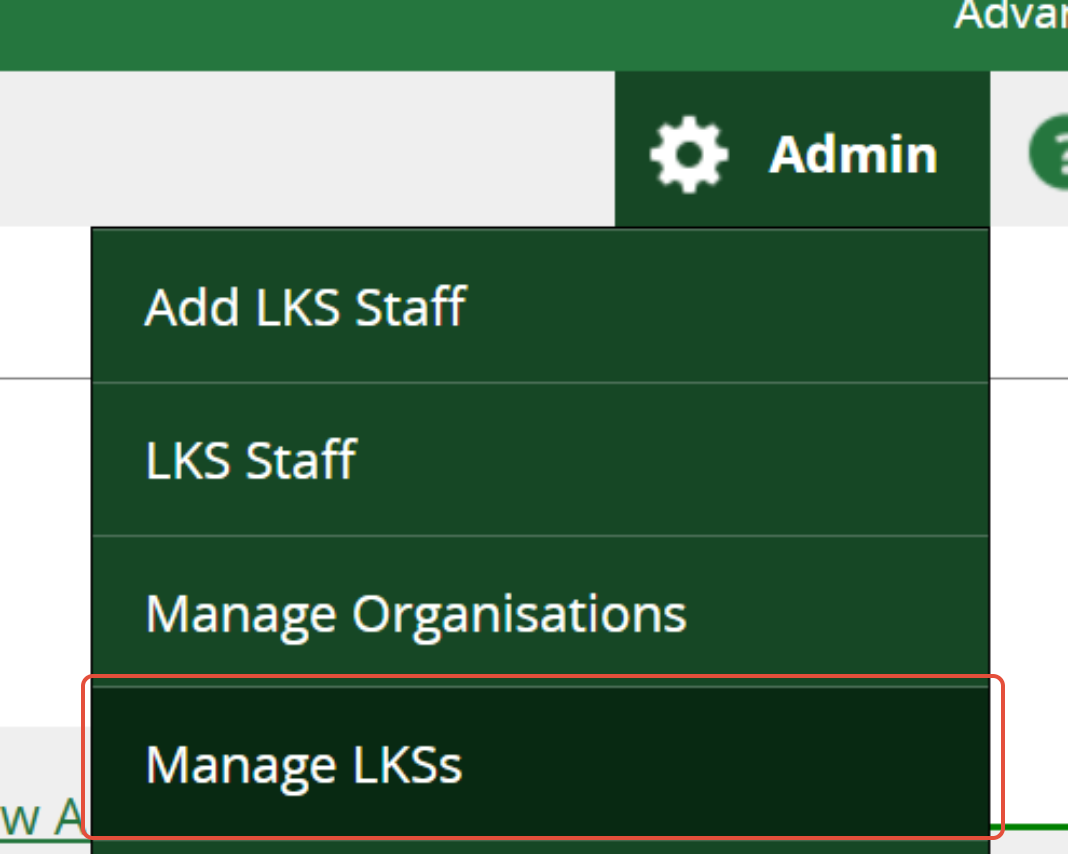
1. Under the Admin menu cog, click on Manage LKSs.
2. Select your LKS from the list.
3. Scroll to the LKS Links section at the bottom of the Edit LKS page.
4. Click on Manage Member Sets.
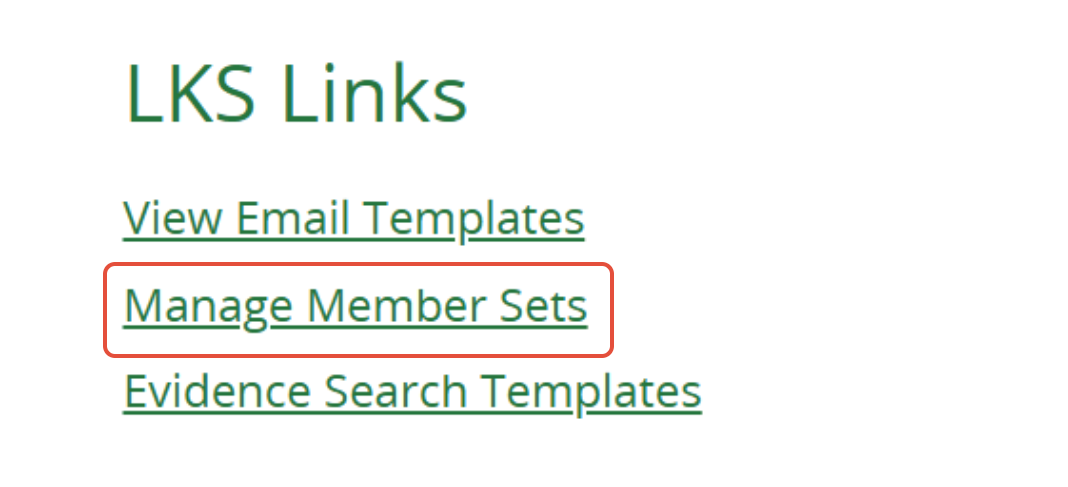
A table shows which of your staff are Assigned Librarians and the number of members they provide evidence updates for.
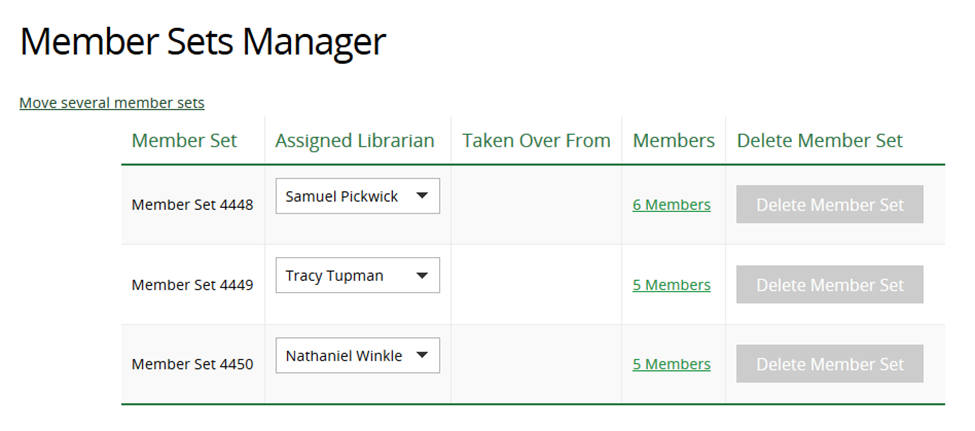
5. Click on the link in the Members column to view all Members in that set.
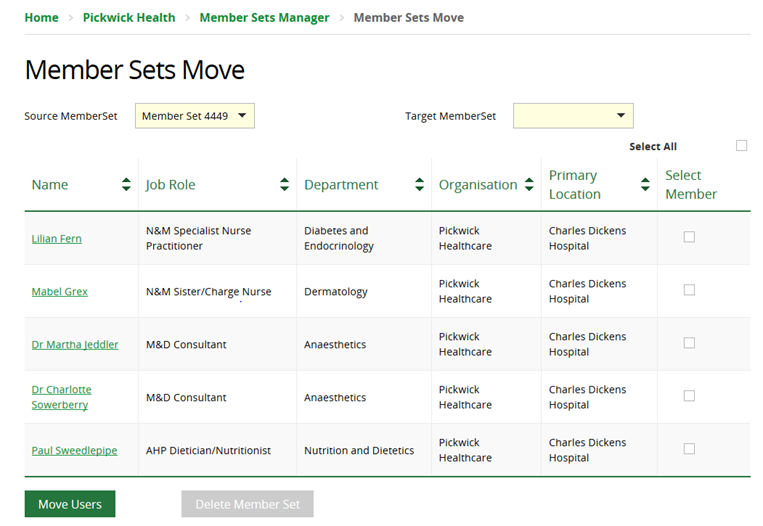
6. Click on a column header to sort by Name, Job Role, Department, Organisation or Primary Location.
Move Member Sets
The Move Member Sets option will move members in a set from one assigned librarian to another. The individual members are permanently merged into the new assigned librarian's existing set and are NOT kept as a separate group.
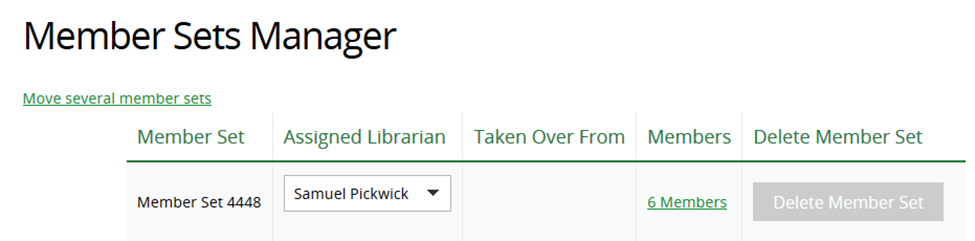
1. Make a note of the set number of the Assigned Librarian you would like to move the members to. In the screen shot below: Samuel Pickwick = Member Set 4448.
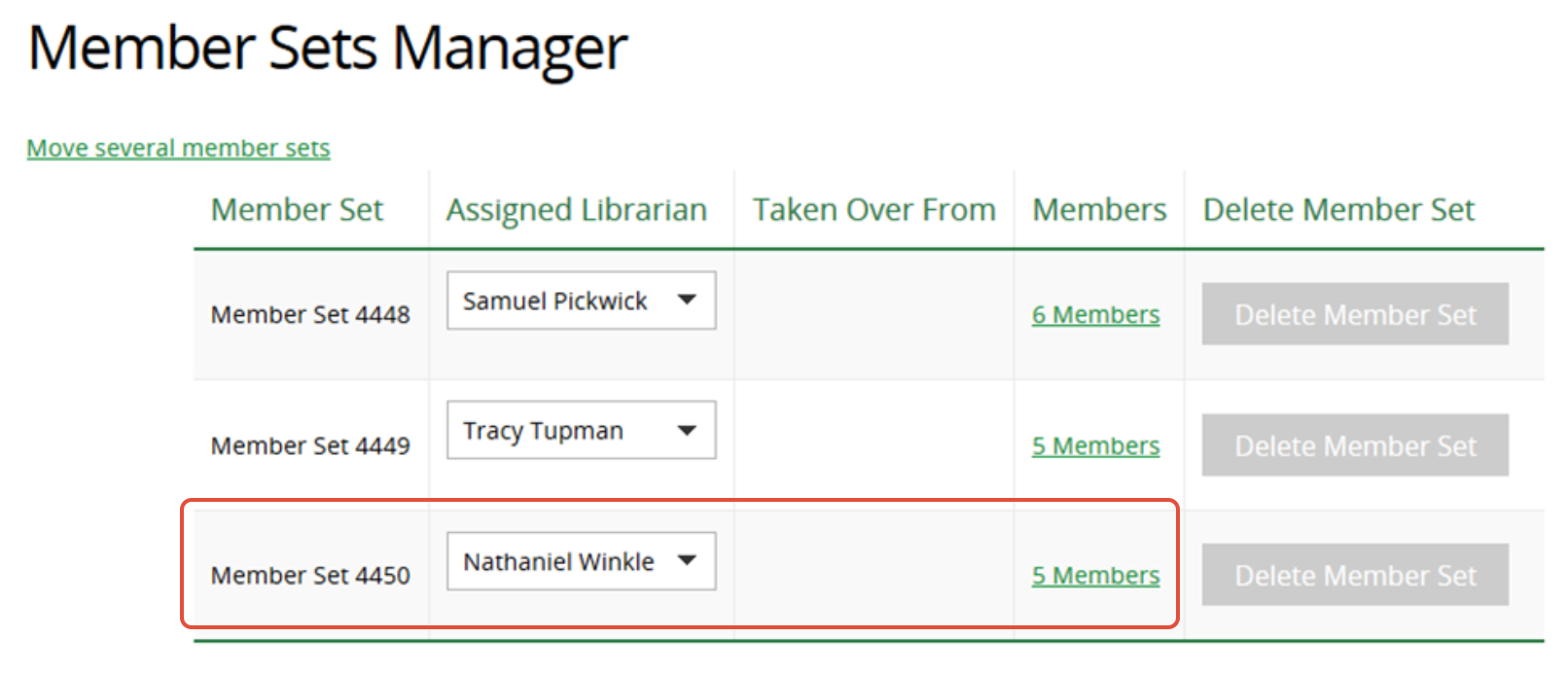
2. Click on link in the Members column of the Assigned Librarian you want to move the Member from. In the screen shot below: Nathaniel Winkle.
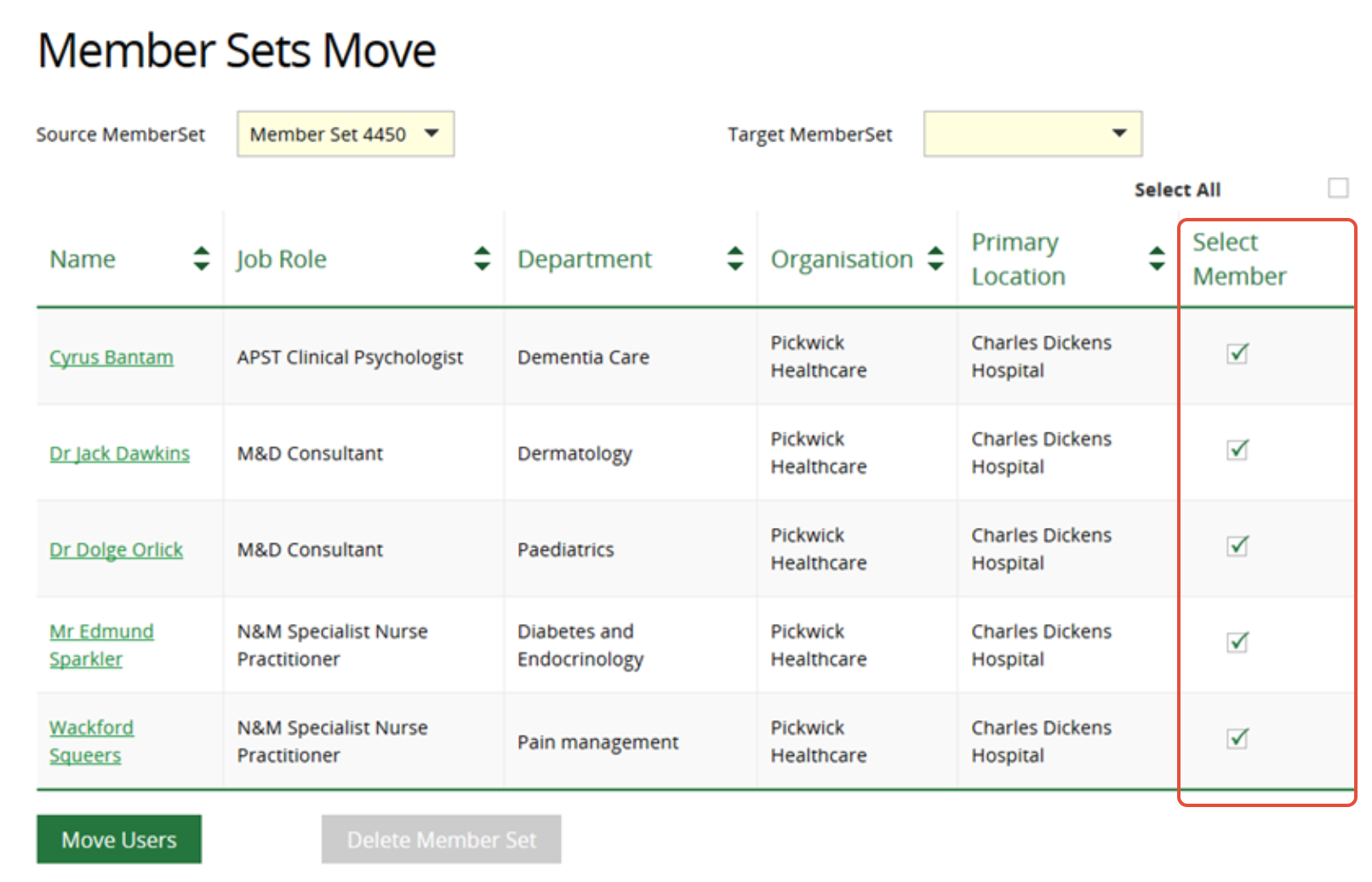
3. Use the checkbox against individual members, or the Select all checkbox, to select the members you want to move.
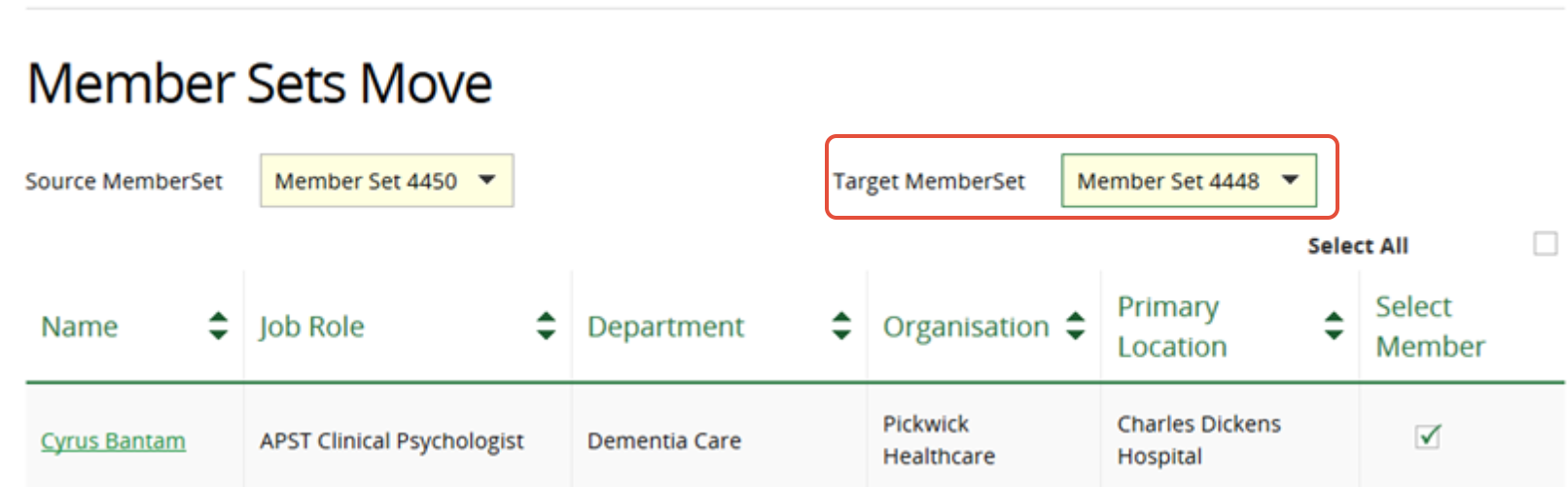
4. Select the Member Set of the Assigned Librarian you wish to move the members to, using the Target Member Set dropdown menu.
5. Click Move Users
The Target Member Set will now contain all the members that were selected to be moved.
Take over a Member Set
The Taken Over From option will temporarily move all members in a set from one assigned librarian to another. The members are kept as a separate group, so they can be moved back if a member of staff returns from eg parental leave, or a vacant librarian post is filled.
1. Click on the dropdown menu in the Assigned Librarian column of the Librarian whose set of members you wish another team member to take over. In the screenshot below: Nathaniel Winkle.
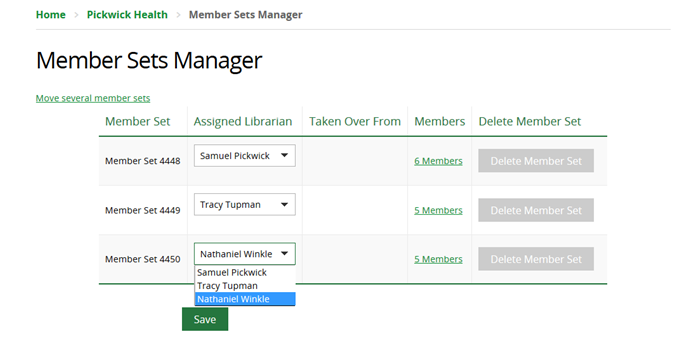
2. Select the name of the Assigned Librarian to take over the set. In the screenshot below: Tracy Tupman.
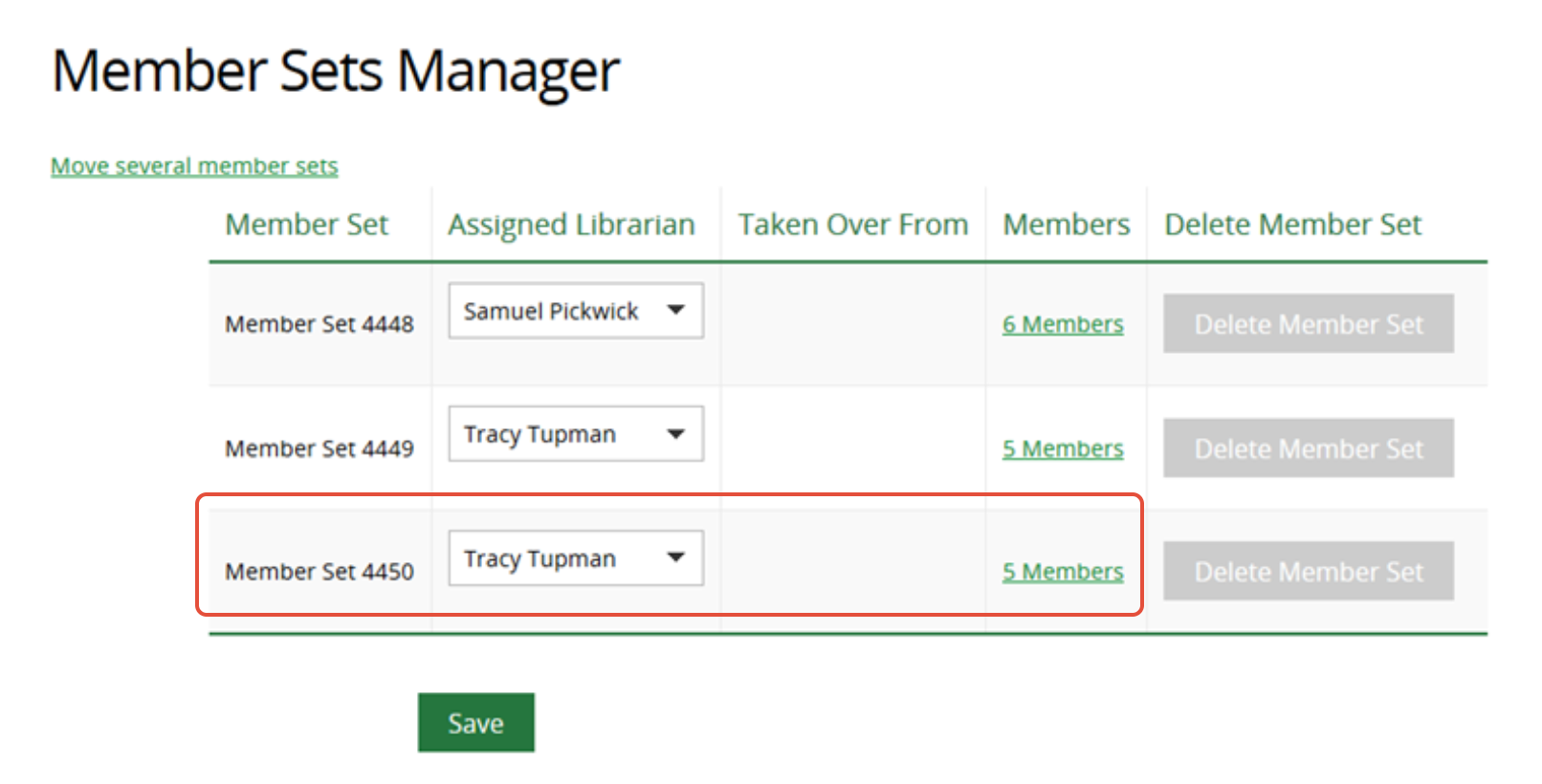
3. Click Save
The Member Sets Manager page will show who is the temporary Assigned Librarian for the set of members and who they have Taken Over From.
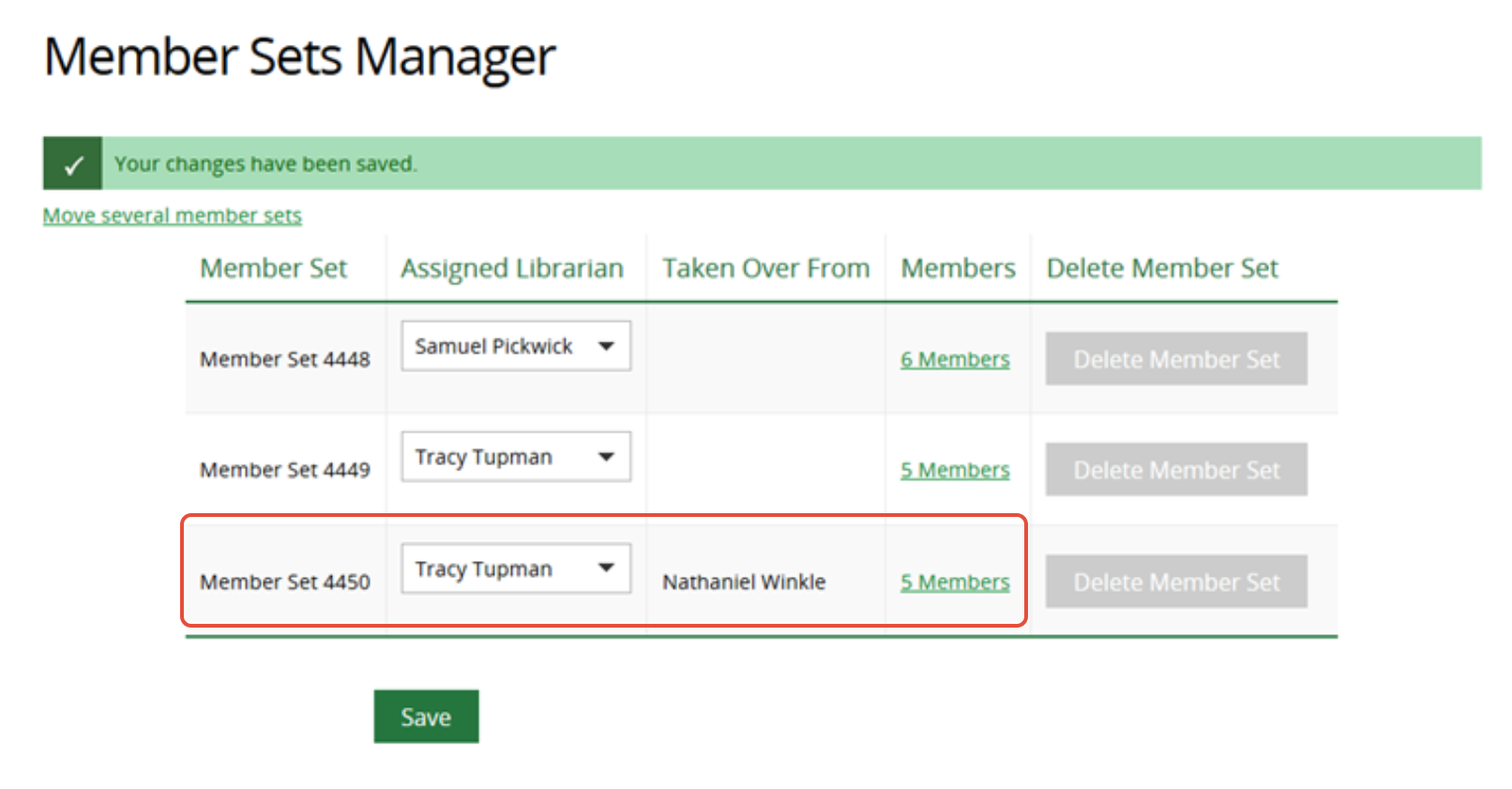
Note: The Member record will still show the original staff member as the Assigned Librarian.
The email footer on update emails sent to Members in the taken over set will include the following message: 'Please note that I have taken over from your usual contact Nathaniel Winkle. Do let me know if I can be of any help.'
Remember to reinstate the previous librarian OR permanently merge the Members into a different set as soon as this is possible. To move Members permanently, see instructions above.
If a new member of staff has joined and does not yet have a Member Set, you will need to create their set by manually assigning at least one individual Member to them, from the Member's professional interests page.
Was this article helpful?
That’s Great!
Thank you for your feedback
Sorry! We couldn't be helpful
Thank you for your feedback
Feedback sent
We appreciate your effort and will try to fix the article